39
v1.01
M215SC User Manual Using the phone
Call forwarding
The phone can be set to forward incoming calls, either always or when busy or when the phone is not answered.
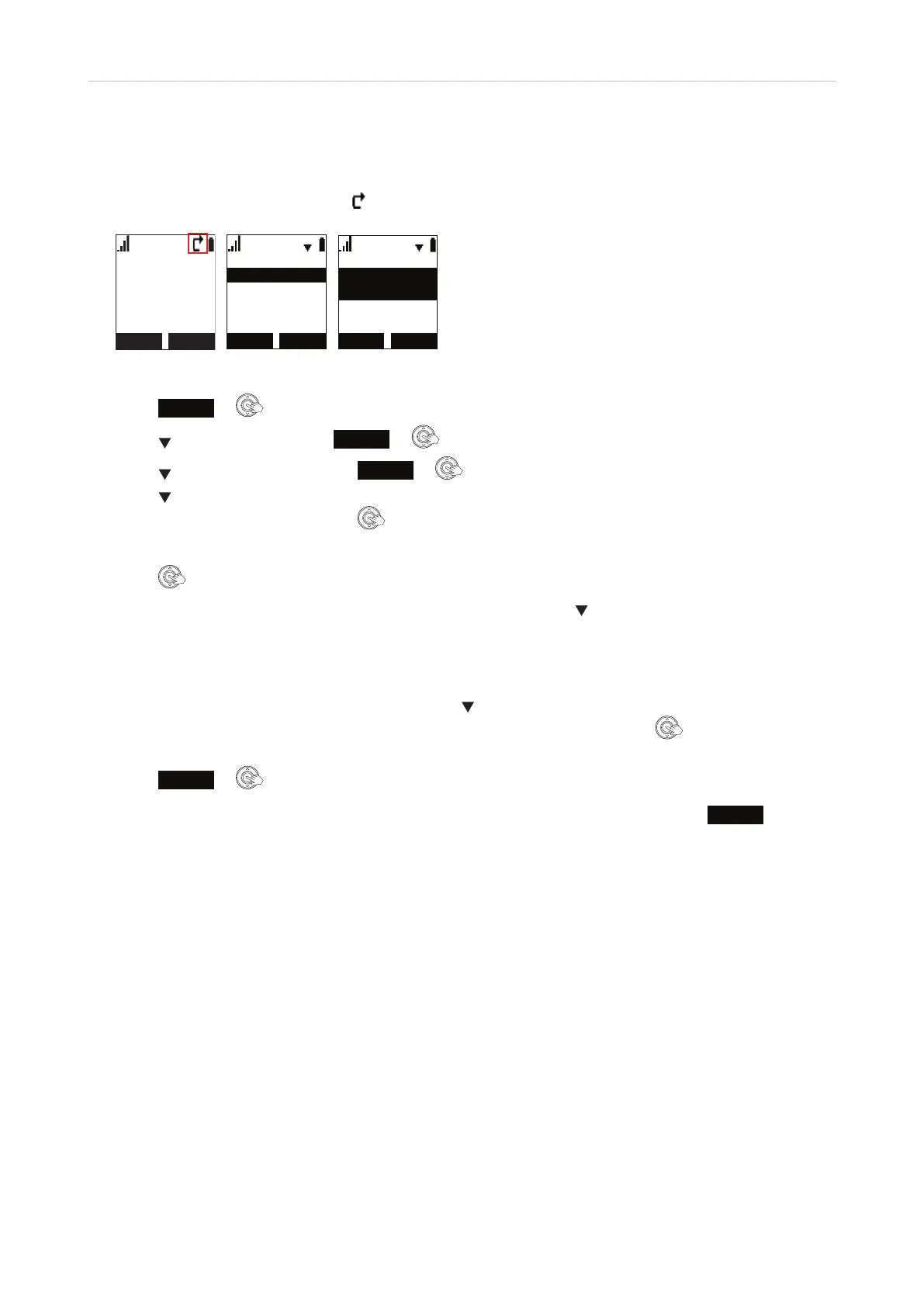
When call forwarding is on, the symbol
is displayed on the idle screen (Fig. 1).
LINE MENU
11:26PM 01/01
HANDSET 1
/LQH
1RDQVZHU
%XV\
$OZD\V
$OZD\V
3KRQHQXPEHU
$OZD\V
2Q
Fig. 1 Fig. 2 Fig. 3
1. Press
MENU
or .
2. Scroll
to "Features" and press
ENTER
or .
3. Scroll
to "Call forward" and press
ENTER
or .
4. Scroll
to the line/account whose setting you want to change. With the line/account and its current
setting (o or on) highlighted, press
.
5. Select the forwarding condition (Fig. 2).
6. Press
to change the setting from o to on and vice versa (Fig. 3).
7. If a phone number has not been set or if you want to change it, scroll
down to it and enter or edit the
number.
◦ If you had selected the conditions "always" and "busy", skip step 8 and continue with step 9.
◦ If you had selected the condition "no answer", continue with step 8.
8. If you had selected the condition "no answer", scroll
down to "No ans. delay". The default is six rings
before the call will be forwarded. The available settings are 1 to 10 rings. Press
to increase the rings
one at a time until 10 and then back to 1.
9. Press
SET
or to save and return to the "Features" menu.
Note: If you have turned on call forwarding on busy and call waiting is also on, press
REJECT
to
send the call waiting to the "busy" forwarding number.


 To Next Page