47
v1.01
M215SC User Manual Configuring the handset
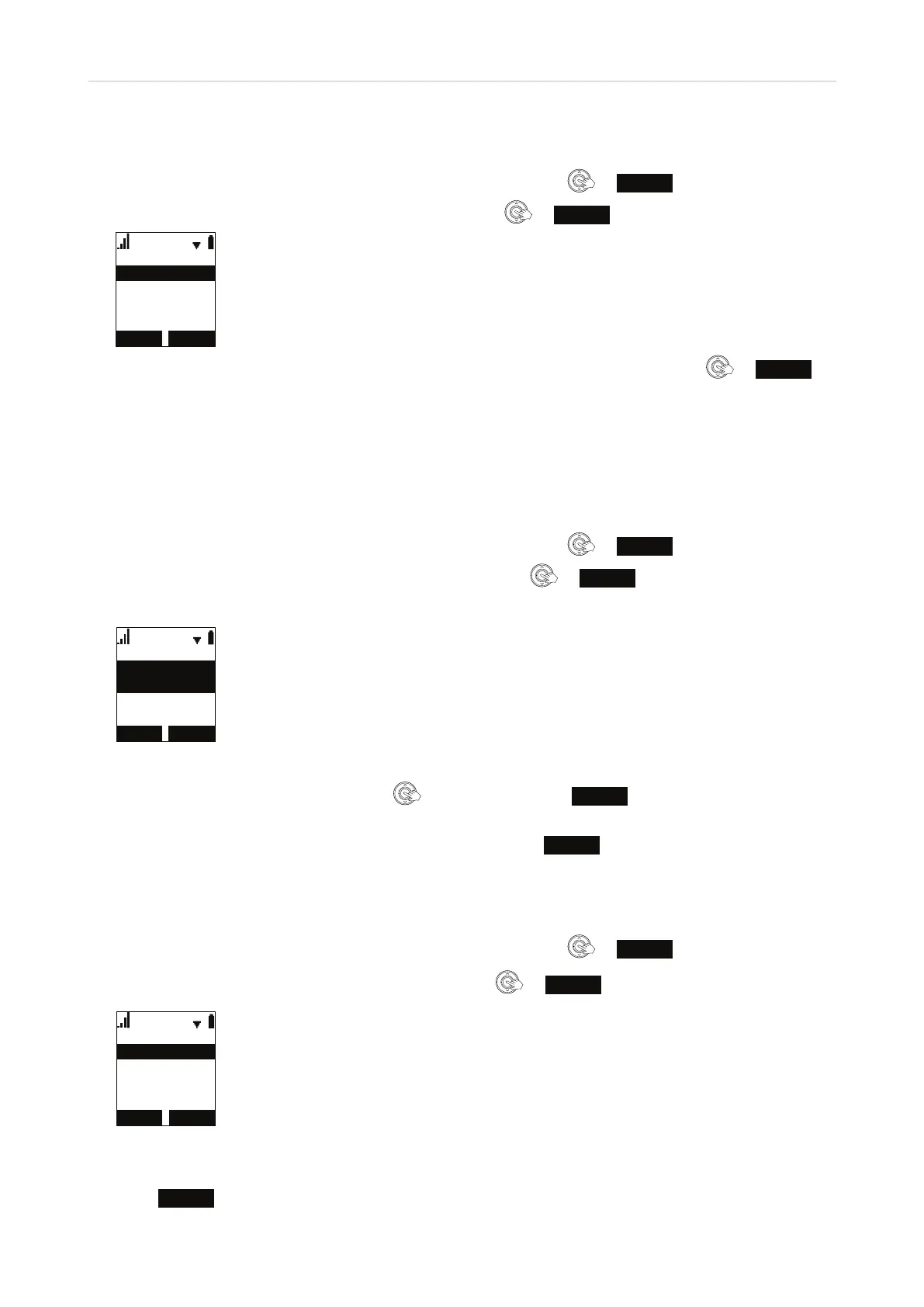
Language
1. In the Main Menu of the handset, scroll to "User settings" and press
or
ENTER
.
2. In the User settings menu, scroll to "Language" and press
or
ENTER
.
/DQJXDJH
(VSDxRO
)UDQoDLV
(QJOLVK
3. In the Language menu, highlight the language you want to use on the handset and press or
SET
to
save and return to the user settings menu.
Date/time
In this menu, you can set the date and time and the formats for displaying them on the handset. If your system
uses a time server, setting the date and time should normally not be necessary. The default formats are DD/
MM/YYYY (day/month/year) and 24-hour clock.
1. In the Main Menu of the handset, scroll to "User settings" and press
or
ENTER
.
2. In the User settings menu, scroll to "Set date/time" and press
or
ENTER
.
3. In the Set Date/Time menu, highlight the item you want to change or edit.
6HW'DWH7LPH
6HWGDWH
)RUPDW
00''<<<<
%$&. 6(7
4. Settings.
◦ Changing date or time format: Press
to change, then press
SET
to save and return to Set
Date/Time menu.
◦ Editing date or the time: Use the keypad to edit, then press
SET
to save and return to Set Date/
Time menu.
Contrast
1. In the Main Menu of the handset, scroll to "User settings" and press
or
ENTER
.
2. In the User settings menu, scroll to "Contrast" and press
or
ENTER
.
/HYHO
&RQWUDVW
/HYHO
/HYHO
/HYHO
3. The default level is 4. If you want the display to be brighter, highlight a lower level; if you want the display
to be darker, highlight a higher level.
4. Press
SET
to save and to return to the user settings menu.


 To Next Page