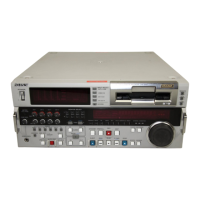
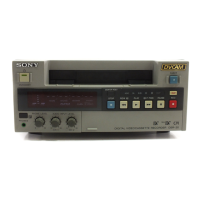
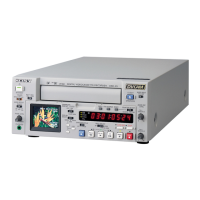
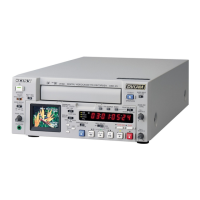
1-1. DSR-2000
Location and Function of Parts
Chapter 1 Overview
32
Chapter 1 Overview
2 AUDIO IN LEVEL/600Ω switches
Set these switches for each channel as shown in the
following table, according to the audio input levels to
the AUDIO IN CH-1 to CH-4 connectors and the
impedance.
Settings of the AUDIO IN LEVEL/600Ω switches
3 MONITOR AUDIO connector (RCA phono
jack)
This connector outputs audio signals for monitoring.
The audio signals to be output from this connector can
be selected with the MONITOR SELECT buttons on
the lower control panel.
4 AUDIO IN CH-1 (channel 1) to CH-4 connectors
(XLR 3-pin, female)
Use these connectors to connect separate channels of
audio input from a player VCR or other external audio
equipment.
5 AUDIO OUT CH-1 (channel 1) to CH-4
connectors (XLR 3-pin, male)
These connectors output channel-1 to channel-4 audio
signals, respectively.
In 2-channel audio recording mode (selected with
extended menu item 818), it is possible to use the
AUDIO OUT CH-3 and AUDIO OUT CH-4
connectors for monitor audio output for channels 1 and
2, respectively (use extended menu item 820).
Audio input
Switch setting
Level Impedance
−60dBs
(microphone input)
High impedance
(about 20kΩ)
LOW-OFF
(left position)
+4dBs/0dBs/−6dBs
(line audio input)
High impedance
(about 20kΩ)
HIGH-OFF
(middle position)
+4dBm/0dBm/−6dBm
(line audio input)
600Ω HIGH-ON
(right position)
Chapter 1 Overview
Chapter 1 Overview
33
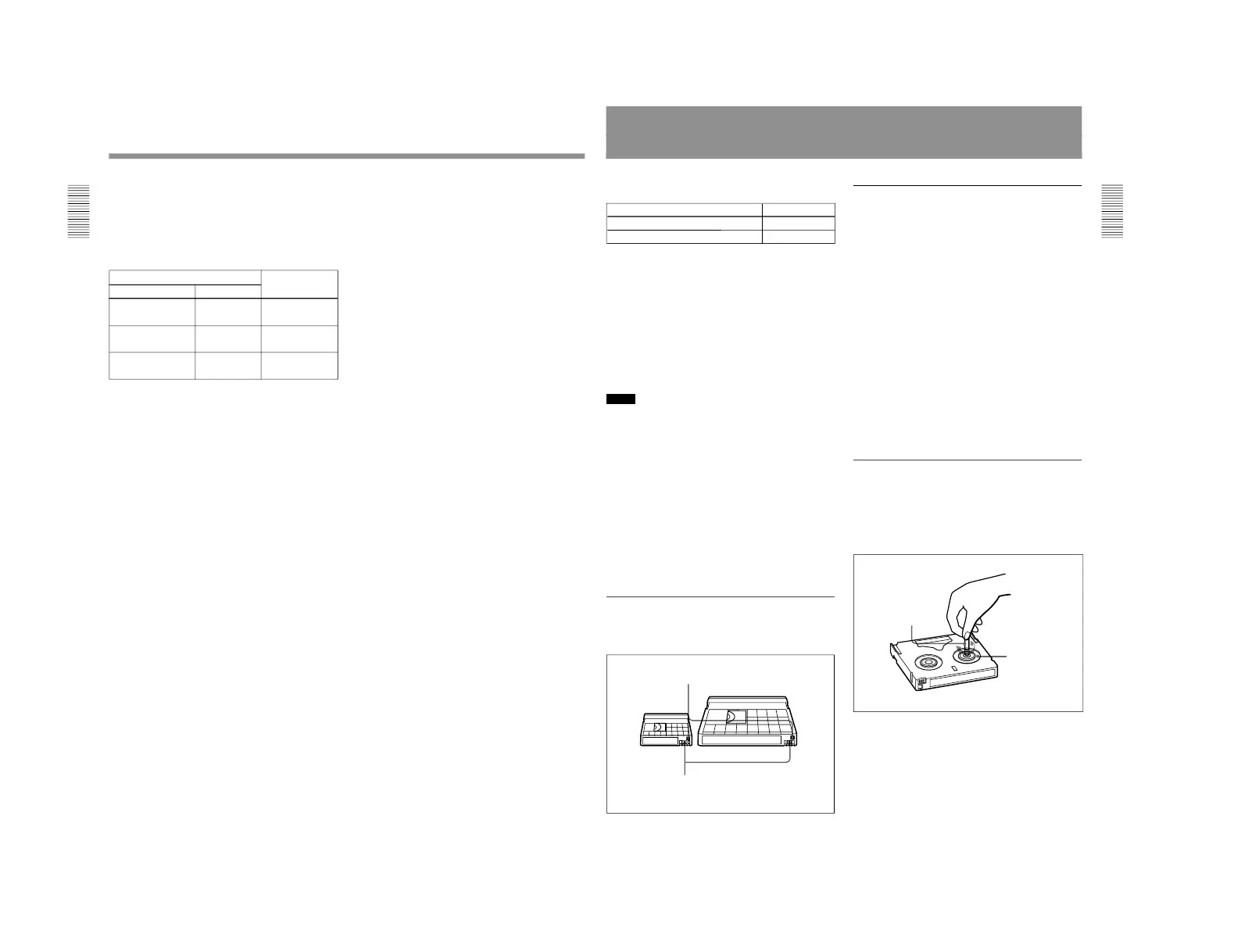
Usable Cassettes
This unit can use the DVCAM cassettes listed below.
The * in each model name is actually
“ME”
(indicating that a cassette memory is contained), or
“N” (indicating that no cassette memory is contained).
The numbers in each model name indicate the
maximum recording/playback time (in minutes) for
each model. For example, the PDV-184ME has a
maximum recording/playback time of 184 minutes.
Cassettes usable for playback only
L- and M-size DVCPRO (25M) cassettes are usable
for playback only.
Notes
•If you insert an incorrect type of cassette, it will be
automatically ejected.
•When operating this unit as a player, you can also use
DV cassettes on the unit. However, it is the best
choice to always use DVCAM cassettes because they
are more reliable than DV cassettes whatever your
purpose may be: playback, editing, or long-period
storage of recordings.
•Cassettes that have been recorded by a DV-format
recorder can be played back on this unit but cannot be
used for recording at editing operation such as the
setting of edit points. When you insert such a
cassette into this unit, the NOT EDITABLE indicator
lights up in the lower control panel display section.
DVCAM cassettes
The following figure illustrates the DVCAM cassette
’s
appearance.
Model name Size
PDV-64*/94*/124*/184*/34* Standard size
PDVM-12*/22*/32*/40* Mini size
Mini size
Cassette memory
This memory is used to store ClipLink log data.
For details of ClipLink log data, see the
appendix “ClipLink Guide”
(page 147)
.
REC/SAVE switch
For details of this switch, see
“Preventing
accidental erasure
”
(page 34)
.
Standard size
Notes on using cassettes
•Before storing the cassette, rewind the tape to the
beginning and be sure to put the cassette in its storage
case, preferably on end instead of flat on its side. The
storage case of a DVCAM cassette is specially
designed to ensure a long-period storage of the tape.
Storing a cassette in any other condition (not
rewound, out of its case, etc.) may cause the video
and audio contents to become damaged over time.
•If the cassette memory connector (contact point)
becomes dirty, connection problems may occur,
causing a loss of functions. Remove any dust or dirt
from this area before using the cassette.
•If the cassette is dropped on the floor or otherwise
receives a hard impact, the tape may become
slackened and may not record and/or play back
correctly.
For information about how to check the tape for slack, see
the next section.
Checking the tape for slack
Using a paper clip or a similar object, turn the reel
gently in the direction shown by the arrow. If the reel
does not move, there is no slack. Insert the cassette
into the cassette compartment, and after about 10
seconds take it out.
Reel
Paper clip, etc.



 To Next Page