1-1. DSR-2000
Chapter 4 Editing
74
Chapter 4 Editing
5
Repeat steps 2 through 4 to set the required edit points.
As each edit point is set, the corresponding button changes from
flashing to continuously lit.
Note
During split editing, if you set six or more edit points for the recorder and
player, the DELETE button starts to flash, to indicate that editing cannot
be executed. Delete all excess edit points, using the DELETE button.
For details of deleting edit points, see the section
“To delete an edit point
” (page
77).
Automatic setting of edit points in split editing
Split editing requires a total of eight edit points: four video edit points
(player IN and OUT and recorder IN and OUT) and four audio edit points
(player audio IN and OUT and recorder audio IN and OUT). However, as
soon as you set five points, the system automatically calculates and sets the
remaining three points. Specifically, once you have set three of the four
video edit points and two audio edit points, the remaining three edit points
are set automatically, regardless of whether these points are for the
recorder or player.
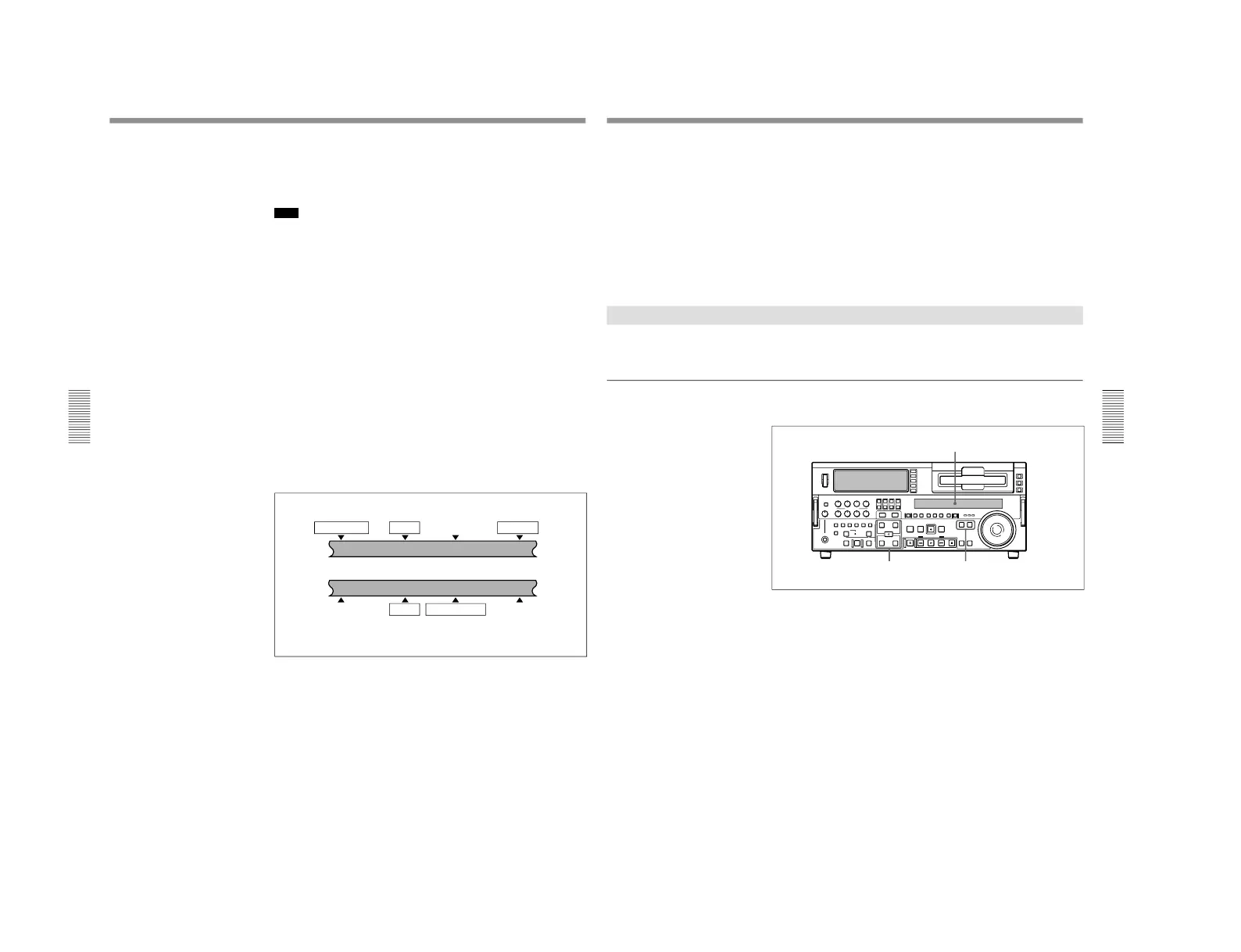
In the figure below, the edit points shown within boxes are already set. The
other edit points (recorder audio OUT point, and player audio IN and video
OUT points) are set automatically.
Note that, regardless of whether it was set manually or automatically, any
edit point can be deleted or corrected later.
You can set audio cut in, crossfade, fade in, and fade out effects using extended
menu item 317.
Recorder
Audio IN point IN point
Audio OUT point OUT point
Player
Audio IN point IN point
Audio OUT point
OUT point
Automatic Editing
Chapter 4 Editing
Chapter 4 Editing
75
When the audio IN point is not set for insert editing of audio
only
As long as the audio OUT point is set, the VCR is ready for preview or
editing. If the audio IN point has not been set, the current tape position is
automatically used as the audio IN point.
Using a VCR without a split editing function as the player
If it is not possible to set separate audio and video edit points on the VCR
you are using as the player, by setting the audio IN and OUT points on the
recorder (this unit), then setting three video edit points, split editing is
possible.
Checking Edit Points
You can check the time value for an edit point and the duration between
two edit points by displaying them in the display section.
To display the time value for an edit point
Use the following procedure.
1
Press the RECORDER button or PLAYER button to select the VCR on
which you wish to check the edit point.
The button you have pressed lights.
2
Hold down the IN, OUT, AUDIO IN, or AUDIO OUT button
according to the edit point you wish to check.
While you hold down the button, the time value of the edit point is
shown in the display section.



 To Next Page