39
Seven Basic Operations — Getting to Know Your DVD (digital video disc) Recorder
5. Changing the Name of a
Recorded Program
You can label a DVD (digital video disc), title, or
program by entering characters. You can enter up
to 64 characters for a title or disc name, but the
actual number of characters displayed in the
menus such as the Title List will vary. The steps
below explain how to change the name of the
recorded program.
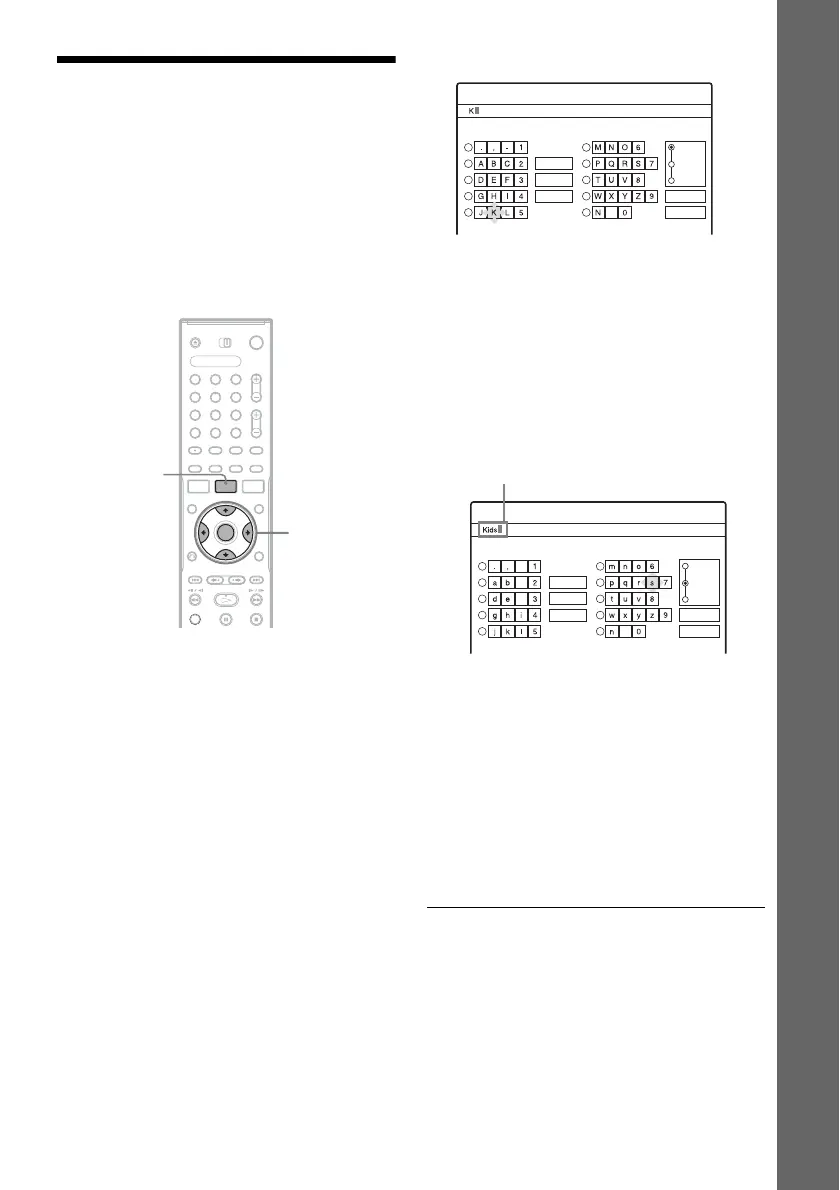
1 Press TITLE LIST (title list).
2 Select a title, and press ENTER (enter).
The sub-menu appears.
3 Select “Title Name,” and press ENTER
(enter).
The display for entering characters appears.
4 Press </M/m/, to move the cursor to
the right of the screen and select “A”
(upper-case), “a” (lower-case), or
“Symbol,” and press ENTER (enter).
The characters of the selected type are
displayed.
5 Press </M/m/, to select the character
you want to enter, and press ENTER
(enter).
The selected character appears at the top of
the display.
Example: Input Title Name
The type of characters will change according
to the language you select in “Easy Setup.”
Some languages allow you to enter an accent
mark.
To enter a letter with an accent mark, select an
accent followed by the letter.
Example: Select “ ` ” and then “a” to enter “à.”
To insert a space, select “Space.”
6 Repeat steps 4 and 5 to enter the
remaining characters.
To erase a character, move the cursor to the
right of the character at the input row. Select
“Back” and press ENTER (enter).
To insert a character, move the cursor to the
right of the point where you want to insert the
character. Select the character and press
ENTER (enter).
To erase all of the characters, select “Clear
All” and press ENTER (enter).
7 Select “Finish,” and press ENTER (enter).
To cancel the setting, select “Cancel.”
z Hints
• You can erase all displayed characters by pressing and
holding CLEAR (clear) for 2 seconds or more.
• You can switch between “A” (upper-case), “a” (lower-
case), or “Symbol” even if you press INPUT SELECT
(input select).
1 2 3
4 6
7 8 9
5
0
</M/m/,,
ENTER
(enter)
TITLE LIST
(title list)
"A"
Cancel
Finish
Space
Clear All
Back
1
2
3
4
5
6
7
8
9
0
Input Title Name
Symbol
"a"
Cancel
Finish
1
2
3
4
5
6
7
8
9
0
Input Title Name
-
c
f
"A"
Symbol
"a"
Space
Clear All
Back
Input row



 To Next Page