76
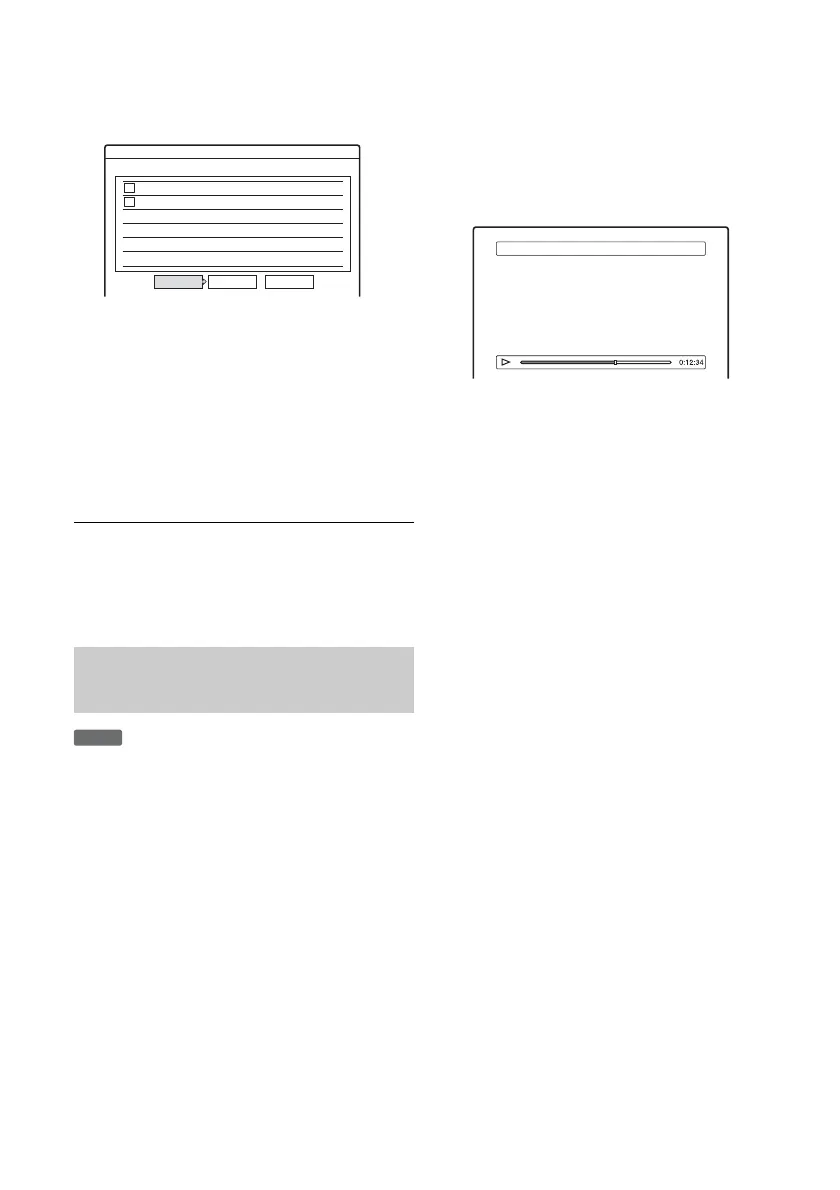
5 Select “OK,” and press ENTER (enter).
The list of titles to be combined appears.
To change the selection, select “Change” and
go to step 3.
6 Select “OK,” and press ENTER (enter).
The display for selecting a title name from
among the selected titles appears.
To enter a new name, select “Enter Text,” and
follow the explanations on page 39.
To change the selection, select “Change” and
go to step 3.
7 Select a name, and press ENTER (enter).
The titles are combined.
b Note
When the number of chapters in the title to be combined
exceeds the limit, the chapters at the end are combined
into a single chapter.
*
You can divide a Playlist title.
* DVD-RW (VR mode) (digital video disc-rewritable,
minus RW (Video Recording mode)).
1 Press TITLE LIST (title list).
Press TOOLS (tools) and select “Original” or
“Playlist” from the TOOLS (tools) menu to
switch the Title Lists, if necessary.
2 Select a title, and press ENTER (enter).
The sub-menu appears.
3 Select “Divide Title,” and press ENTER
(enter).
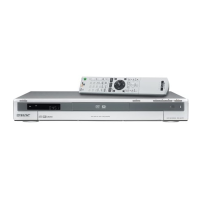
The display for setting the dividing point
appears. The title starts to play in the
background.
• To return to the beginning of the title, press
X PAUSE (pause) and then press .
PREV (previous).
4 Select the dividing point by pressing m/
M, and press ENTER (enter).
The display asks for confirmation.
• To change the dividing point, select
“Change.”
5 Select “OK,” and press ENTER (enter).
The display for entering the title name
appears.
• To use the same title name as before, select
“No.”
6 Select “Yes,” and press ENTER (enter) to
enter a new name.
Follow the explanations on page 39. After you
enter a new name, the title is divided in two.
Dividing a Playlist title (Divide
Title)
4 Yacht 9/25
3 Cruising 9/25
Combine
Combine the titles in the following order.
OK Change Cancel
2
1
-
RWVR
Divide 1 Vacation



 To Next Page