47
Timer Recording
3 Select “OK,” and press ENTER (enter).
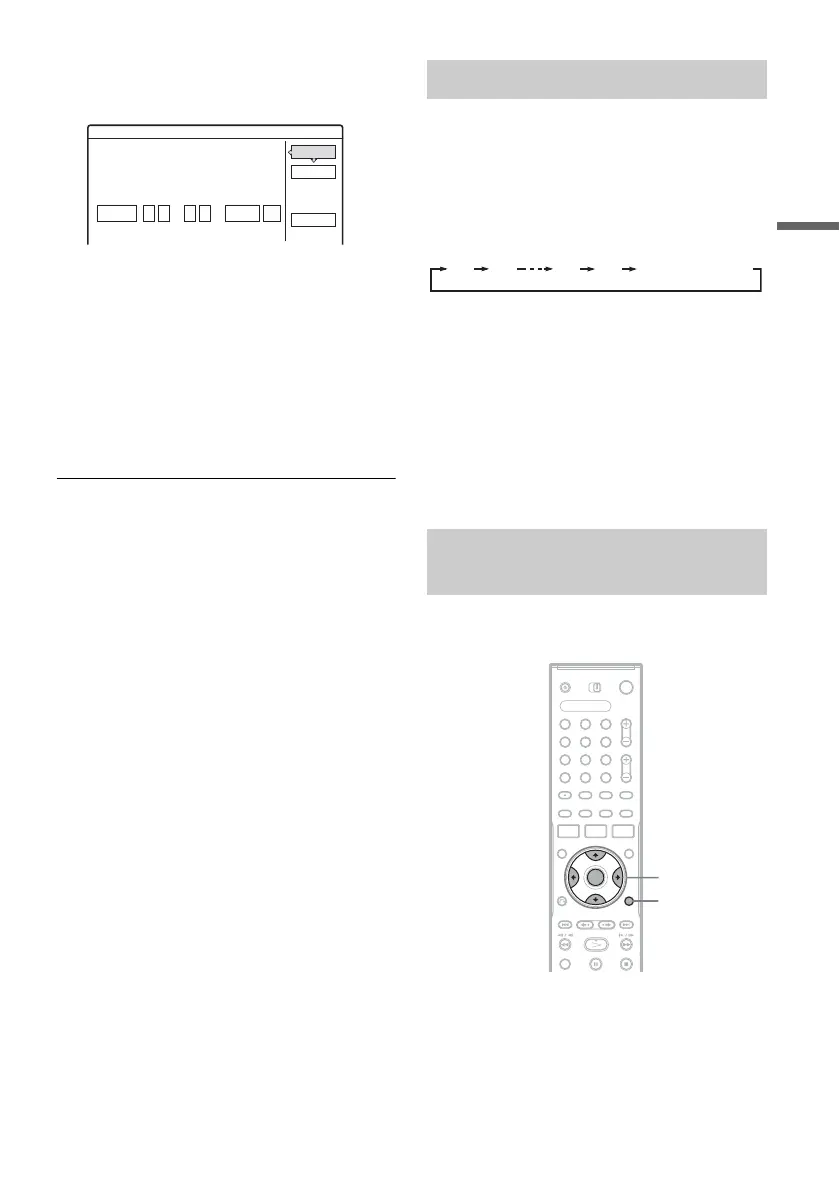
The date, start and stop times, channel,
recording mode, etc. setting appear.
• If you want to change the setting, press </
, to select the item and press M/m to
change the setting.
To re-enter the PlusCode (plus code) number,
select “Change.”
4 Select “OK,” and press ENTER (enter).
The TIMER REC (timer recording) indicator
lights up on the front panel, and the recorder
is ready to start recording.
To stop recording during timer recording
Open the remote’s cover and press x REC STOP
(recording stop). Note that it may take a few
seconds for the recorder to stop recording.
If the timer settings overlap
See page 45.
To extend the recording duration time while
recording
See page 46.
To confirm, change, or cancel timer recording
See “Checking/Changing/Canceling Timer
Settings (Timer List)” on page 49.
z Hint
The Rec Mode Adjust function also works with this timer
method (page 45).
You can set the recorder to record in 30 minute
increments.
Press z REC (recording) repeatedly to set the
duration.
Each press advances the time in 30 minute
increments. The maximum duration is six hours.
The time counter decreases minute by minute to
0:00, then the recorder stops recording (power
does not turn off). Even if you turn off the recorder
during recording, the recorder continues to record
until the time counter runs out.
To cancel the Quick Timer
Press z REC (recording) repeatedly until the
counter appears in the front panel display. The
recorder returns to normal recording mode.
You can adjust the recording picture quality and
picture size.
Timer - VCR Plus+
Is the following timer setting correct? To modify,
OK
Cancel
Change
SP
Mode
Date
9/28
CH
107
adjust each item or re-enter the PlusCode.
Wed :
9 00
Start
PM
:
10 00
Stop
PM
Using the Quick Timer function
Adjusting the recording picture
quality and size
0:30 1:00 5:30 6:00
(normal recording)
1 2 3
4 6
7 8 9
0
5
</M/m/,,
ENTER
(enter)
TOOLS
(tools)
,continued



 To Next Page