68
Erasing and Editing
Before Editing
This recorder offers various edit options for
various disc types. Before you edit, check the disc
type in the front panel display, and select the
option available for your disc (page 8).
b Notes
• You may lose the edited contents if you remove the disc
or a timer recording starts while editing.
• DVD (digital video disc) discs created by DVD (digital
video disc) video cameras cannot be edited on this
recorder.
*
You can enjoy advanced edit functions. First you
have two options for DVD-RWs (VR mode)
(digital video disc-rewritable, minus RW (Video
Recording mode)): editing either the original
recording (called the “original”), or the playback
information created from the original (called a
“Playlist”). Since each is different in nature and
offers different merits, read the following and
select the one that better suits your needs.
* DVD-RW (VR mode) (digital video disc-rewritable,
minus RW (Video Recording mode)).
To edit original titles
Edits made to the original titles are final. If you
plan to retain an unaltered original recording,
create and edit a Playlist (see below). The edit
functions available for original titles are:
– Labeling a title (page 70).
– Setting protection against erasure (page 70).
– Erasing a title (page 70).
– Erasing multiple titles (page 71).
– Erasing a section of a title (A-B Erase) (page 71).
– Erasing all titles on the disc (page 72).
– Erasing a chapter (page 70).
To create and edit Playlist titles
A Playlist is a group of Playlist titles created from
the original title for editing purposes. When you
create a Playlist, only the control information
necessary for playback, such as the playback
order, is stored on the disc. Since the original titles
are left unaltered, Playlist titles can be re-edited.
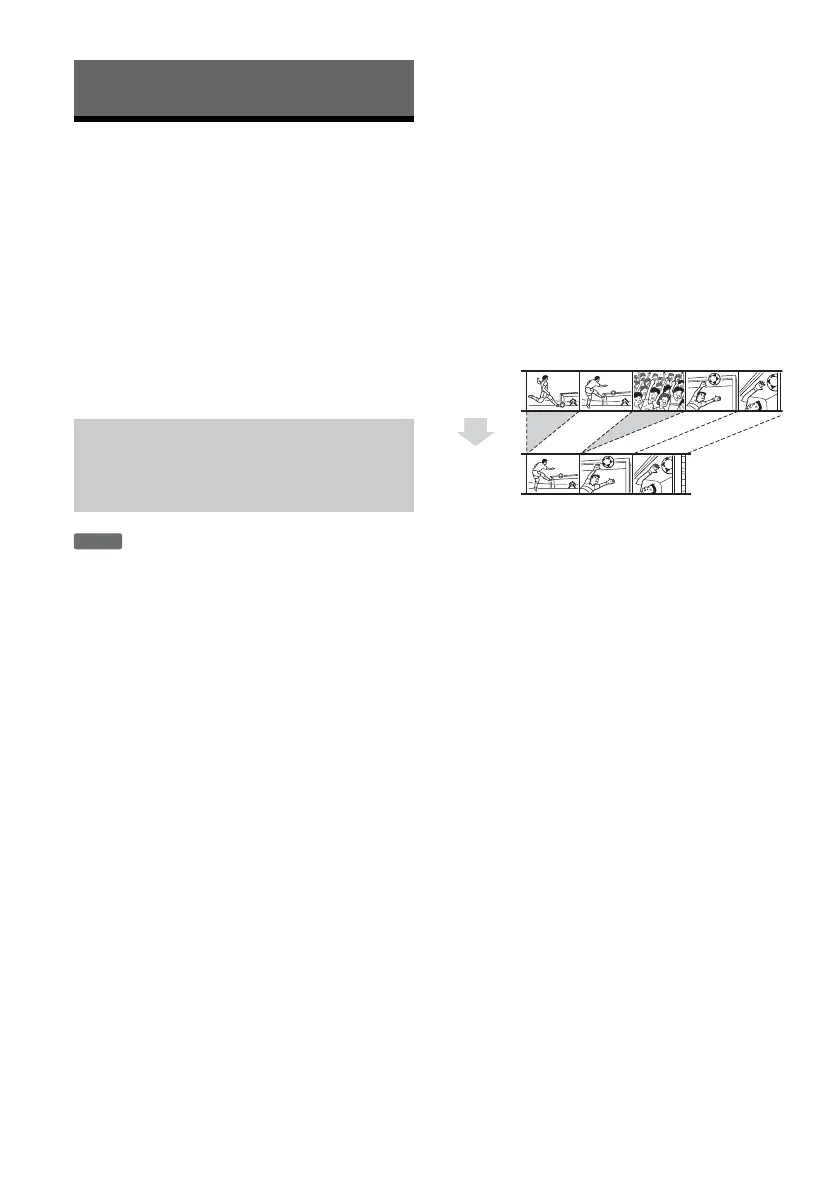
Example: You have recorded the final few
matches of a football tournament on a DVD-RW
(VR mode) (digital video disc-rewritable, minus
RW (VR mode)). You want to create a digest with
the goal scenes and other highlights, but you also
want to keep the original recording.
In this case, you can compile highlight scenes as a
Playlist title. You can even rearrange the scene
order within the Playlist title (“Creating and
Editing a Playlist” on page 74).
The advanced edit functions available for Playlist
titles are:
– Labeling a title (page 70).
– Erasing a title (page 70).
– Erasing multiple titles (page 71).
– Erasing a section of a title (A-B Erase) (page 71).
– Rearranging the title order (DVD-RWs (VR
mode) (digital video disc-rewritable, minus RW
(Video Recording mode)) only) (page 75).
– Dividing a title into multiple titles (page 76).
– Combining multiple titles into one title
(page 75).
– Erasing a chapter (page 70).
z Hint
You can display the disc’s Playlist titles in the Title List
(Playlist), or the original titles in the Title List (Original).
To switch the two Title Lists, press TOOLS (tools) while
a Title List is displayed, and select “Original” or
“Playlist.”
Edit options for DVD-RWs (VR mode)
(digital video disc-rewritable,
minus RW (Video Recording mode))
-
RWVR
Original
Playlist



 To Next Page