75
Erasing and Editing
8 Select the scene you want to re-edit, and
press ENTER (enter).
The sub-menu appears.
“Move”: Changes the scene order.
“Erase”: Erases the scene. The selection is
canceled.
“Preview”: Displays thumbnail pictures of the
scenes.
“Change IN”: Allows you to change the IN
(in) point, and repeat from step 5.
“Change OUT”: Allows you to change the
OUT (out) point, and repeat from step 6.
9 When you finish editing the Scene List,
select “OK,” and press ENTER (enter).
The display for entering the title name
appears. To enter a new name, select “Enter”
(page 39).
10
Select “OK” to use the default name, and
press ENTER (enter).
To play the Playlist title
Press TOOLS (tools) while the Title List menu is
turned on. Then, select “Playlist” and press
ENTER (enter). When the Title List (Playlist)
menu appears, select a title and press H PLAY
(play).
z Hint
When a Playlist title is created, the IN (in) and OUT (out)
points will become chapter marks, and each scene will
become a chapter.
b Note
The picture may pause when the edited scene is played.
*
You can change the Playlist title order within the
Title List (Playlist).
* DVD-RW (VR mode) (digital video disc-rewritable,
minus RW (Video Recording mode)).
1 Press TITLE LIST (title list) to turn on the
Title List (Playlist) menu.
If the Title List (Original) menu appears, press
TOOLS (tools) and select “Playlist.”
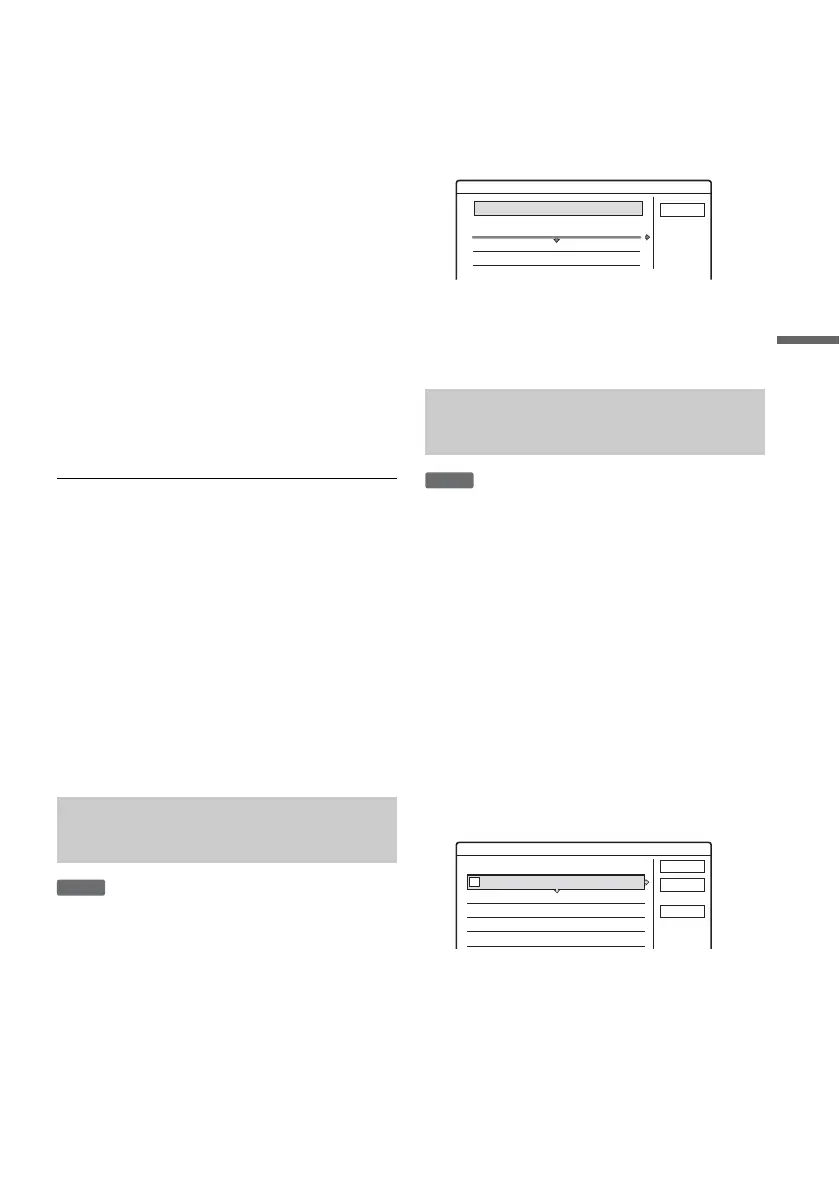
2 Select the title you want to move, and
press ENTER (enter).
The sub-menu appears.
3 Select “Change Order,” and press ENTER
(enter).
4 Select a new location for the title by
pressing M/m, and press ENTER (enter).
The title moves to the new location.
*
* DVD-RW (VR mode) (digital video disc-rewritable,
minus RW (Video Recording mode)).
1 Press TITLE LIST (title list) to turn on the
Title List (Playlist) menu.
If the Title List (Original) menu appears, press
TOOLS (tools) and select “Playlist.”
2 Press TOOLS (tools) to select “Combine
Titles,” and press ENTER (enter).
The display for selecting titles appears.
3 Select a title, and press ENTER (enter).
A number indicating the order in which you
selected the title appears.
To cancel the selection, press ENTER (enter)
again.
4 Repeat step 3 to select all of the titles you
want to combine.
To cancel all of the selections, select “Reset
All.”
Moving a Playlist title (Change
Order)
-
RWVR
Combining multiple Playlist titles
(Combine Titles)
Cancel
1 Vacation
2 Journey
Where do you want to move this title?
9/15
9/17
Change Order
-
RWVR
4 Yacht 9/25
3 Cruising 9/25
2 Journey 9/17
1 Vacation 9/15
Combine
Select the titles to combine.
Cancel
Reset All
OK
1
,continued



 To Next Page