Version 5.2 Sourcefire 3D System Installation Guide 101
Setting Up a Sourcefire 3D System Appliance
Initial Setup Page: Defense Centers
Chapter 4
The setup process also allows you to register and license devices. Before you can
register a device, you must complete the setup process on the device itself, as
well as add the Defense Center as a remote manager, or the registration will fail.
Keep the following points in mind when setting up a DC500 Defense Center after
a reimage:
• The DC500 cannot use URL Filtering or Malware licenses.
• Although the DC500 can manage devices with Protection and Control
licenses, you cannot perform Security Intelligence filtering or user control.
• The DC500 cannot display geolocation information.
For more information, see Supported Capabilities by Appliance Model on page 13
and Licensing the Sourcefire 3D System on page 19.
To complete the initial setup on a Defense Center using its web interface:
A
CCESS: Admin
1. Direct your browser to
https://
mgmt_ip
/, where
mgmt_ip
is the IP address
of the Defense Center’s management interface.
• For a Defense Center connected to a computer with an Ethernet cable,
direct the browser on that computer to the default management
interface IPv4 address:
https://192.168.45.45/.
• For a Defense Center where network settings are already configured,
use a computer on your management network to browse to the IP
address of the Defense Center’s management interface.
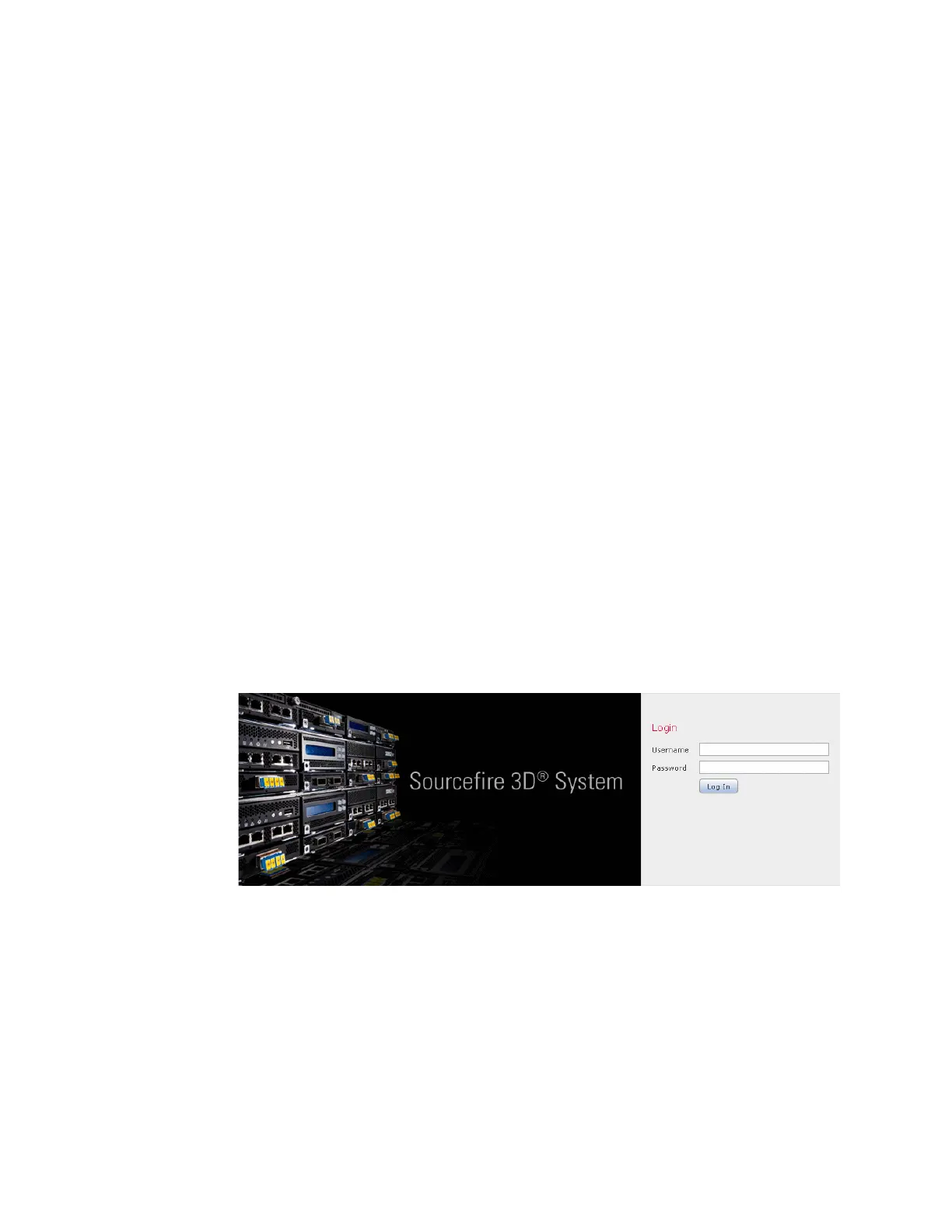
The login page appears.
2. Log in using admin as the username and Sourcefire as the password.
The setup page appears. See the following sections for information on
completing the setup:
• Change Password on page 102
• Network Settings on page 103
• Time Settings on page 104
• Recurring Rule Update Imports on page 104
• Recurring Geolocation Updates on page 105



 To Next Page