Version 5.2 Sourcefire 3D System Installation Guide 102
Setting Up a Sourcefire 3D System Appliance
Initial Setup Page: Defense Centers
Chapter 4
• Automatic Backups on page 105
• License Settings on page 105
• Device Registration on page 107
• End User License Agreement on page 109
3. When you are finished, click Apply.
The Defense Center is configured according to your selections. After an
intermediate page appears, you are logged into the web interface as the
admin user, which has the Administrator role.
IMPORTANT! If you connected directly to the device using an Ethernet cable,
disconnect the computer and connect the Defense Center’s management
interface to the management network. Use a browser on a computer on the
management network to access the Defense Center at the IP address or host
name that you just configured, and complete the rest of the procedures in
this guide.
4. Use the Task Status page (System > Monitoring > Task Status) to verify that the
initial setup was successful.
The page auto-refreshes every ten seconds. Monitor the page until it lists a
status of Completed for the initial device registration and policy apply tasks. If,
as part of setup, you configured an intrusion rule or geolocation update, you
can also monitor those tasks.
The Defense Center is ready to use. See the Sourcefire 3D System User
Guide for more information on configuring your deployment.
5. Continue with Next Steps on page 109.
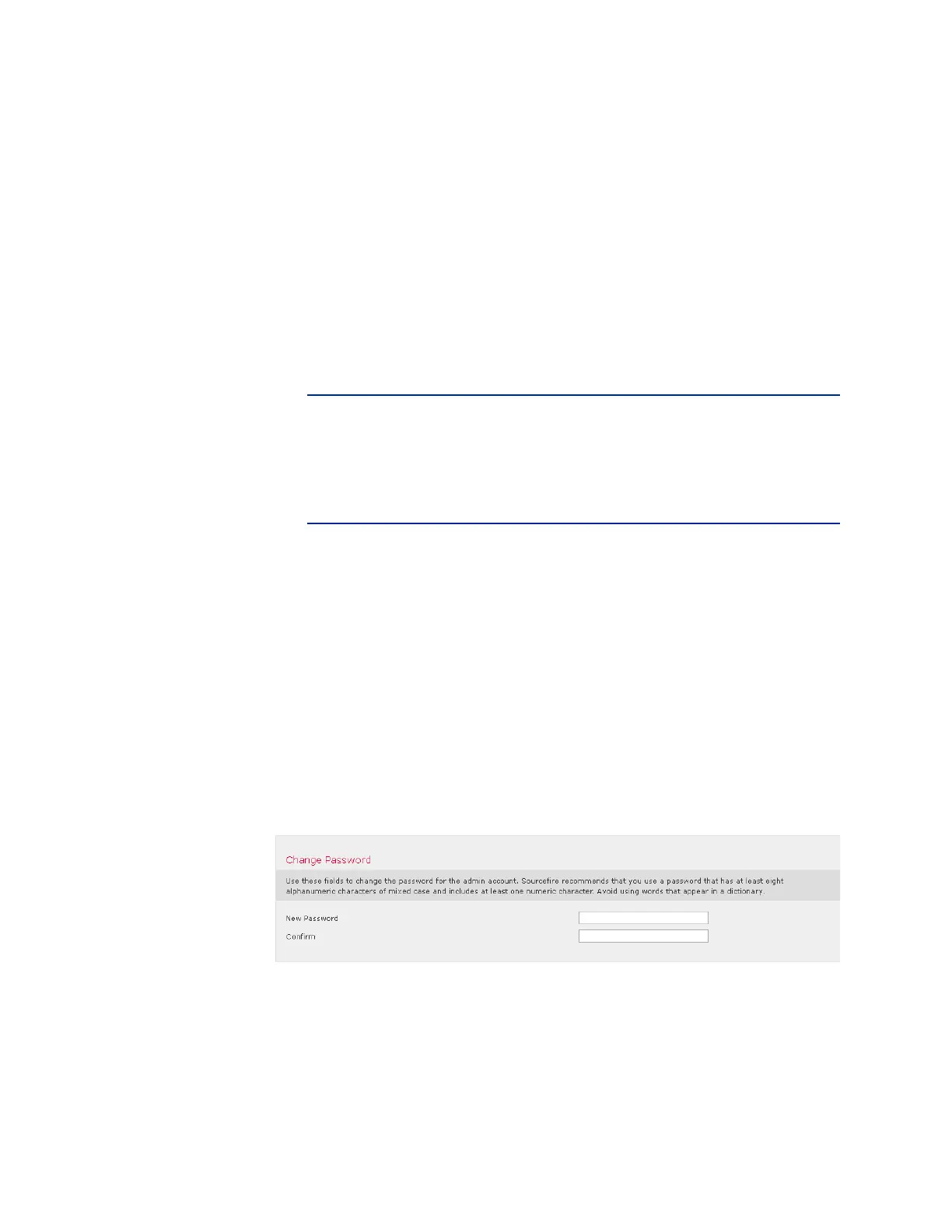
Change Password
You must change the password for the admin account. This account has
Administrator privileges and cannot be deleted.
Sourcefire recommends that you use a strong password that is at least eight
alphanumeric characters of mixed case and includes at least one numeric
character. Avoid using words that appear in a dictionary.



 To Next Page