Version 5.2 Sourcefire 3D System Installation Guide 94
Setting Up a Sourcefire 3D System Appliance
Initial Setup Page: Devices
Chapter 4
sets, and zones that the system creates, as well as the policies that it initially
applies to managed devices.
To complete the initial setup on a physical managed device using its web interface:
A
CCESS: Admin
1. Direct your browser to
https://
mgmt_ip
/, where
mgmt_ip
is the IP address
of the device’s management interface.
• For a device connected to a computer with an Ethernet cable, direct the
browser on that computer to the default management interface IPv4
address:
https://192.168.45.45/.
• For a device where network settings are already configured, use a
computer on your management network to browse to the IP address of
the device’s management interface.
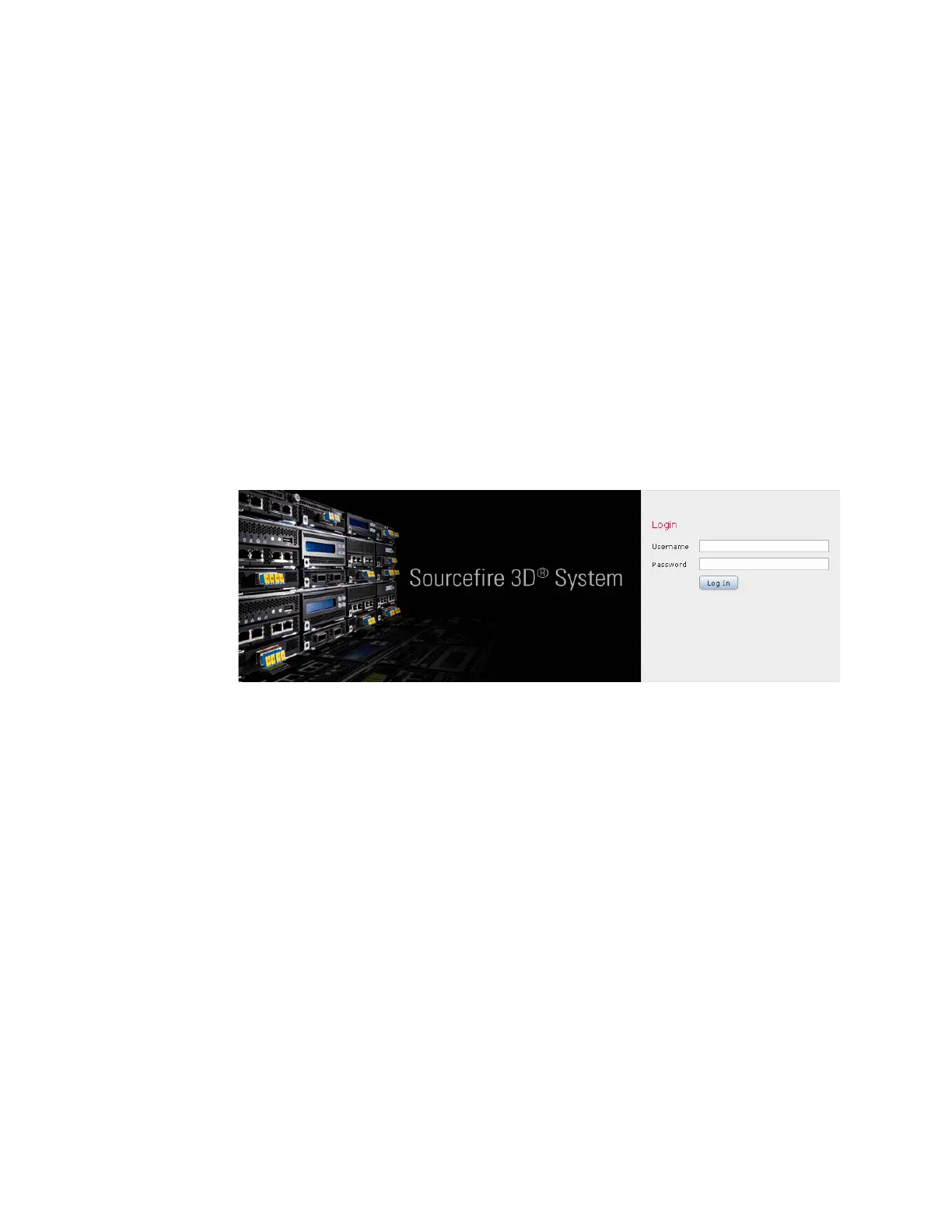
The login page appears.
2. Log in using admin as the username and Sourcefire as the password.
The setup page appears. See the following sections for information on
completing the setup:
• Change Password on page 95
• Network Settings on page 96
• Series 3 Device LCD Panel Configuration on page 97
• Remote Management on page 97
• Time Settings on page 98
• Detection Mode on page 98
• Automatic Backups on page 100
• End User License Agreement on page 100
3. When you are finished, click Apply.
The device is configured according to your selections. After an intermediate
page appears, you are logged into the web interface as the
admin user, which
has the Administrator role.



 To Next Page