Version 5.2 Sourcefire 3D System Installation Guide 88
Setting Up a Sourcefire 3D System Appliance
Understanding the Setup Process
Chapter 4
Information
You have, at minimum, the information needed to allow the appliance to
communicate on your management network: an IPv4 or IPv6 management IP
address, a netmask or prefix length, and a default gateway.
If you know how the appliance is deployed, the setup process is also a good
time to perform many initial administrative-level tasks, including registration
and licensing.
TIP! If you are deploying multiple appliances, set up your devices first, then their
managing Defense Center. The initial setup process for a device allows you to
preregister it to a Defense Center; the setup process for a Defense Center allows
you to add and license preregistered managed devices.
After you complete setup, you will use the Defense Center‘s web interface to
perform most management and analysis tasks for your deployment. Physical
managed devices have a restricted web interface that you can use only to
perform basic administration. For more information, see
Next Steps on page 109.
For details on how to set up each type of Sourcefire appliance, see:
• Setting Up a Series 2 Appliance or Series 3 Defense Center on page 88
• Setting Up a Series 3 Device on page 89
TIP! If you are setting up an appliance after restoring it to factory defaults (see
Restoring a Sourcefire Appliance to Factory Defaults on page 198) and you did not
delete the appliance’s license and network settings, you can use a computer on
your management network to browse directly to the appliance’s web interface to
perform the setup. Skip to Initial Setup Page: Devices on page 93 or Initial Setup
Page: Defense Centers on page 100.
Setting Up a Series 2 Appliance or Series 3 Defense Center
SUPPORTED DEVICES: Series 2
S
UPPORTED DEFENSE CENTERS: Series 2, Series 3
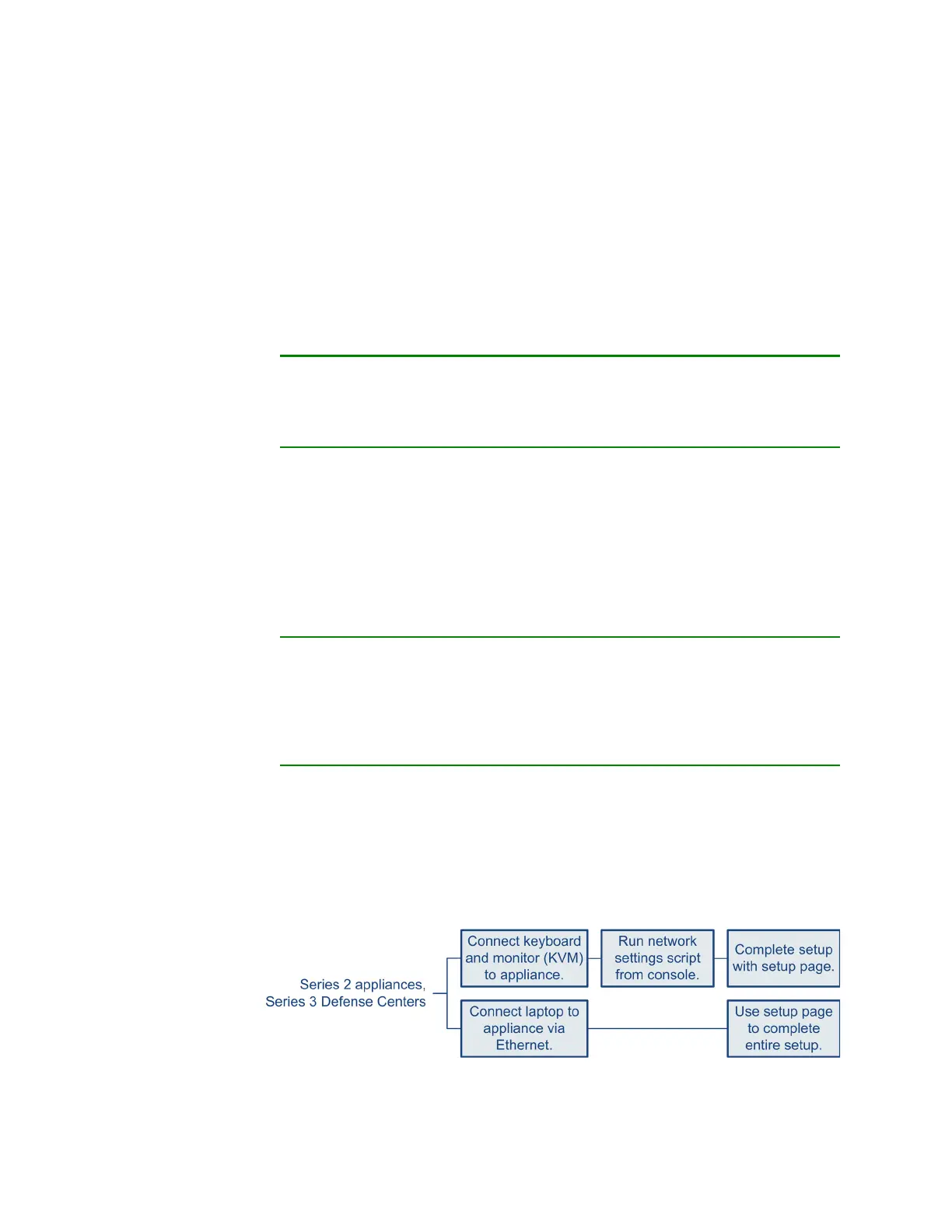
The following diagram illustrates the choices you can make when setting up
Series
2 devices and Defense Centers, as well as Series 3 Defense Centers:



 To Next Page