Version 5.2 Sourcefire 3D System Installation Guide 89
Setting Up a Sourcefire 3D System Appliance
Understanding the Setup Process
Chapter 4
To set up any Series 2 appliance or a Series 3 Defense Center:
A
CCESS: Admin
1. If you are using a keyboard and monitor, run a script that helps you configure
settings to allow the appliance to communicate on your management
network; see Configuring Network Settings Using a Script on page 90.
If you are setting up a reimaged appliance and you kept your network settings
as part of the restore process, or if you are accessing the appliance via a
direct Ethernet connection, skip to the next step.
2. Complete the setup process by browsing to the appliance’s web interface
from a computer on your management network:
• To complete the setup of a managed device using its web interface, see
Initial Setup Page: Devices on page 93.
• To complete the setup of a Defense Center using its web interface, see
Initial Setup Page: Defense Centers on page 100.
Setting Up a Series 3 Device
SUPPORTED DEVICES: Series 3
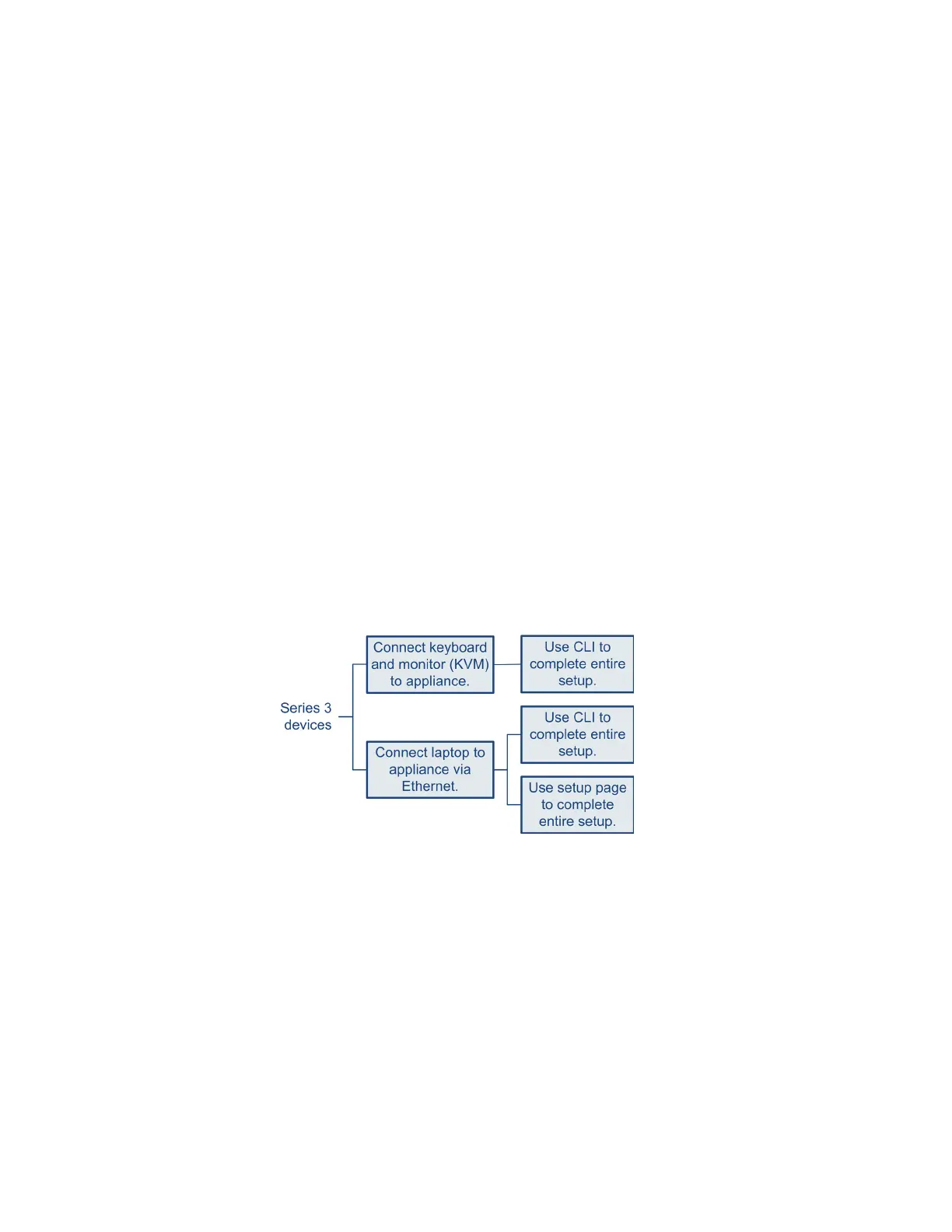
The following diagram illustrates the choices you can make when setting up
Series
3 devices:
Your access to a Series 3 device determines how you set it up. You have the
following options:
• Regardless of how you are connected to the device, you can use the CLI to
set it up; see Performing Initial Setup on a Series 3 Device Using the CLI on
page 91.
• If you are accessing the appliance via a direct Ethernet connection, you can
browse to the appliance’s web interface from a local computer; see Initial
Setup Page: Devices on page 93.
If you are setting up a reimaged device and you kept your network settings as part
of the restore process, you can access the CLI via SSH or a Lights-Out



 To Next Page