Chapter 2: Installation and Setup
Procedure 10: Update Firmware Version (optional)
62 | SmartBits 600x/6000x Installation Guide
Note: The letter A affixed to the slot number determines a left-hand port; the letter B
affixed to the slot number determines a right-hand port.
11 Continue the firmware download procedure by following the steps in one of the
following three sections:
• Download firmware to a non-TeraMetrics module
• Download firmware to an individual TeraMetrics module
• Download firmware to all TeraMetrics modules
Download Firmware to a Non-TeraMetrics Module
To download firmware to the chassis:
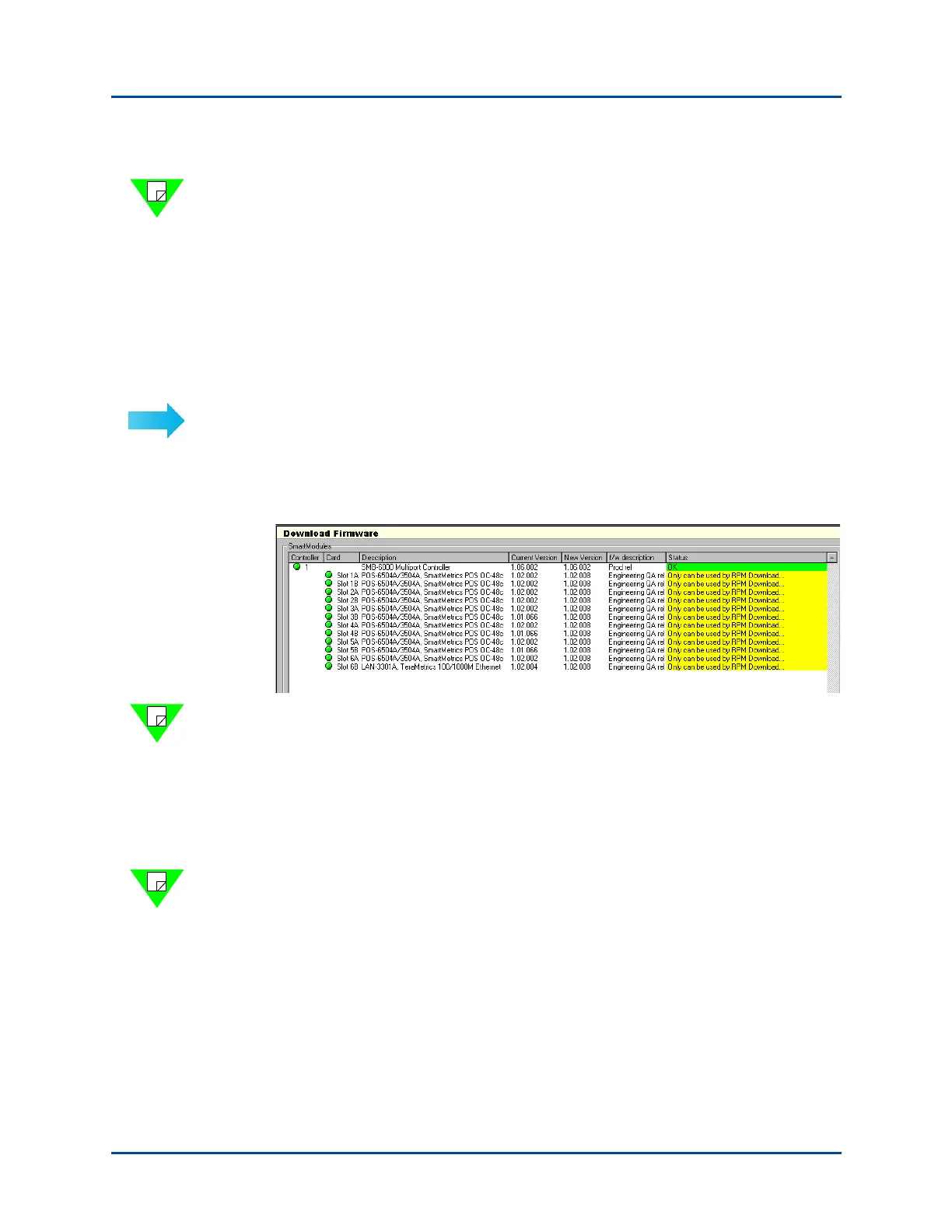
1 Maximize the Download Firmware window so that the Status column is displayed (if
the Download Firmware window is not displayed, then select the Firmware (BFT)
tab to display it).
Note: For non-TeraMetrics modules, an OK in the Status column indicates that a file is
available for download. TeraMetrics modules will display the message “Only can be used
by RPM download.”
2 Click the green button next to a chassis or module to reserve it for download (the
button turns blue to indicate reserved status), or click the Select All Available box to
reserve all listed non-TeraMetrics modules.
3 Click the Download button to load the firmware to the selected chassis/modules.
Note: To find out if there are other users active in the chassis, select Action > Show
Active Users.
Artisan Technology Group - Quality Instrumentation ... Guaranteed | (888) 88-SOURCE | www.artisantg.com



 To Next Page