3 Graphical user interface (GUI)
The STWBC86 (and other STMicroelectronics wireless charging devices) can be configured using
STMicroelectronics’ STCHARGE Wireless Power Studio GUI. The GUI can also be used to control, monitor, and
program the device.
For more information, please see the UM3164.
3.1
Connecting STWBC86 to PC GUI
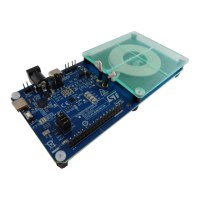
Connect the board to a PC by plugging a USB Type-C® cable into the connector J3. Make sure the STWBC86
I2C pins are connected to the USB Type-C® connector. This can be done by shorting the appropriate signals
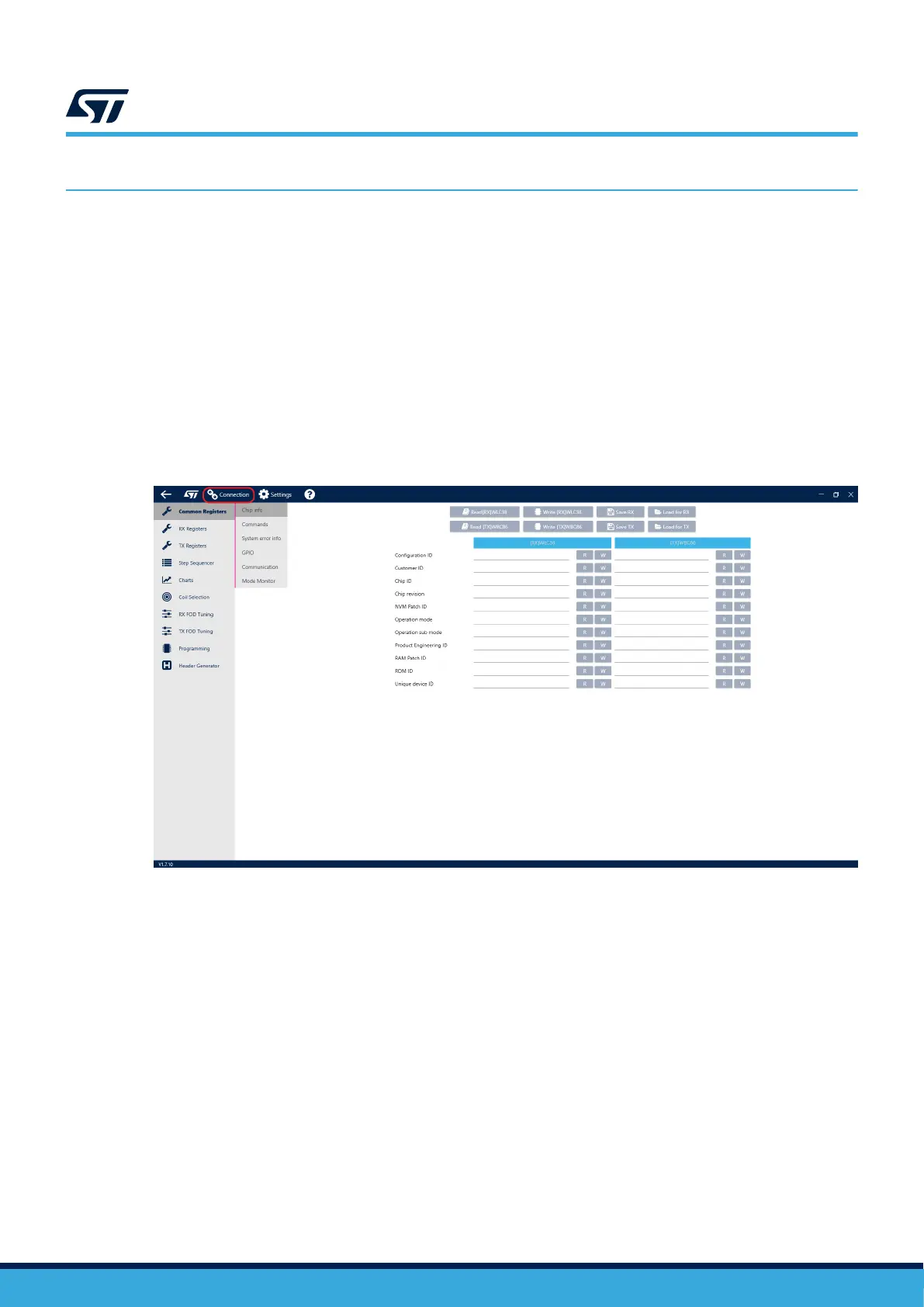
(SDA, SCL, INT) on header P2. Power up the board and open the GUI on your PC. Click the Connection button in
the top menu.
Up to two devices can be connected at a time - this allows the user to control both Rx and Tx at the same time).
Select WBC86 as the Tx and click the Connect button on the right side of the window.
Figure 4. GUI connection
UM3161
Graphical user interface (GUI)
UM3161 - Rev 1
page 7/78


 To Next Page