MC50 Integrator Guide8-12
Encryption
The absence of a physical connection makes wireless links vulnerable to information theft. Encryption is an efficient method of
preventing data theft and improving data security.
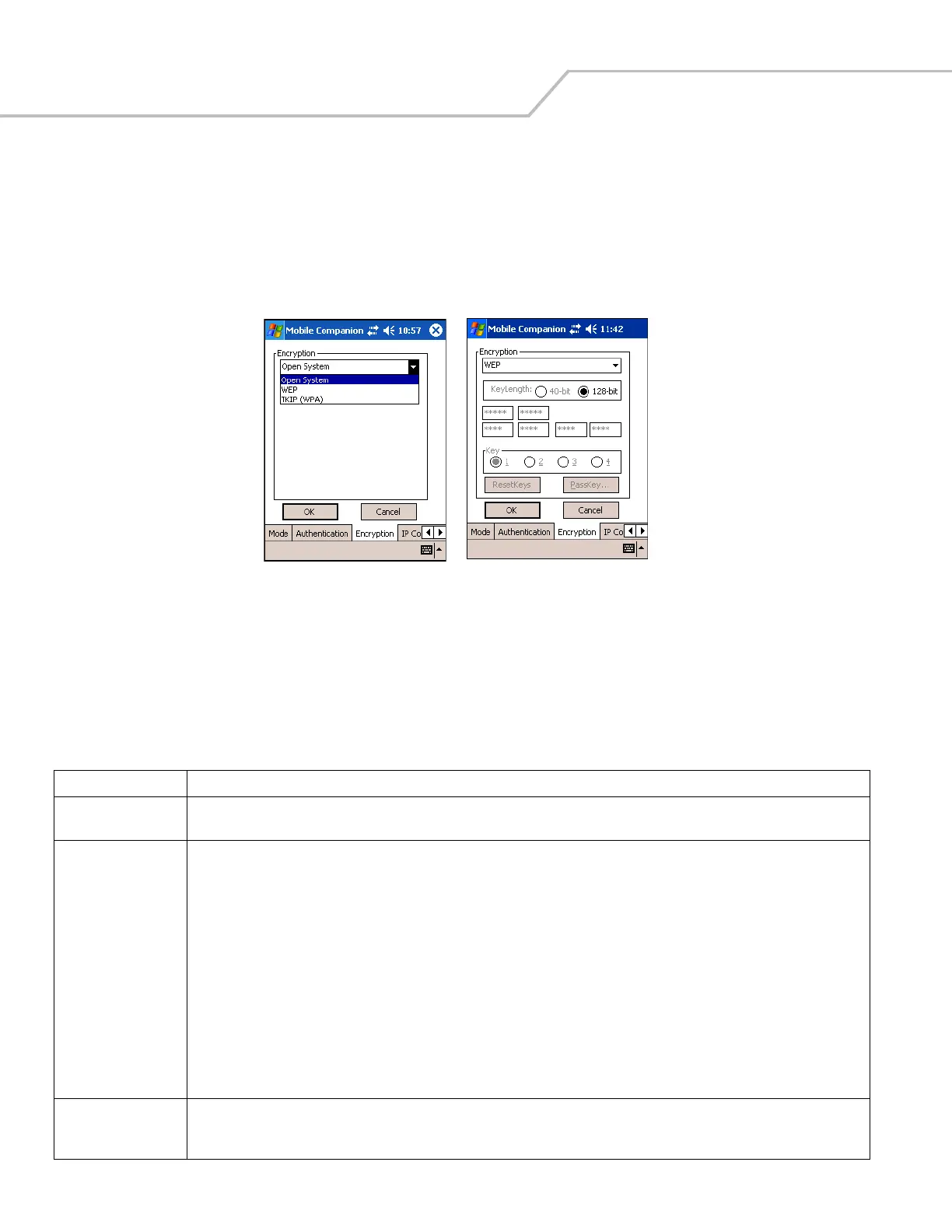
Select the Encryption tab to set the adapter profile security level by configuring the encryption scheme and corresponding keys.
Select an option (Open System, WEP, or TKIP (WPA)) from the Encryption drop-down list. See Table 8-6 for Encryption option
descriptions.
Figure 8-15. Mobile Companion - Encryption Tab
The AP and the mobile computer must use the same encryption algorithm to associate and transmit data. If an AP is set to Open
System and an adapter is set to 40-bit or 128-bit, no association occurs. Similarly, if an adapter is set to Open System and an AP is
set to 40-bit or 128-bit, no association occurs.
If an AP is set to 40-bit and an adapter is set to 128-bit, the adapter can associate to the AP, but no data transmission and reception
can occur.
Table 8-6. Encryption Tab Fields
Encryption Description
Open System Use the Open System option when no data packet encryption is needed over the network. Selecting this option provides no security for
data transmitted over the network. The window displays only the ok and Cancel buttons.
WEP Select WEP for the adapter to use the WEP keys for encryption. The window displays several radio buttons and edit buttons to configure
the WEP keys. Select 40-bit or 128-bit key lengths (128-bit is the default). WEP keys are manually entered in the edit boxes. Only the
required number of edit boxes for a key length is displayed (10 Hex digit value for 40-bit keys, 26 Hex digit values for 128-bit keys). Use
the Key radio buttons to configure the four WEP keys. The adapter uses the selected key. Tap ResetKeys to set the encryption key to
the default values.
Note: The default Hex digit keys are visible any time they are used. As a security precaution after setting the key values for the network,
asterisks * replace the digits in the Encryption key fields.
If the associated access point is using an optional Passkey, the "active" adapter WLAN profile is required to use one as well. The
Passkey is a plain text representation of the WEP keys displayed in the Encryption property window. The Passkey provides an easy way
to enter WEP key data without having to remember the entire 40-bit (10 character) or 128-bit (26 character) Hex digit string.
Tap Passkey to display the Passkey window. Enter an easy-to-remember 4 to 32 character string to use as the WEP algorithm. Tap ok.
The access point transforms the Passkey string into a set of four WEP keys using MD5 algorithms and displays them in the WEP fields.
These are the new WEP keys for the adapter profile. Once displayed in the WEP key fields, the adapter profile behaves as if the keys
were entered manually.
TKIP (WPA) Select this option for the client adapter to use Wireless Protected Access (WPA) via TKIP. Manually enter the pre-shared keys in the
edit boxes. Tap ClearKey to clear all previous keys and enter new key values. Tap Passkey to display the Passkey window. Enter an
easy-to-remember 8 to 63 character string.


 To Next Page