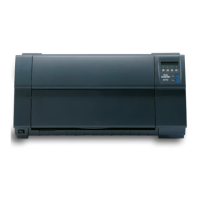
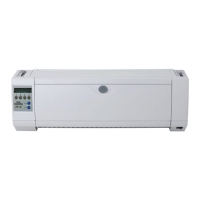
Options and accessories User Guide
Problem Corrective action
Problems with the paper feed
The paper is not fed in
1 Check that the display shows the correct paperway, if
necessary select the correct paperway with the key Park. If
you wish to use optional paper types, make sure they are
correctly installed.
2 Make sure that the paper guide is correctly adjusted at the
side.
When having torn off the fanfold paper the fanfold
paper moves to the park position.
If necessary, drive the remaining paper manually to
the park position with the ↓ key.
Paper jam 1 Open the top cover. If a paper jam should occur, then
remove the jammed paper by tearing it off at the tear off
edge (the tear off edge is located at the outfeed for the
fanfold paper).
2 Press the key to transport the paper backwards.
3 You may support the paper return feed by cautiously pulling
the paper in the correct direction.
Before you replace the fanfold paper, refer to the instructions in
the section Loading paper.
You should pay special attention to the following points:
Insert the paper straight.
After inserting the paper, close the tractors.
Adjust the tractors, the paper should be positioned in the
tractors straight but without tension.
Adjust the printhead gap to the paper thickness (if AGA=Off).
Set the parameter Head-up to On, see section Increasing
the printhead gap (Head up).
Clean upper friction, see section Cleaning the upper friction.
Does not or intermittently not
print with the internal Ethernet
interface (ETH-INT)
1 Check if a proper interface cable is used: Cat.5e, 100 MHz
2 Check if the connected switch or hub is set like the printers
interface e.g.
Switch Printer
100 MHz, Full duplex 100/Full
or Autosense Autosensing
3 Refer to the printers menu. In the printout of the menu
settings the actual connection link status is reported.
4 The LED next to the RJ45 connector are indicating the link
status of the ETH-INT.
green off: no link
green flash: link
orange off: half duplex
orange on: full duplex
112



 To Next Page