3-1
Case Profile Configuration
This chapter provides instructions on customizing case proles for the CDI OneView
System. This includes information on the following:
• The toolbar icons
• Pop-up messages and the message center
• The battery status and AC power indicators
• Modifying case proles
• Dark/Light mode
The Toolbar
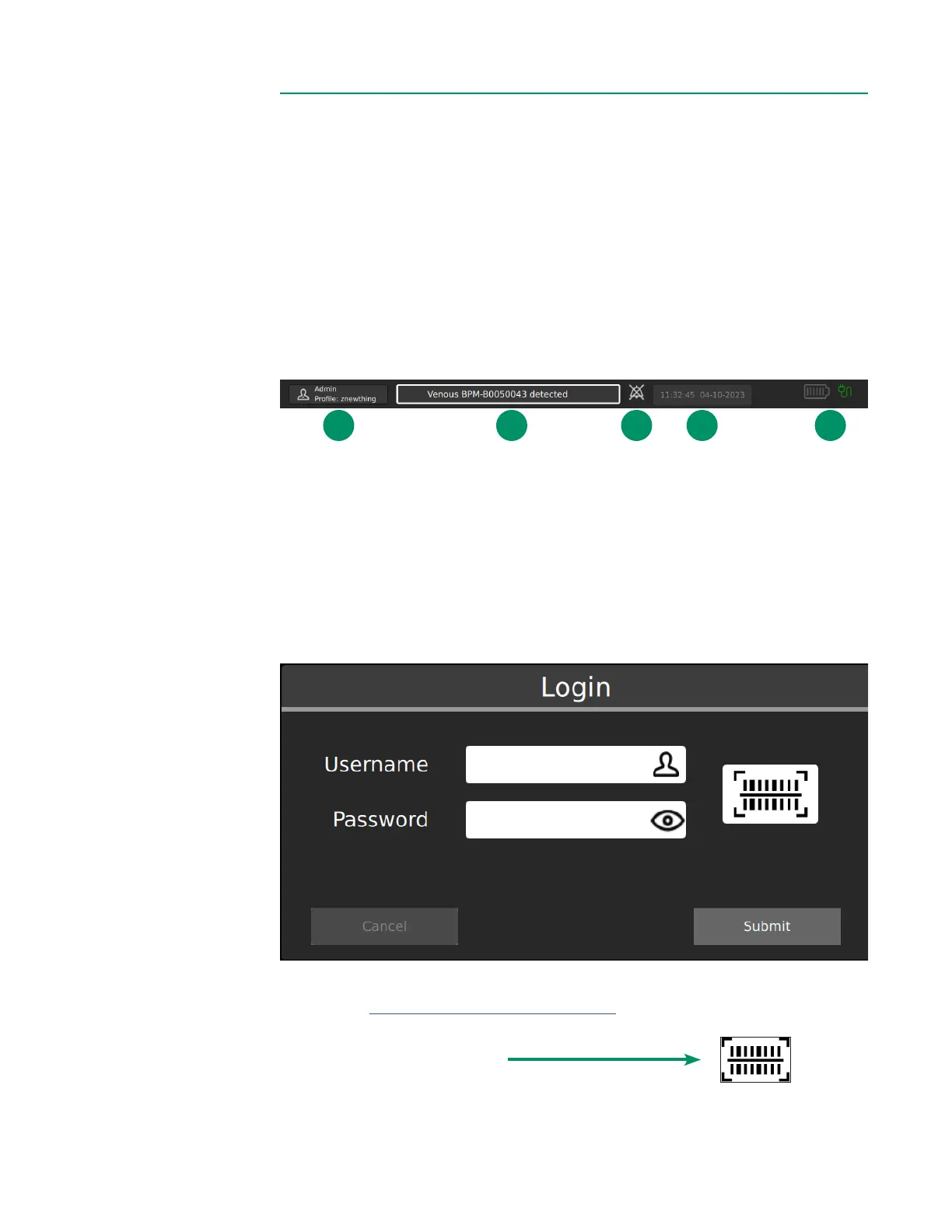
From the toolbar at the top of the screen, the user can access the following functions:
1. User login
2. Message center
3. Volume indicator
4. Time/Date
5. Power indicator/Battery status
User LoginUser Login
Select a username and enter its password to login.
A barcode scan can be used instead of typing a password, if enabled by the
admin (see Chapter 2, “Administrator Setup”):
1. Select username.
2. Tap the barcode button:
3. Scan the barcode by placing it below the Display.
4. Tap Submit to log in.
1 2 3 4 5



 To Next Page