3-4
Case Profile Configuration
Case Profile Management
Case proles can be created, deleted and congured by admin users. Case proles
provide preset congurations to suit users’ preferences, as well as to meet the differing
requirements of various cases encountered by an institution.
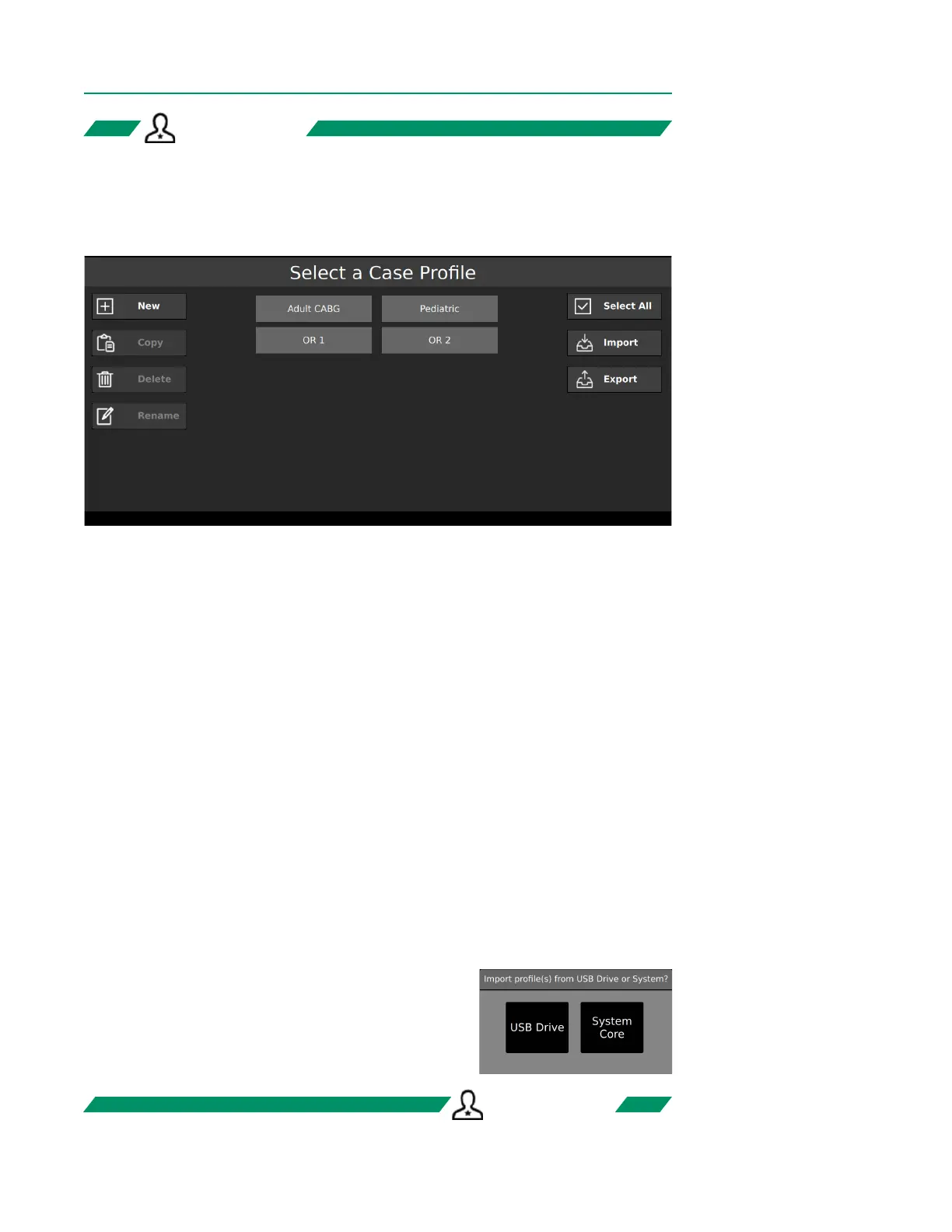
Case profile menu for admin users
• To create a new case prole, tap New, enter a case prole name and tap Save. The
Sensor Connections Tab will appear. Proceed to congure sensor connections
and display layout on this tab, then select the Flow Source for Calculation on the
Data Options Tab. All other tabs are optional.
• To copy a case prole, tap Copy.
• To rename a case prole, tap Rename.
• To delete a case prole, tap Delete.
Note: The system can support up to 12 case proles.
Import and Export Case Profiles Import and Export Case Profiles
Case proles can be imported from and exported to a USB drive and/or the System (Core).
• To select all case proles, tap Select All.
• To import a case prole, select all desired case proles and tap Import.
• To export a case prole, select all desired case proles and tap Export.
When importing or exporting case proles, this
window will appear to specify using either a USB drive
or the System (Core). To use a USB drive, one must be
connected to the USB port on the Display and detected
by the system.
ADMIN ONLYADMIN ONLY
ADMIN ONLYADMIN ONLY



 To Next Page