3-7
Case Profile Configuration
Display LayoutDisplay Layout
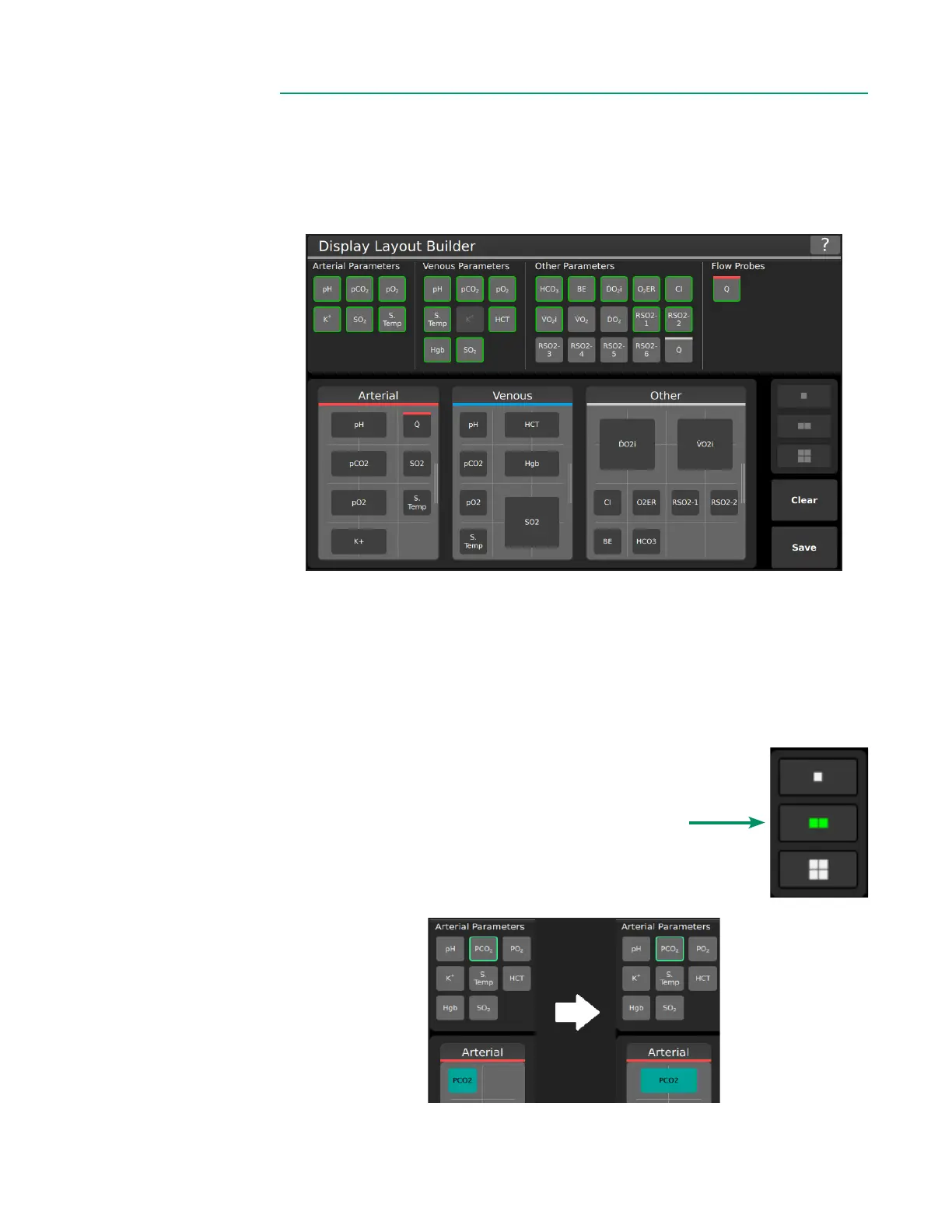
The Display Layout Tab shows the Display Layout Builder at the top of the screen,
which provides a list of all available parameters previously congured in Sensor
Connections. At the bottom it shows the Display Preview, which provides a preview
of the current Measurement Screen conguration.
Follow the steps below to add parameters to the Display Layout:
1. Tap on the desired parameter in the Display Layout Builder.
2. Available cells for placement are highlighted in white in the Display Preview.
3. Tap an available cell to place the parameter tile.
Note: The selected parameter outlines in green in the Display Layout Builder to indicate
it has been successfully placed.
Follow the steps below to resize parameter tiles:
1. Tap the parameter tile in the Display Preview.
2. Tap a resize option on the right side of the display
Tiles can be resized to 1x1, 1x2, or 2x2, depending on available space
within the container. The parameter tile will resize to the right of and
below the current location, if space is available.
Example of a 1x1 tile resized to 1x2



 To Next Page