3-2
Case Profile Configuration
Pop-Up MessagesPop-Up Messages
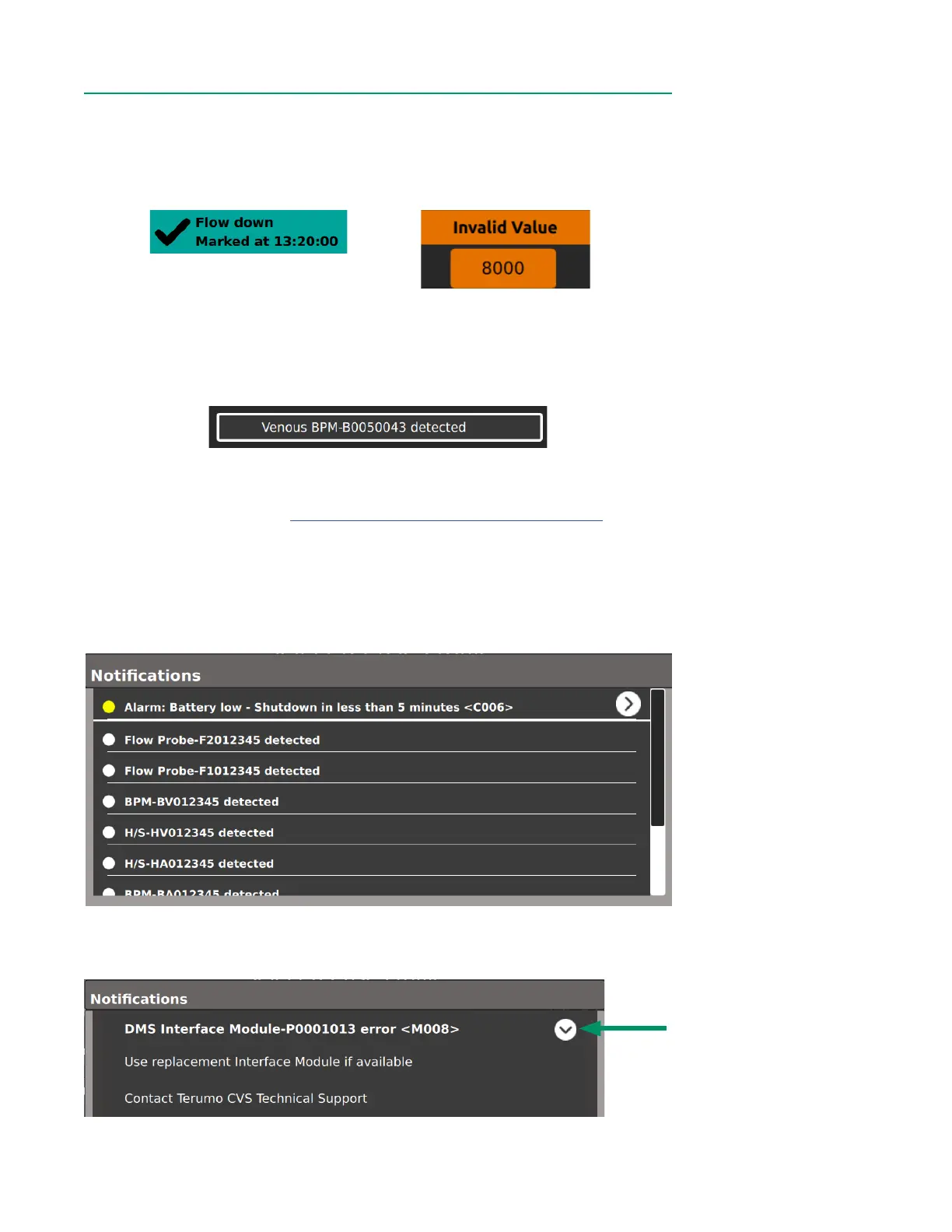
Pop-up messages are short-duration dialog windows that conrm an action has been
either successful or unsuccessful. These are colored in green or orange and show either
checkmarks or error messages. They stay active on screen for two to ve seconds.
Message CenterMessage Center
The Message Center shows the most recently triggered technical alarm or notication
at the top center of the screen.
When the Message Center is tapped, a window will appear with a list of current technical
alarms and notications. Technical alarms will have a yellow circle in accordance with
Medium Priority alarms (see Chapter 6, “Error Messages and Conditions” for more
information).
Technical Alarms will persist at the top of the list. All other messages appear with a
grey circle and are listed from newest to oldest. When higher priority messages appear
in the Message Center, lower priority messages will only be visible after tapping the
Message Center to expand it.
Messages with a caret can be tapped to view additional information.
Successful action
Unsuccessful action
Caret



 To Next Page