20
The S-4 Sculpting Sampler - Ofcial Manual
21
The S-4 Sculpting Sampler - Ofcial Manual
Getting Started
1
Getting Started
1
1.8 Naming Editor
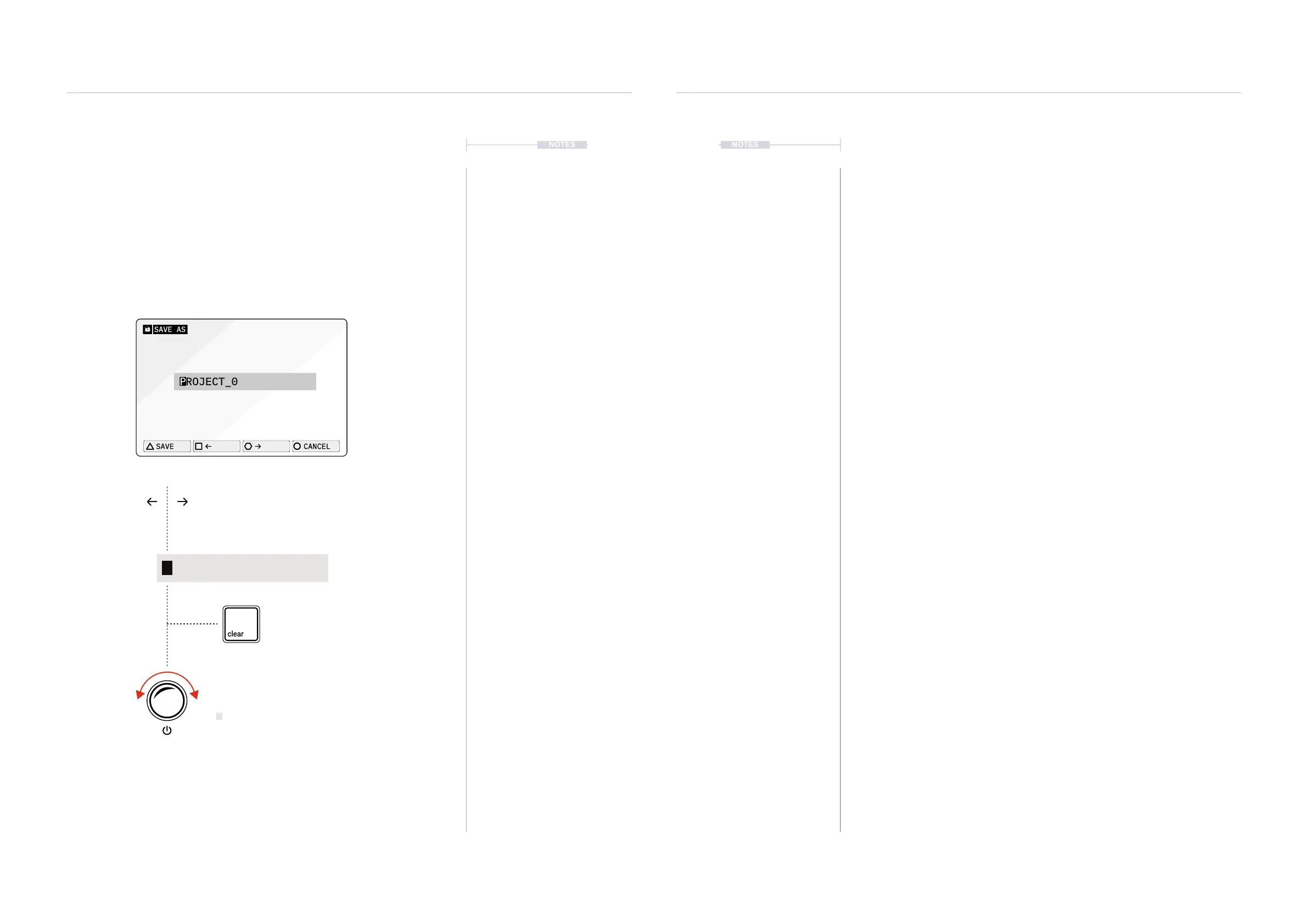
Several functions will require text editing. For example naming a project or
saving a sample. The process of editing names follows a similar workow
when the naming editor pop up is presented.
The position in the name is navigated using the action buttons while
changing the character is performed using the screen knob which cycles
through the alpha-numeric options. To clear a character use the dedicated
clear button. Names can be a maximum of 16 characters.
Move the cursor within the text window
Delete the prior character
Change the selected character
A B C D E F G H I J K
X Y Z 0 1 2 3 4 5 6 7 8
9 ! @ # $ % ^ & * ( ) -
_ = + [ ] { } | \ ; : ’
” , . < >
L M N O P Q R S T U V W
SAVE
CANCEL
P
ROJECT_0
SAVE AS
P
ROJECT_0
When saving a project the option to rename it will be presented when
selecting the ‘Save As’ option. This workow of saving a project will be used
as an example to illustrate the steps in changing and editing a name.
▌ EDITING A PROJECT NAME DURING ‘SAVE AS’
1. Press [PROJECT] to open the project management options.
2. The option to save as a new le and create a new name is available.
Press [SAVE AS], action button to request saving the current project.
3. The prompt to assign a name will be presented. Use the naming editor
to change the name of the le to save. To edit the name:-
• Navigate across the text string using the (LEFT) and (RIGHT)
arrowed, action buttons.
• The cursor will highlight the current character to edit. For example
highlight the rst character of the name.
• Turn (SELECT) to adjust the character under the cursor. Once
completed use the arrow buttons to move to the next character.
• To delete the previous character in the text string, Press [CLEAR],
the dedicated function button. The cursor will backspace from its
current location when pressing clear.
4. Once a name is edited and dened, Press [SAVE], action button to
conrm saving and proceed.
5. A prompt may be shown ‘File already exists, overwrite?’. Conrm to
save and proceed.
6. The project will be saved.
NOTES
NOTES



 To Next Page