44
The S-4 Sculpting Sampler - Ofcial Manual
45
The S-4 Sculpting Sampler - Ofcial Manual
Audio Engine
3
Audio Engine
3
NOTES
NOTES
Selected device button
symbol brightly lit
3.2 Material Devices
The Material device slot is dedicated to manage the internal primary sound
source for the track sound engine. The available devices typically use a
sample from the sample library, record a new sample audio or the incoming
audio can be passed through from the line inputs. A material device can be
loaded to the slot depending on the function desired. Material focuses on
the initial capturing, editing and transformation of audio as the rst function
in the audio engine chain.
The page displayed will reect the material device loaded.
Material
Press [MATERIAL] to open the device page.
Hold [CTRL] + Press [MATERIAL] to open the device list.
3.2.1 Tape - Material Device
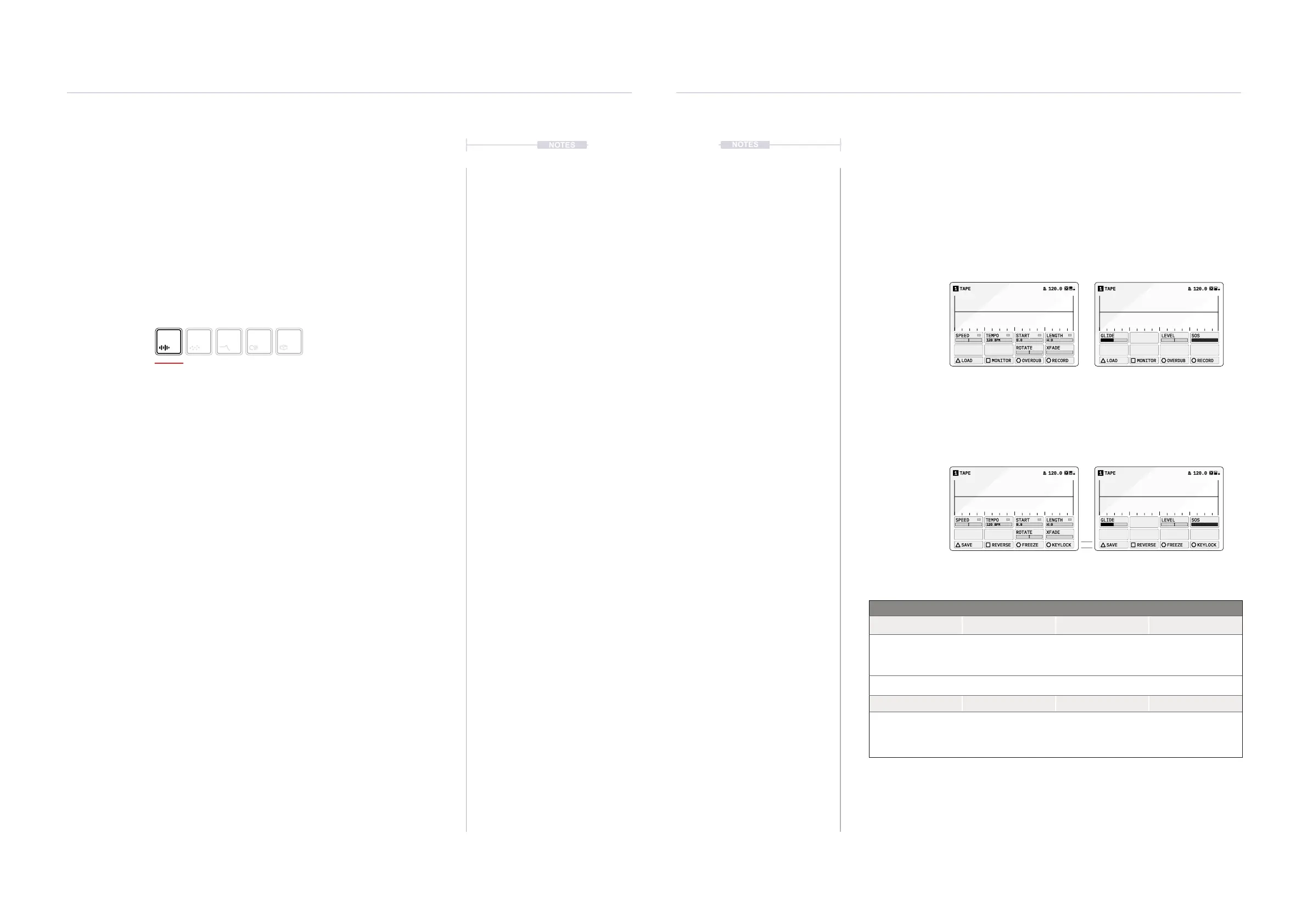
Tape is a looping sampler with adjustable speed that emulates many of the
classic tape recorder features. It allows capturing incoming audio by
recording either to new tape or overdubbing to the existing tape. Samples
can also be loaded to the tape buffer from the sample library.
TAPE1 120.0
120 BPM
SPEED
TEMPO
START LENGTH
ROTATE XFADE
LOAD MONITOR OVERDUB RECORD
0.0 4:0
TAPE1 120.0
120 BPM
SPEED
TEMPO
START LENGTH
ROTATE XFADE
SAVE REVERSE FREEZE KEYLOCK
0.0 4:0
TAPE1 120.0
GLIDE SOSLEVEL
SAVE REVERSE
FREEZE
KEYLOCK
TAPE1 120.0
GLIDE SOSLEVEL
LOAD MONITOR
OVERDUB
RECORD
Material
Hold [CTRL] + Press [MATERIAL]
to select Tape device
Press [MATERIAL] to select and cycle through pages
Hold [CTRL] to access secondary action button functions
Page 1/2
Page 1/2
Page 2/2
Page 2/2
Action Buttons
Load Monitor Overdub Record
Open the sample
library to select and
load a sample.
Toggles on / off the
live input audio
monitoring option.
* Arm recording to
overdub the existing
tape reel.
* Arm recording to a
new tape reel.
Hold [CTRL] + Press
Save Reverse Freeze Keylock
Save the current tape
sample to the library.
Toggle playback
direction of the tape
loop reel.
Toggles freeze on/off
to scrub playback of
the audio region at
the current location.
Enables granular or
tape style playback
separating the pitch
and time.
* Record and overdub will only arm recording. Press Play / Stop to initiate the actual recording
process. Arming recording while playing will initiate recording at the appropriate time.



 To Next Page