26
The S-4 Sculpting Sampler - Ofcial Manual
27
The S-4 Sculpting Sampler - Ofcial Manual
NOTES
Projects & Tracks
2
Projects & Tracks
2
NOTES
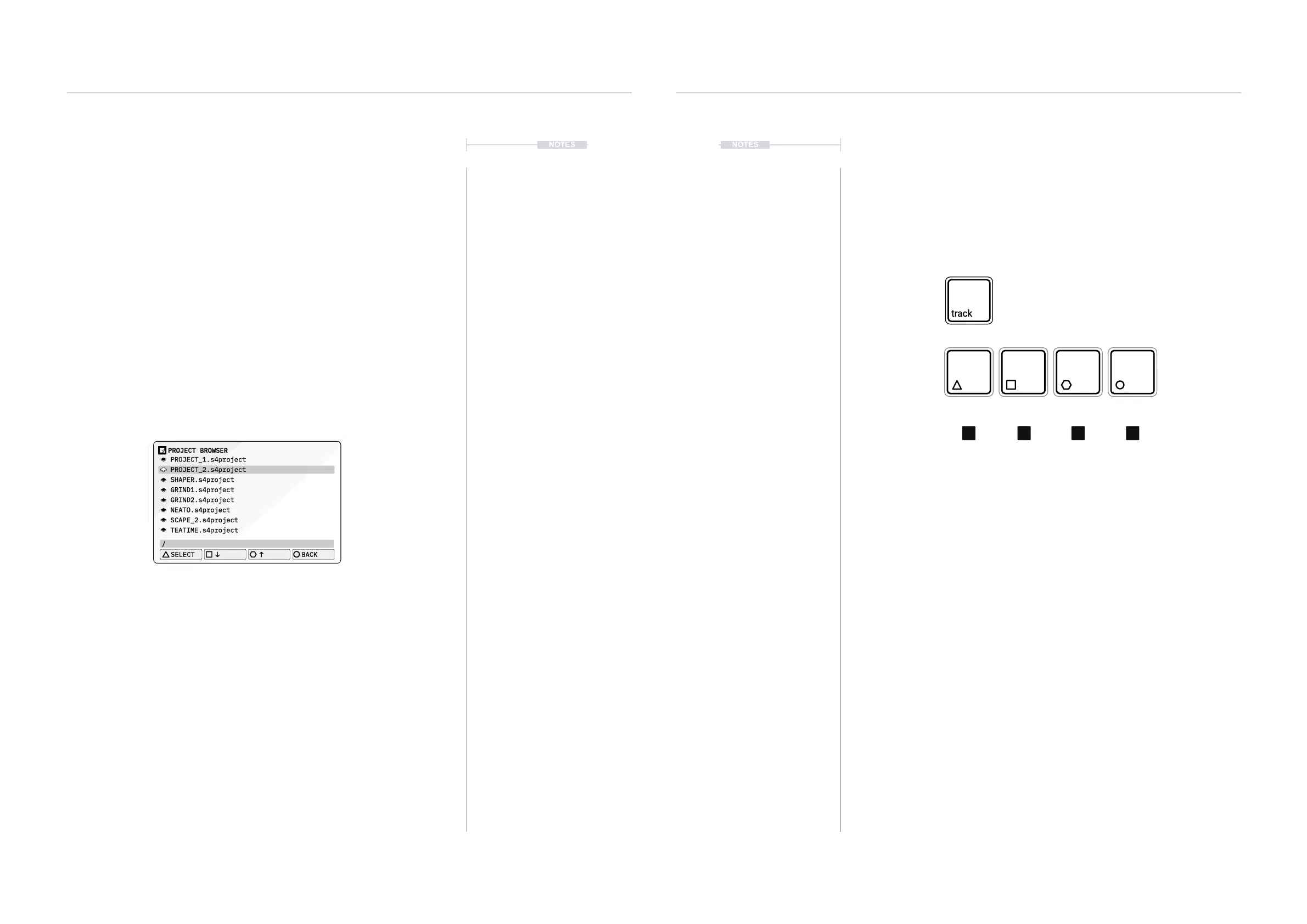
▌ LOADING A PROJECT
1. Press [PROJECT] to open the project management options.
2. Press [LOAD], action button to request loading a project.
3. The project list will be presented where a project can be loaded.
4. The (SELECT) Knob or the [DOWN], and [UP], action buttons will
navigate to highlight project to load.
5. Press [SELECT], action button to select the le to load and to
proceed. Press [BACK], action button to return to the prior menu and
to cancel without loading a project.
6. The selected project will be loaded as the active project.
▌ DELETING A PROJECT
1. Press [PROJECT] to open the project management options.
2. Press [LOAD], action button to open the project list.
3. The project list will be presented where a project can be highlighted.
4. The (SELECT) Knob or the [DOWN], and [UP], action buttons will
navigate to highlight project to delete.
5. Press [CLEAR] dedicated button to delete the highlighted project.
6. A prompt to remove the project is presented. To delete Press [YES],
action button or Press [NO], action button to cancel without deleting.
PROJECT_1.s4project
PROJECT_2.s4project
SHAPER.s4project
GRIND1.s4project
GRIND2.s4project
NEATO.s4project
SCAPE_2.s4project
TEATIME.s4project
SELECT
BACK
PROJECT BROWSER
/
2.2 Track Basics
The S4 has 4 stereo tracks each with its own 5 device audio engine and 4
modulation functions. Tracks operate in parallel with synchronised
playback. Think of a track as a self contained audio environment used to
sculpt and shape sounds and generate a sound source individually or to be
combined with other track audio sources.
▌ SELECTING A TRACK
1. Press [TRACK] to open the track view.
2. Select a track using the action buttons in the track view.
• For Track 1, Press [TRACK 1], action button, symbol .
• For Track 2, Press [TRACK 2], action button, symbol .
• For Track 3, Press [TRACK 3], action button, symbol .
• For Track 4, Press [TRACK 4], action button, symbol .
3. The chosen track will be selected and the track number will be
displayed on the screen pages, top left of the header. The action button
label will also be highlighted to show the currently selected track.
4. Alternatively, Hold [TRACK] + Press Action Button for the track. This
quick selection of the track will close the page when buttons are
released and revert to the current display.
5. Any sound design edits made in the audio devices or the modulation
section will be performed for the chosen track.
[TRACK 1] [TRACK 3][TRACK 2] [TRACK 4]
Track Button
Hold [TRACK] + Action Button for quick track selection.
Press [TRACK] to open the track view. The selected
track can be chosen from the action buttons.
or
1 32 4



 To Next Page