132
The S-4 Sculpting Sampler - Ofcial Manual
133
The S-4 Sculpting Sampler - Ofcial Manual
System
8
System
8
NOTES
NOTES
8.2 Connecting the S-4 to a PC / Mac for Data Transfer
It is possible to connect and communicate with the S-4 from a PC/Mac
using the USB-C connection. This is useful for a variety of reasons but one
specic function is to transfer data to the S-4 as a remote storage device.
Transferring samples and rmware updates can be performed in this mode.
▌ CONNECTING A PC/MAC
1. Ensure the S-4 is powered off.
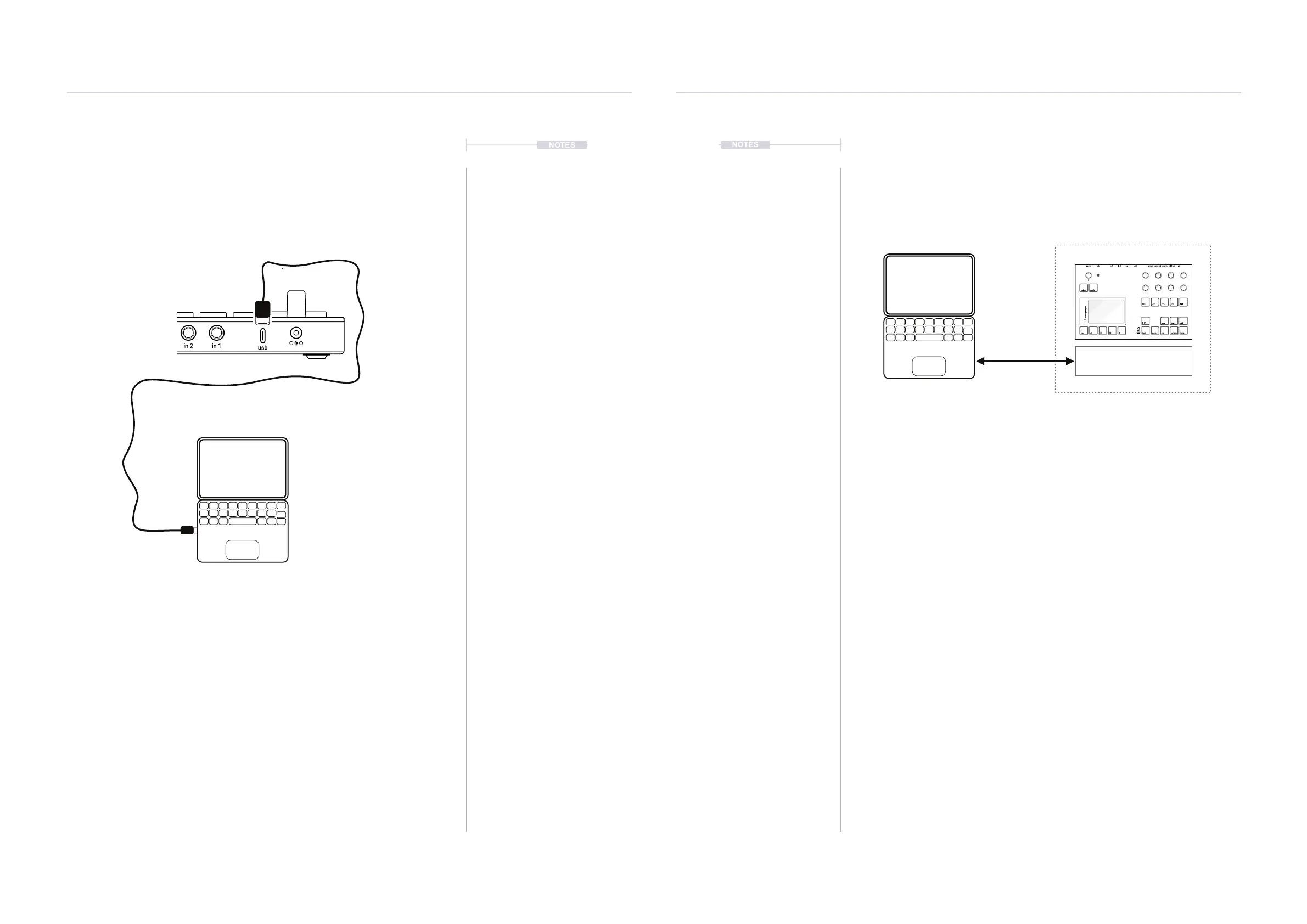
2. Connect a compatible USB cable between the PC / Mac and the S-4
USB-C connector. The cable will depend on the PC/Mac connections
i.e. Type C or A etc. Ensure this is a fully functional USB data
compatible cable and not designed only for use as a power cable.
3. Power ON the S-4 using the supplied PSU. This will need the dedicated
PSU connected as the USB port does not power the S-4 device.
8.3 S-4 as a Mass Storage Device
The S-4 can operate as a MSD or Mass Storage Device when connected to
a PC or Mac. This presents the S-4 similar to a remote hard drive
connected to the PC/Mac. This allows transfer of les by simply dragging
from the PC/Mac to the S-4 MSD.
▌ SETTING S-4 AS A MASS STORAGE DEVICE
1. Connect the PC/Mac to the S-4 as previously described. Ensure any
projects are saved on the S-4.
2. Press [CONFIG] to open the conguration settings.
3. Turn (SELECT) to navigate to highlight the ‘SYSTEM’ sub-menu. Also
press the [DOWN], or [UP], Action buttons to navigate the menu.
4. Press [OPEN], or Press (SELECT) to open the sub-menu options.
5. Navigate to highlight the ‘USB MASS STORAGE’ option.
6. Press [OPEN], Action button or Press (SELECT) Knob to set the S-4
to a Mass Storage Device. This means the S-4 will be presented on the
PC/Mac like a removable hard drive and named ‘S-4’. An error will be
displayed if a USB connection is not present or is not recognised.
7. Files can be copied from the PC/Mac to / from the S-4 MSD. For
example to copy a rmware le or a sample to the S-4 or use this mode
to backup les from the S-4 to the PC/Mac.
8. When complete, eject the S-4 from the within the PC/Mac le browser.
9. The S-4 will be disconnected and will restart.
in 1out 1
sync inmidi in
usb
in 2out 2
sync outmidi out
USB-C Interface.
Connect a USB cable between
the S-4 and the PC/Mac.
Mass Storage Device
S-4
PC / Mac connected with a
compatible USB cable
power in 1 out 1 sync in midi inusb in 2 out 2 sync out midi out
project
mod track mix
copy ctrl
temp
cong
scene perform
clear
t|so
S-4
sculpting sampler



 To Next Page