36
The S-4 Sculpting Sampler - Ofcial Manual
37
The S-4 Sculpting Sampler - Ofcial Manual
NOTES
Projects & Tracks
2
Projects & Tracks
2
NOTES
Access to the sample browser is found in a device that is capable of
loading a sample. Selecting [LOAD] will open the sample browser for
selection from the libraries. Files can also be accessed from an external
USB drive which is connected to the S-4.
2.7 Sample Browser
The S-4 onboard memory has a common sample pool containing a
collection of factory samples as well as any installed user samples. In
particular the Material devices have a 6 min sample buffer and can access
the libraries to select a sample source.
User samples can be copied, backed up and transferred in and out by
connecting to a PC/Mac using the USB Mass Storage mode. An external
USB drive can also be connected in order to access additional remote
sample libraries.
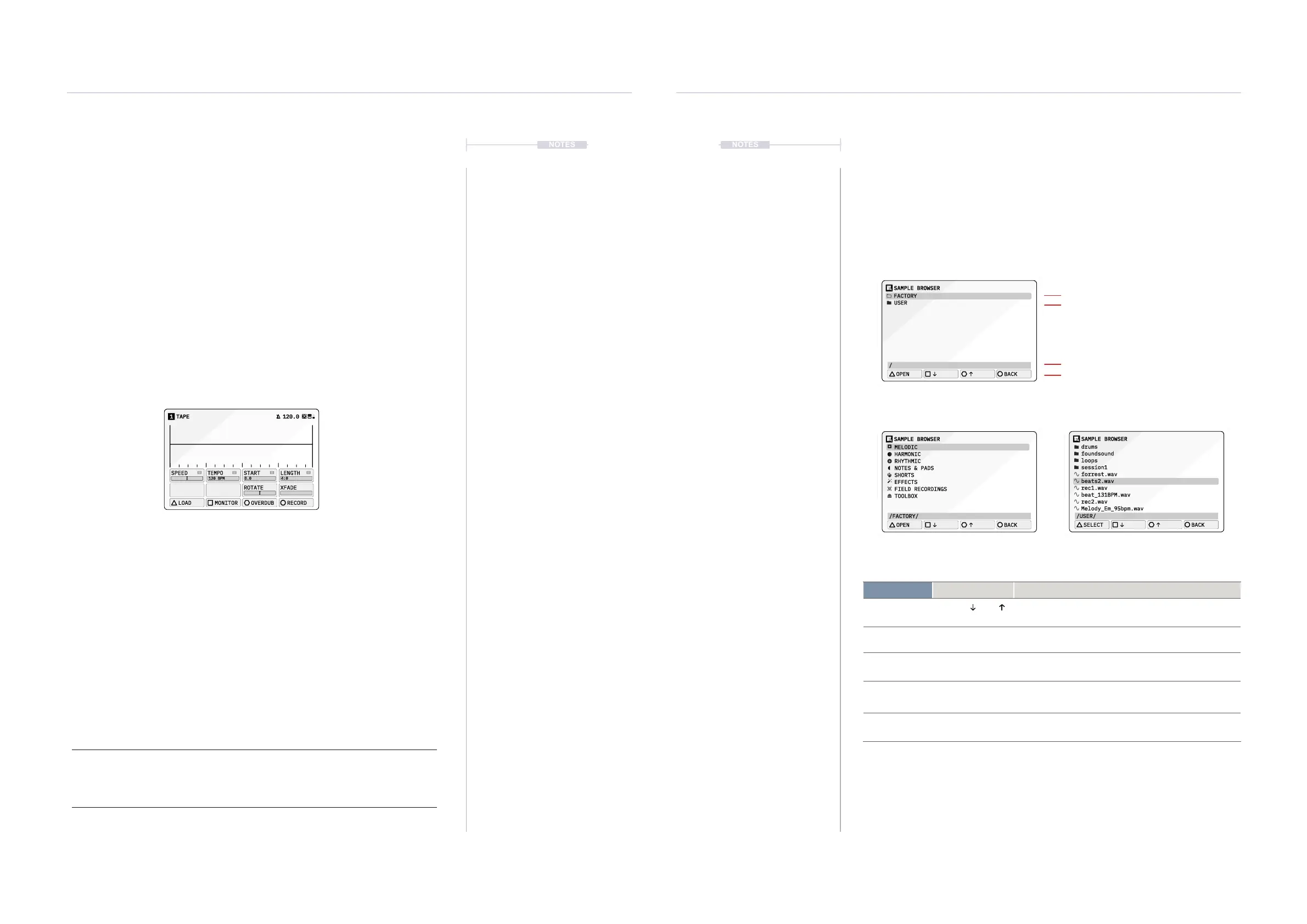
The sample browser opens by selecting [LOAD], Action button when a
sample device such as Tape is open. A protected factory bank, organised
by theme is pre-installed on the S-4.
Loading a sample with a lename containing ‘XXXBPM’ or ‘XXXbpm’ will
automatically assign the ‘XXX’ value as the TEMPO parameter value.
Note:
Sample format is .ac or .wav les, 8, 16, 24 or 32 bit. Files are internally converted to
48kHz. Recorded les are stored in 48 kHz 24-bit stereo .wav format.
Press [LOAD] to open the sample browser
Tape Device
TAPE1 120.0
120 BPM
SPEED
TEMPO
START LENGTH
ROTATE XFADE
LOAD MONITOR OVERDUB RECORD
0.0 4:0
Sample Browser - Main Menu
FACTORY - Sub Menu USER - Sub Menu - Example
Function Command Description
Scroll Options
[DOWN] [UP]
or Turn (SELECT)
Use the action buttons to scroll and highlight the
available options in the sample list.
Delete Sample Press [CLEAR]
Will delete the selected, highlighted sample. A prompt will
be presented in order to conrm removing from memory.
Open Sub folder
Press [OPEN] or
Press (SELECT)
Press [OPEN] to open the sub folder. Back up using the
[BACK] action button option.
Select sample
Press [SELECT] or
Press (SELECT)
Use the action buttons to select and load to the device
the highlighted sample from the list.
Eject USB
Hold [CTRL] +
Press [EJECT]
Eject a connected USB device from the S-4
Folder Path
Factory Folder
User Folder
Navigation Commands
SAMPLE BROWSER
EFFECTS
HARMONIC
RHYTHMIC
NOTES & PADS
SHORTS
MELODIC
TOOLBOX
FIELD RECORDINGS
/FACTORY/
OPEN
BACK
SAMPLE BROWSER
beats2.wav
foundsound
loops
session1
forrest.wav
drums
beat_131BPM.wav
rec2.wav
Melody_Em_95bpm.wav
rec1.wav
/USER/
SELECT
BACK
SAMPLE BROWSER
USER
FACTORY
/
OPEN
BACK



 To Next Page