4 Software
Entering a PPM value
In the Atmospheric Correction panel, the "Keyed In" text below the PPM value means that you have
manually entered the value. When the "Keyed In" text is not present, the PPM value is a computed
value calculated from both the Pressure value and the Temperature value.
To enter a PPM Value:
1.
In the Atmospheric Correction panel of the Atmospheric correction dialog (see page 77), tap
Change. An on-screen keyboard appears with the current PPM value highlighted.
The keys that you can use are: 0, 1, 2, ... 9 and + and -. The value you can enter ranges from -73
to +145.
If you enter a value lower than -73 or higher than +145, this value is automatically rounded to -
73 or to +145.
2. Enter a value and then tap OK. The on-screen keyboard disappears.
As the Temperature value and the Pressure value cannot be exactly deduced from the PPM value,
both are set as blank. Similarly, when you change the current PPM value, which is previously
different from zero, to zero, this will set the Temperature and Pressure values to blank.
Changing the Pressure value
To change the pressure value:
1.
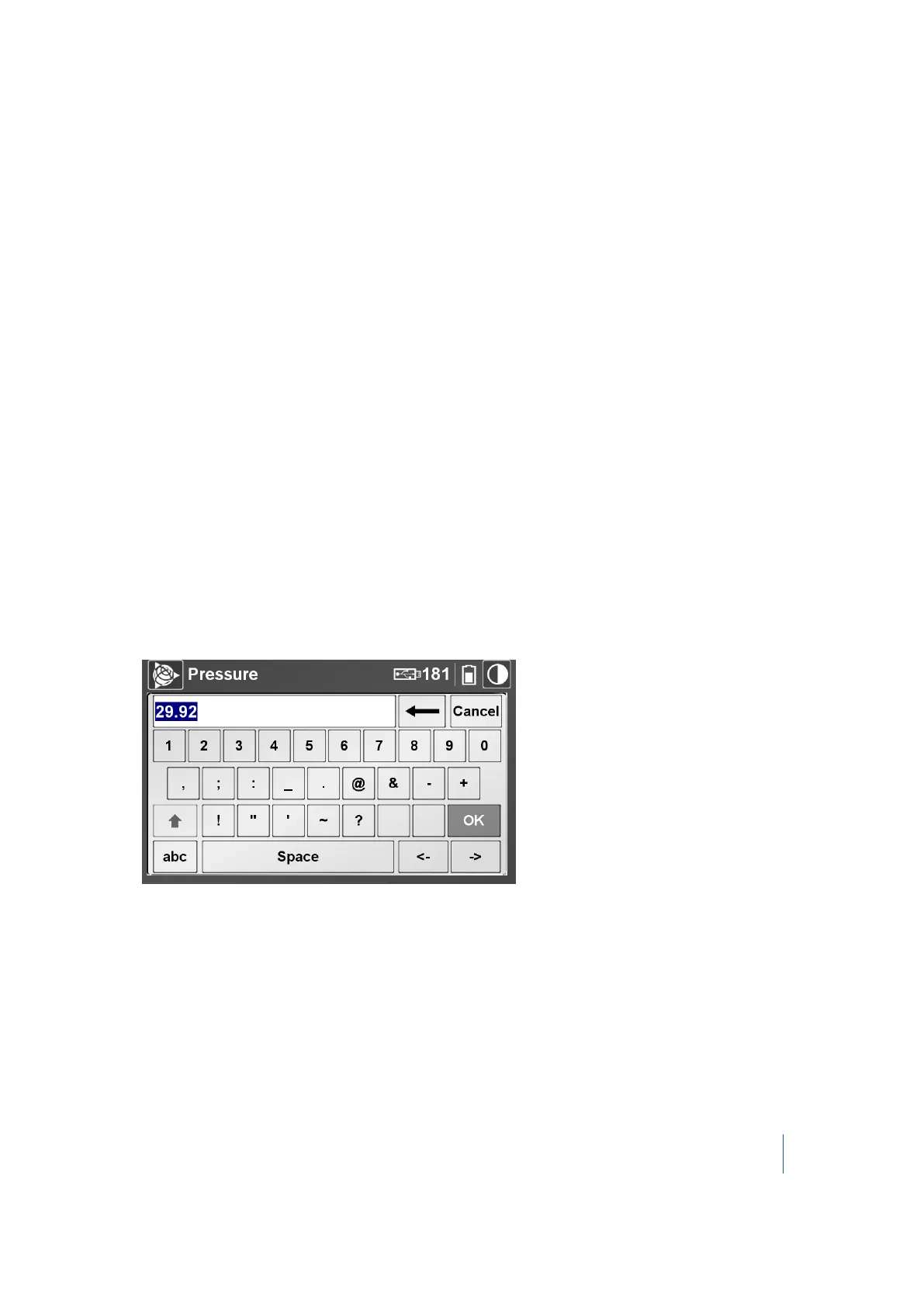
In the Pressure panel of the Atmospheric correction dialog (see page 77), tap Change. An on-
screen keyboard appears with a blank field:
The keys you can use are 0, 1, 2 ... 9 and ".". The value you can enter ranges from 870 mbar to
1020 mbar.
If you enter a value lower than 870 mbar (or higher than 1020 mbar), this value is automatically
rounded to 870 mbar (or to 1020 mbar).
2. Enter a value and then tap OK. The on-screen keyboard disappears. The new value appears in
the Pressure panel using the unit of measurement defined in the Settings dialog (see page 85).
Trimble TX8 3D Laser Scanner User Guide 78



 To Next Page