UAV-1004234-001, AV-30-E Installation Manual 51
Rev H
Windows, MacOS, iOS and other devices are supported using the built-
in web browser on your computer. To connect to the AV-Link through
your browser, configure your computer for the AV-Link Wi-Fi connection.
1. Power AV-Link by attaching the AV-Link to AV-30 to provide power.
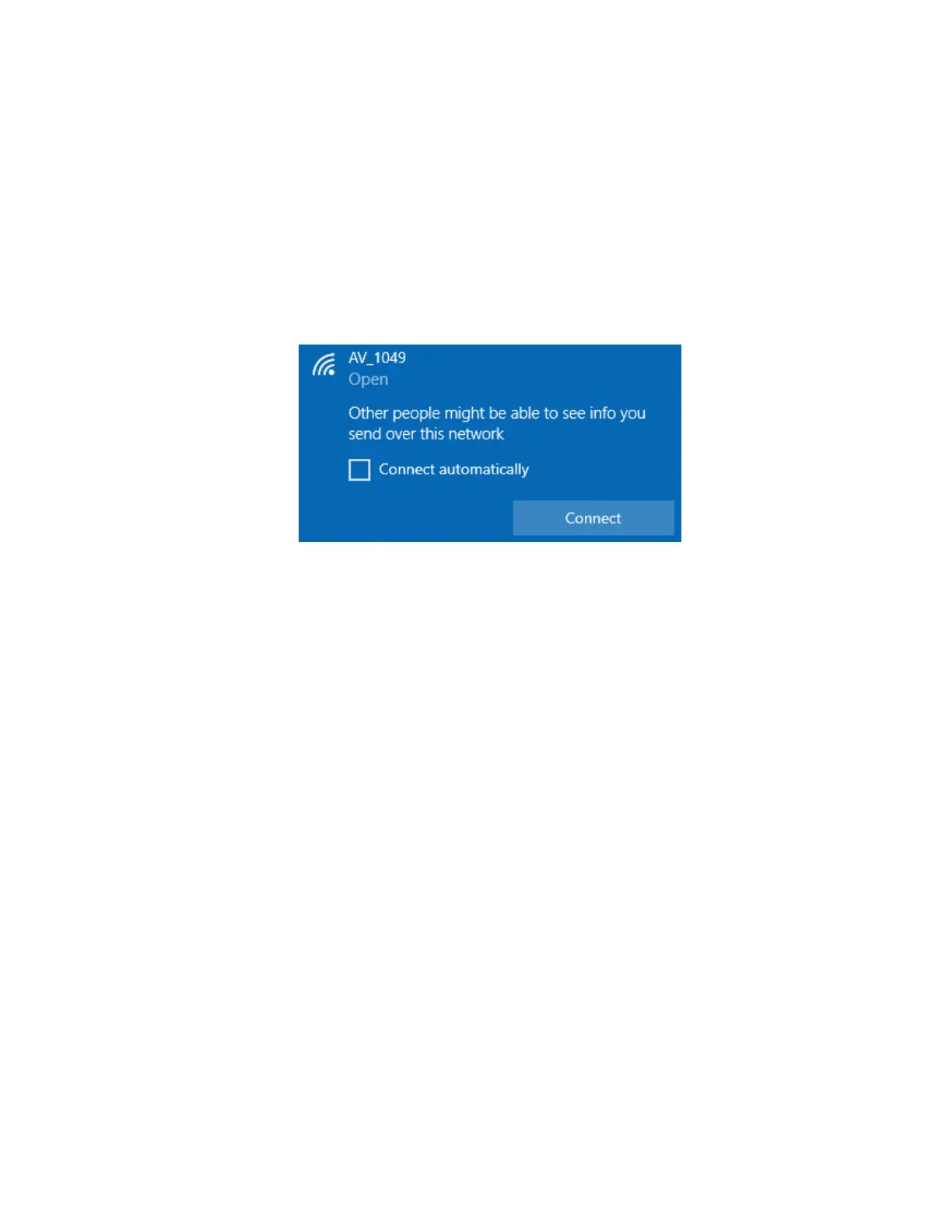
2. Once the AV-Link is powered, on your computer, connect to the AV-
Link Wi-Fi hotspot, which will have an
XXXX is a combination of alpha-numeric characters.
3. Once connected, use your web browser to navigate to 192.168.5.1 to
view AV-Link settings.
11.1.15 Wi-Fi Firmware Update Page
Note: All settings changes should be performed while on the ground.
Accessing the AV-Link web pages while in flight is not recommended
and may disrupt normal operations of AV-30 and AV-Link.
The AV-Link firmware update page permits firmware updating of AV-
Link. Refer to the most recent service bulletin for the latest firmware
update instructions.
11.1.16 AV-Link Factory Reset
The AV-Link can be returned to factory settings from the AV-30
installation menu. For example, if the WiFi password was set but
forgotten, the factory reset will delete the password. AV-Link software
version 0.2.39 or later is required to support factory reset.



 To Next Page