Before installation
It is recommended to use the new original operating system to avoid problems such as
installation failure or use error due to file corruption or loss of the old system.
Please download the original Windows system image on the official website of Microsoft
to ensure system security and functional integrity.
Please make sure to DISABLE secure boot (It is not necessary to disable the secure boot
option in win10 or above systems) in the mainboard, and any Anti-Virus or Firewall
software during the installation of vMatrix Server Manager. After installation has
completed, you may re-enable Anti-Virus and Firewall software.
The host hard disk is recommended to be partitioned into 3: a system C partition where
the system and software are installed, a public partition for storing users’ shared data
and a private partition for storing users’ personal date.
Before installing vMatrix Server Manager, you are suggested to rename the computer
name of the host.
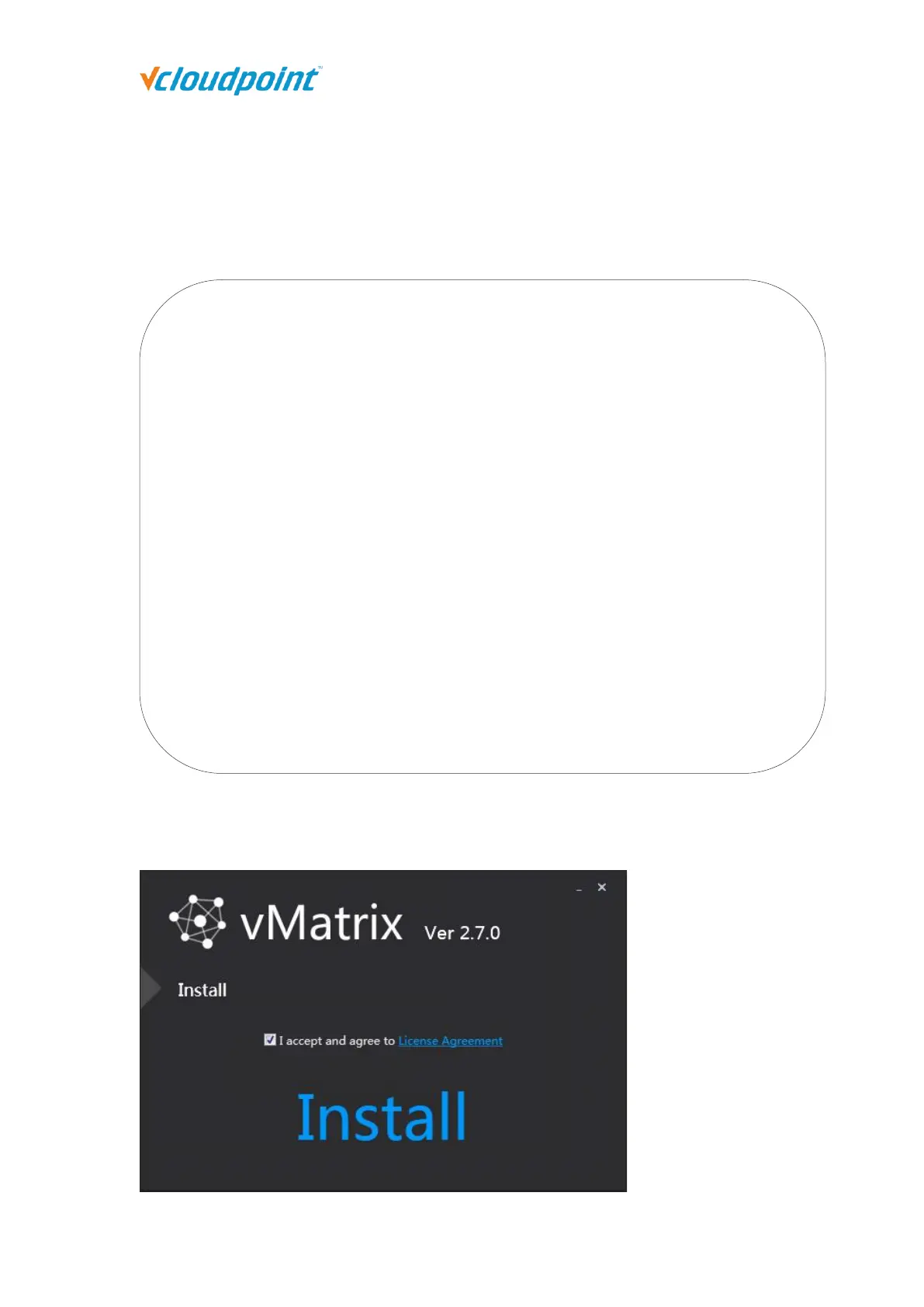
vMatrix Server Manager software requires Net framework 4.0 and VC++ 2010 Library on
your host server, and vMatrix Server Manager will automatically install these two models
during the process of installation.


 To Next Page