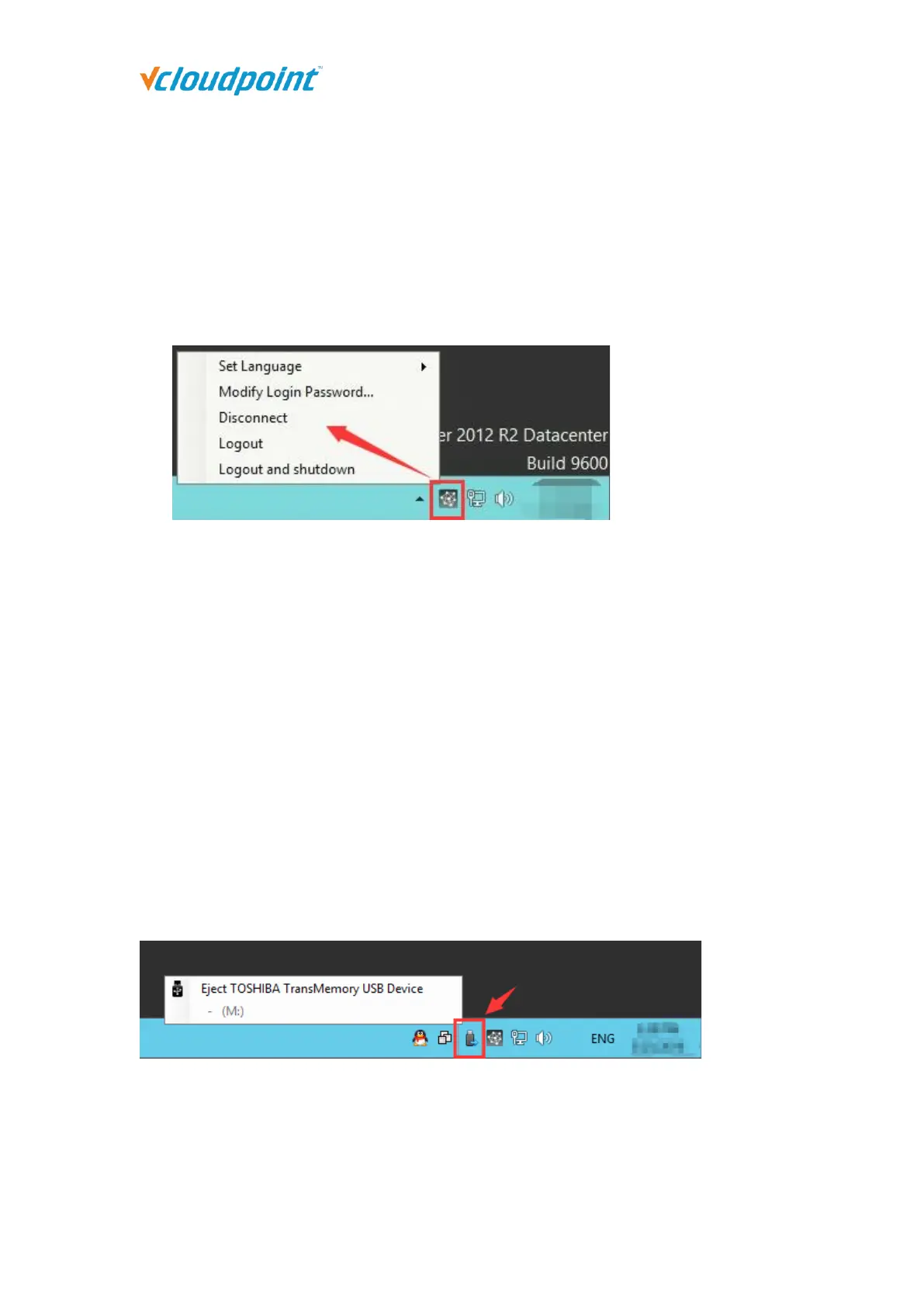
right click on the vmatrix icon on the taskbar and click ”Disconnect”.
press the power button of the device.
Logout: to logout the user; the user’s session is ended; files applications are closed.
Right click on the system’s window button, choose “Shutdown or logout”, and then
“logout”.
Logout and shutdown: logout the user session and power off the client device.
Note:
1) Terminal users have “Disconnect” and “Logout” for shut down option.
2) When the connection is disconnected, the user desktop session is still running on the host. If
you do not use it. Please logout the user session and shutdown the client device when ending
the work.
4.9 Use USB Devices
To use supported USB devices, simply connect them to the USB ports on the device. Some
USB devices may require a driver to install on the host by an administrator. There is no
client driver needed for the device. To avoid data loss or damage to a memory device
plugged into the device, right click on the USB icon at the right task bar to eject the device
before unplugging it.


 To Next Page