The following happens:
a.
A network drive is mapped to the shared
data folder on the CAM computer.
For this, the first available drive letter on the CAD
computer is used.
Example: If Z is the first available drive letter,
you will be able to access the shared data
folder on the CAM computer by opening the
Z:
drive on the CAD computer.
b.
The login credentials for the network share
and remote desktop access are stored on the
CAD computer.
9.
Record the drive letter for the network drive.
You will need this drive letter later.
10.
Press any key.
The current window closes. The script has fin-
ished.
Setting up DentalCNC
1.
Access the CAM computer.
2.
Switch to DentalCNC.
3.
Open the DentalCNC
Application settings
. For
this, select the following icon in the main icon
bar:
4.
Open the
General settings
. For this, select the fol-
lowing icon in the lower icon bar:
5.
Check if the following folder path displays under
the
CAD/CAM integration: Data transfer folder
label:
C:\CADshare\DentalNestingObjToMDW
If it doesn’t, do the following:
a.
To store the data transfer folder in
DentalCNC, select the depicted
icon to the right of the
CAD/CAM
integration: Data transfer folder
label.
A window for selecting the folder opens.
b.
From the drop-down list, select the drive let-
ter
c:
.
c.
Select the following folder:
CADshare\DentalNestingObjToMDW
d.
Select the depicted icon.
The selected folder displays below the
CAD/CAM integration: Data transfer folder
label.
Setting up Dental Wings Chairside CAD
1.
On the CAD computer, open Dental Wings Chair-
side CAD.
2.
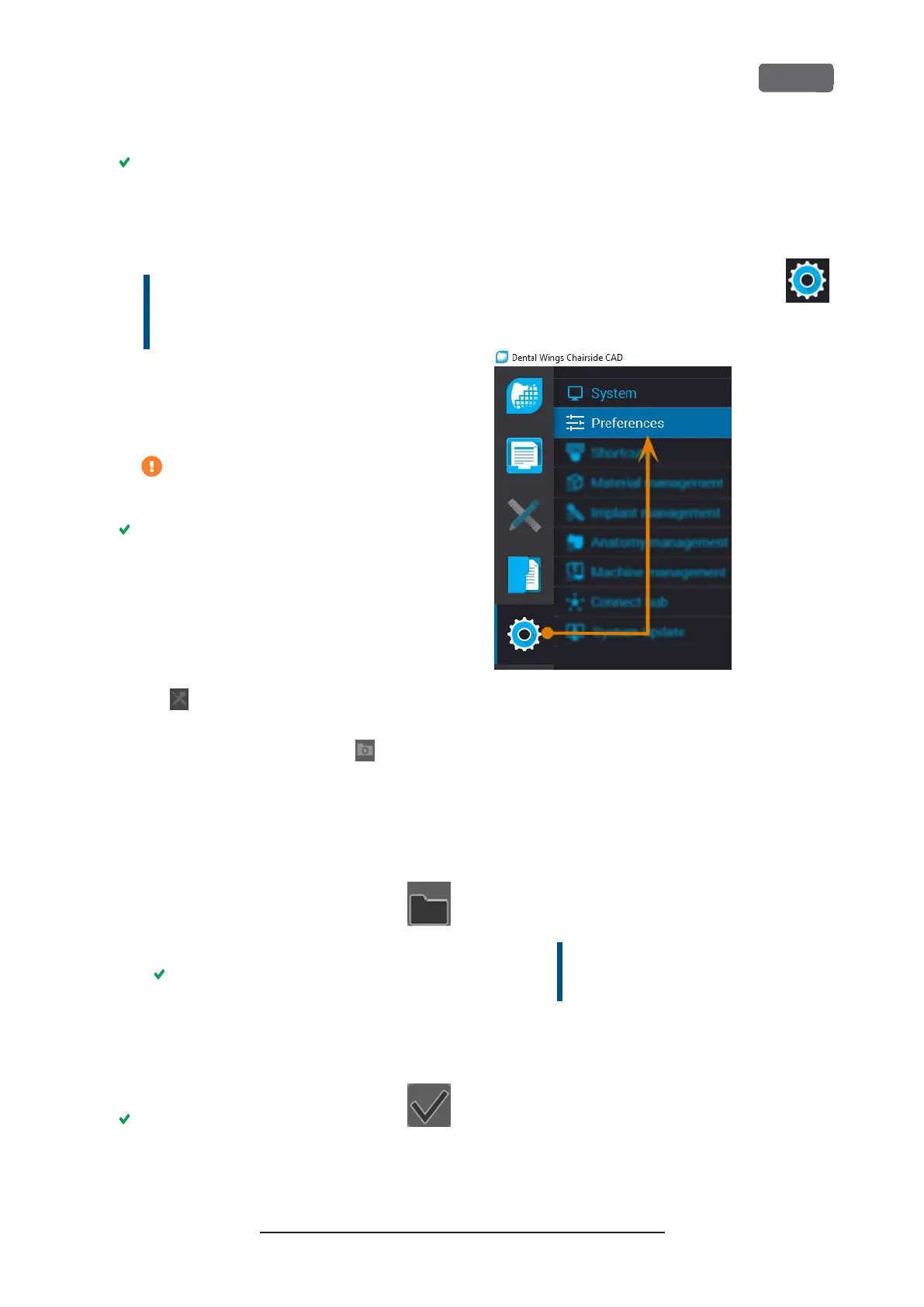
Open the settings by selecting the
depicted icon in the left column.
3.
Select
Preferences
.
F
IG
. 22 – O
PENING THE SETTINGS IN
D
ENTAL
W
INGS
C
HAIRSIDE
CAD
4.
Open the
Milling
menu.
5.
Enter the network path to the shared data folder
into the
VHF Z4 Output directory
input field.
a.
Select
[…]
.
b.
Access the mapped network drive by select-
ing the drive letter that you recorded.
c.
On the network drive, select the following
folder:
DentalNestingObjToMDW
Example: If Z is the network drive letter,
the network path is:
Z:\DentalNestingObjToMDW
Z4 – Installing the machine
EN 29
Original Operating Instructions:Z4
Version: 12/5/2018



 To Next Page