How do I prepare an exam?
How to turn on the system?
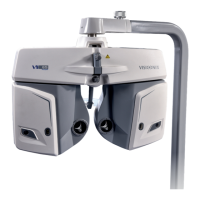
If the phoropter is connected to a unit or to an electrical power strip with ON/OFF button:
➢ Turn ON the power supply for the phoropter.
If there is a VXBox;
➢ Turn ON the VXBox.
Then:
➢ Turn ON the tablet.
➢ Turn ON the chart display.
➢ Wait for the launch of the application of VX65.
How do I receive measurements from other devices?
➢ Activate the use of VXBox.
➢ Activate the use of OBJ and/or LM data.
➢ Perform the measurement on OBJ and/or LM device.
➢ Export the data from OBJ and/or LM device.
➢ Tap on Input data button .
If “Load by ID” is deactivated in the settings, at the 1st tap it loads automatically the last
received OBJ and/or LM data.
Else, the input data window opens.
To load by ID
“Load by ID” has to be activated in the settings.
➢ Tap on ID field (OBJ or LM).
A numeric keyboard opens with an Ok (or Enter) button.
➢ Enter the ID of the measurement.
➢ Tap on Ok
The numeric keyboard is closed and the tablet searches the OBJ or LM xml file in the
VXBox:
If the file exists, data are loaded in data field.
Else, a warning message is displayed.
To load automatically last data
If the data did not arrive at the 1st tap on Input data button:
➢ Tap again on Input data button .
The input data window opens.
➢ Tap on Input data button .
How do I manually insert or modify refractions from an OBJ or LM?
➢ Tap on Input data button .
The input data window opens.
➢ Tap on Set Manually the data button .
It opens a window to Set manually OBJ or LM (according to which button has been taped).


 To Next Page