EasyManua.ls Logo

WAREMA Wisotronic - User Manual

WAREMA Wisotronic
112 pages
Print Icon
To Next Page IconTo Next Page
Loading...
Wisotronic 1-channel
Operating instructions
(Keep for future use)
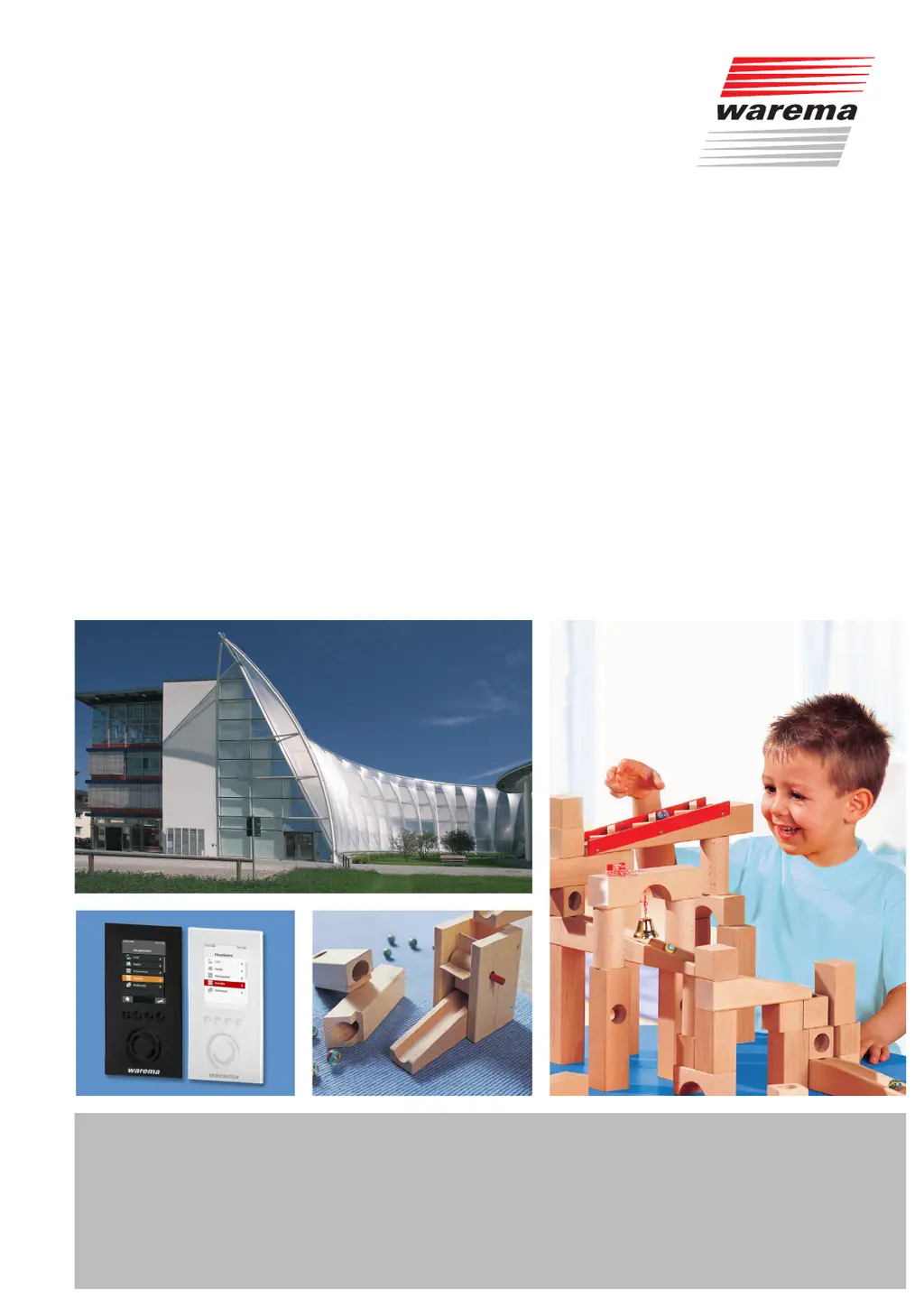
Photo: Habermaass GmbH
Sun. Light. WAREMA.Valid from 1st July 2014
890557_den

Table of Contents

Other manuals for WAREMA Wisotronic

Questions and Answers

  • E
    Edwin ColonAug 31, 2025
    Why aren't the comfort functions working as expected on my WAREMA Control Systems?
    • D
      Dr. Christopher Cannon MDAug 31, 2025
      If the comfort functions for dawn/dusk, sun, and temperature control are not functioning as desired on your WAREMA Control Systems, first check if the control timer is switched off. If so, switch on the control timer or change the programming. Alternatively, the control timer might not be correctly programmed, so change the programming of the control timer.
  • K
    Kevin AndersonAug 25, 2025
    Why doesn't my WAREMA Wisotronic Control Systems respond to the EWFS Hand-held transmitter?
    • V
      Valerie MorrisAug 25, 2025
      If the WAREMA Wisotronic does not respond to an EWFS Hand-held transmitter, ensure the transmitter has been learned in. If using an 8-channel EWFS transmitter, verify the correct channel is selected and repeat the move command. Also, ensure the button press isn't too short and repeat the command if needed. Reduce the distance to the Wisotronic to avoid interfering ambient influences. Check for active safety functions due to weather conditions and wait until they subside. If a wind test identified a fault, reset the wind test.
  • K
    Kelly McdanielAug 25, 2025
    Why does my WAREMA Wisotronic Control Systems respond sporadically to the EWFS Hand-held transmitter?
    • H
      Holly YuAug 26, 2025
      If the WAREMA Wisotronic responds only sporadically to an EWFS Hand-held transmitter, try reducing the distance to the Wisotronic to avoid interfering ambient influences. Also, check for interference from external transmitters such as baby monitors, and switch them off.
  • M
    melissa94Aug 26, 2025
    What to do if control functions do not respond on my WAREMA Wisotronic Control Systems?
    • S
      Shaun GarciaAug 27, 2025
      If the control functions of your WAREMA Control Systems do not respond, first check if the control functions are deactivated on the control panel. If so, activate control functions in the main menu and in the comfort functions. Another reason may be that a safety function is active.
  • E
    Eric NguyenAug 27, 2025
    What to do if my WAREMA Wisotronic sun shading system does not move with the sunlight level?
    • K
      Kimberly YoungAug 27, 2025
      If your WAREMA Control Systems sun shading system does not move with the sunlight level, it might be because the sun control is switched off. Switch on the sun control.
  • S
    Shaun DuffyAug 27, 2025
    Why isn't my WAREMA Wisotronic Control Systems sun shading system moving at dawn/dusk?
    • N
      Nicole RodriguezAug 27, 2025
      If your WAREMA Control Systems sun shading system does not move at dawn/dusk, it could be due to several reasons. First, check if the dawn/dusk control is switched off and switch it on if necessary. Second, ensure that the limit values of the dawn/dusk control are correctly programmed and change them if needed. Finally, verify that the sensor is installed correctly and check its location.
  • A
    ashleytorresAug 28, 2025
    How to stop a WAREMA Wisotronic wind alarm from triggering in a gentle wind?
    • K
      Keith RobinsonAug 28, 2025
      If a wind alarm is triggered even in a gentle wind with your WAREMA Control Systems, the wind speed limit might be set too low. Increase the wind limit value, while observing safety instructions.
  • N
    Nicholas ClarkeAug 29, 2025
    What to do if no wind alarm is triggered during a strong wind with my WAREMA Wisotronic Control Systems?
    • M
      Mr. Scott BaxterAug 29, 2025
      If no wind alarm is triggered even in a strong wind with your WAREMA Control Systems, the wind speed limit might be set too high. Decrease the wind limit value, while observing safety instructions. Alternatively, wind monitoring might be switched off, so switch on wind monitoring.
  • T
    Theresa ChristensenAug 29, 2025
    Why isn't my WAREMA Wisotronic Control Systems precipitation alarm triggering?
    • Y
      ybishopAug 30, 2025
      If the precipitation alarm is not triggered on your WAREMA Control Systems, first check if the sensor is connected, faulty, or dirty; clean or check the sensor as needed. Also, ensure that precipitation monitoring is switched on.
  • P
    Peter SmithAug 30, 2025
    What to do if the ice alarm is not triggered on my WAREMA Wisotronic?
    • N
      Natalie IrwinAug 30, 2025
      If the ice alarm on your WAREMA Control Systems is not triggered, first ensure that ice monitoring is switched on. Next, check if the temperature limit value is set too low and change the limit value, noting the safety instructions. Also, verify that the sensor is properly connected, not faulty, and clean.

Summary

Introduction

Safety Instructions

2 Safety instructions

General safety information and warnings regarding the Wisotronic control system.

2.1 Meanings of symbols and pictographs

Explanation of warning symbols (DANGER, WARNING, CAUTION) and instructional pictograms.

2.2 Intended use

Defines the proper use of the Wisotronic and safety precautions for window drives.

2.3 Target group

Identifies the intended audience for these instructions and emphasizes qualified personnel.

2.4 General safety instructions

Key safety guidelines for operating automatically controlled sun shading systems.

2.5 Working safely

Precautions for electrical installation and safe handling of mechanisms.

2.6 Retrofitting and modifications

Guidelines and warnings concerning system modifications and component replacements.

Menu Structure

Getting Started

5 Getting started

Introduction to the initial setup and operation of the Wisotronic.

5.1 Start menu

Description of the Wisotronic's start menu elements and navigation.

5.2 Main menu

Navigating and understanding the Wisotronic's main menu options.

5.3 Example for operation: Set time and date

Step-by-step guide on how to set the date and time on the Wisotronic.

5.4 Example for operation: Set display

Instructions for adjusting display settings and changing operating element behaviour.

Operating

6 Manual operation

How to operate connected products directly via the Wisotronic control panel.

Set Functions

7 Set functions

Introduction to basic and comfort functions for quick operation.

7.1 Basic functions

Core settings for new users to quickly configure the Wisotronic.

7.1.1 Sun control ON;OFF

Activating or deactivating the automatic sun control feature.

7.1.8 Precipitation monitor ON;OFF

Enabling or disabling the precipitation monitoring safety function.

Convenience Functions

7.2 Convenience functions

Advanced settings for automatic sun shading control based on user preferences.

7.2.1 Sun control

Configuration of automatic sun shading based on brightness levels.

7.2.1.1 Sun control ON;OFF

Enabling/disabling the sun control feature for a channel.

7.2.1.2 Limit value SUN

Setting the brightness threshold for lowering sun shading products.

7.2.1.3 Delay SUN

Assigning a delay time to prevent immediate reaction to brightness changes.

7.2.1.4 Position SUN

Defining the position for sun shading products when sunshine is detected.

7.2.1.6 Limit value CLEAR

Setting brightness for medium position and slat tilt in clear sky conditions.

7.2.1.10 Limit value CLOUD

Setting the brightness threshold for raising sun shading products.

7.2.1.14 Limit values of the sun control

Guidelines for setting SUN, CLEAR, and CLOUD limit values for optimal sun control.

7.2.1.18 Correct use of the sun control

Illustrates how brightness changes affect sun control operation with delay times.

Dawn;Dusk Control

7.2.2 Dawn;dusk control

Configuration for automatic sun shading based on lighting conditions at dawn/dusk.

7.2.2.1 Dawn;dusk control ON;OFF

Enabling or disabling the dawn/dusk control for a channel.

7.2.2.2 Limit value DAWN

Setting brightness threshold for moving products at dawn.

7.2.2.6 Limit value DUSK

Setting brightness threshold for moving products at dusk.

7.2.2.15 Using dawn;dusk control correctly

Illustrates dawn/dusk control operation based on brightness changes.

Temperature Control

7.2.3 Temperature control

Automatic temperature-dependent control of sun shading products.

7.2.3.1 Basic functions

Overview of temperature control operating modes and requirements.

7.2.3.2 Temperature control ON;OFF

Activating or deactivating the temperature control per channel.

7.2.3.3 Limit value WARM

Setting the temperature limit for lowering products to provide shade.

7.2.3.4 Position WARM

Defining the product position for operation at higher temperatures.

7.2.3.6 Limit value COLD

Setting the temperature limit for raising products to allow sunlight.

7.2.3.7 Position COLD

Defining the product position for operation at lower temperatures.

7.2.3.13 Difference temperature control

Control based on difference between inside and outside temperatures.

Precipitation Monitor

7.2.4 Precipitation monitor

Safety function to protect fabric products from precipitation.

7.2.4.1 Precipitation monitor ON;OFF

Enabling or disabling the precipitation monitor.

Intermittent Ventilation

7.2.5 Intermittent ventilation

Comfort function for preventing mould and ensuring fresh air via timed window control.

Time Switch

7.2.6 Time switch

Programming specific times for raising or lowering sun shading products.

Cold Protection

7.2.7 Cold protection

Function to prevent excessive cooling by locking automatic controls below a temperature.

7.2.7.2 Blocking temperature

Setting the outside temperature limit for raising products or closing windows.

Manual Operation

7.2.10 Manual operation

Performing settings for manual operation of channels.

7.2.10.1 Position DOWN

Defining the product position for manual DOWN operation.

Hand-held Transmitter

7.2.11 Hand-held transmitter allocation

Assigning WAREMA EWFS hand-held transmitters to Wisotronic channels.

Channels, Groups, Scenes

7.3.2 Manage scenes

Creating, storing, and retrieving scenes for automated actions.

System Settings

7.5 System settings

Performing basic settings for the control unit and connected sensors.

7.5.1 Date; time

Setting the current date and time on the Wisotronic.

7.5.2 Display

Adjusting display view and behaviour of operating elements.

7.5.4 Language

Setting the operating language of the Wisotronic interface.

7.5.5 Sensor compensation

Comparing and adjusting internal/external temperature sensor readings.

Safety Functions

7.9 Safety functions

Overview of safety functions designed to protect sun shading products.

7.9.1 Wind monitoring

Safety function to protect products from wind damage by moving them to a safe position.

7.9.2 Ice monitor

Safety function to prevent damage from frozen guide rails.

7.9.2.1 Automatic reset ice alarm?

Setting whether the ice monitor automatically resets an ice alarm.

7.9.2.2 Manual reset ice alarm?

Procedure for manually resetting an ice alarm to avoid product damage.

Measured Values, Triggers, and Faults

8.5 Faults

Displaying a numbered list of faults in chronological order.

Troubleshooting

14 Troubleshooting

Guide to diagnosing and resolving common problems with the Wisotronic.

WAREMA Wisotronic Specifications

General IconGeneral
BrandWAREMA
ModelWisotronic
CategoryControl Systems
LanguageEnglish

Related product manuals