SK=léÉê~íáçå
fåëíêìÅíáçå=j~åì~ä=`êçëëÄÉ~ã=PQM=ÉåMOE`loF =SP=çÑ=N PQ
cáåÇáåÖ=óçìê=ï~ó=áå=íÜÉ=pã~êípbj
®
=ìëÉê=áåíÉêÑ~ÅÉ
6.3. Finding your way in the SmartSEM
®
user interface
6.3.1. Showing or hiding toolbars
Several toolbars, such as the user toolbar, are available for easy access to the SmartSEM
®
func-
tions.
Procedure
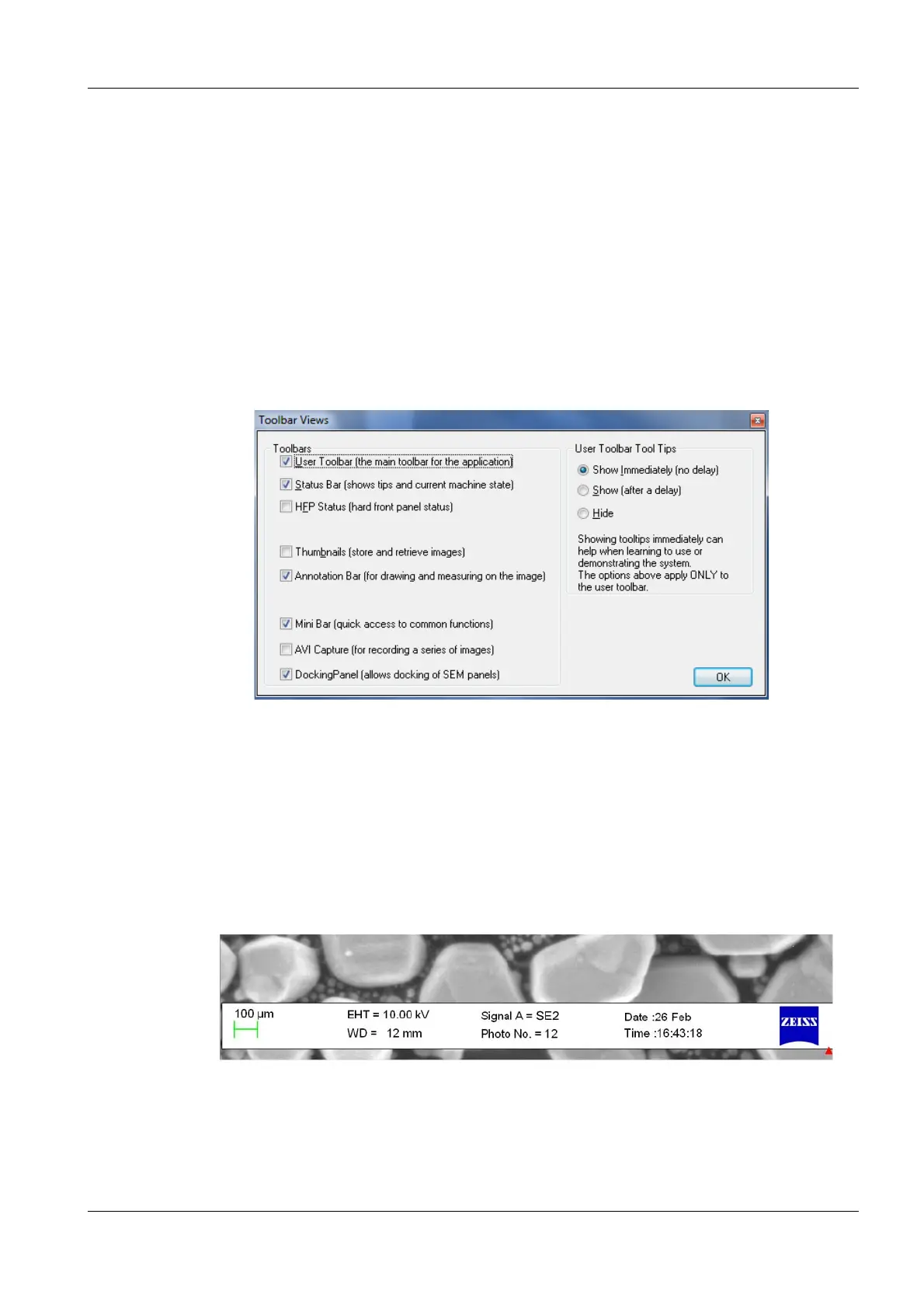
1 On the menu, select View/Toolbars.
The Toolbar Views panel opens.
2 To show a toolbar, select the respective checkbox.
3 To change the tooltip features of the user toolbar, on the right-hand side of the panel, select
the respective radio button.
4 Click OK.
6.3.2. Showing or hiding the data zone
The data zone is a special group of annotation objects that displays current parameters. You can
also include a micron marker to show the base magnification.
Procedure
1 On the menu, select View/Data Zone/Show Data Zone.
The data zone can be toggled using <Ctrl + D>.


 To Next Page