Pannoramic 250 1.15 User’s Guide 4 Software Description
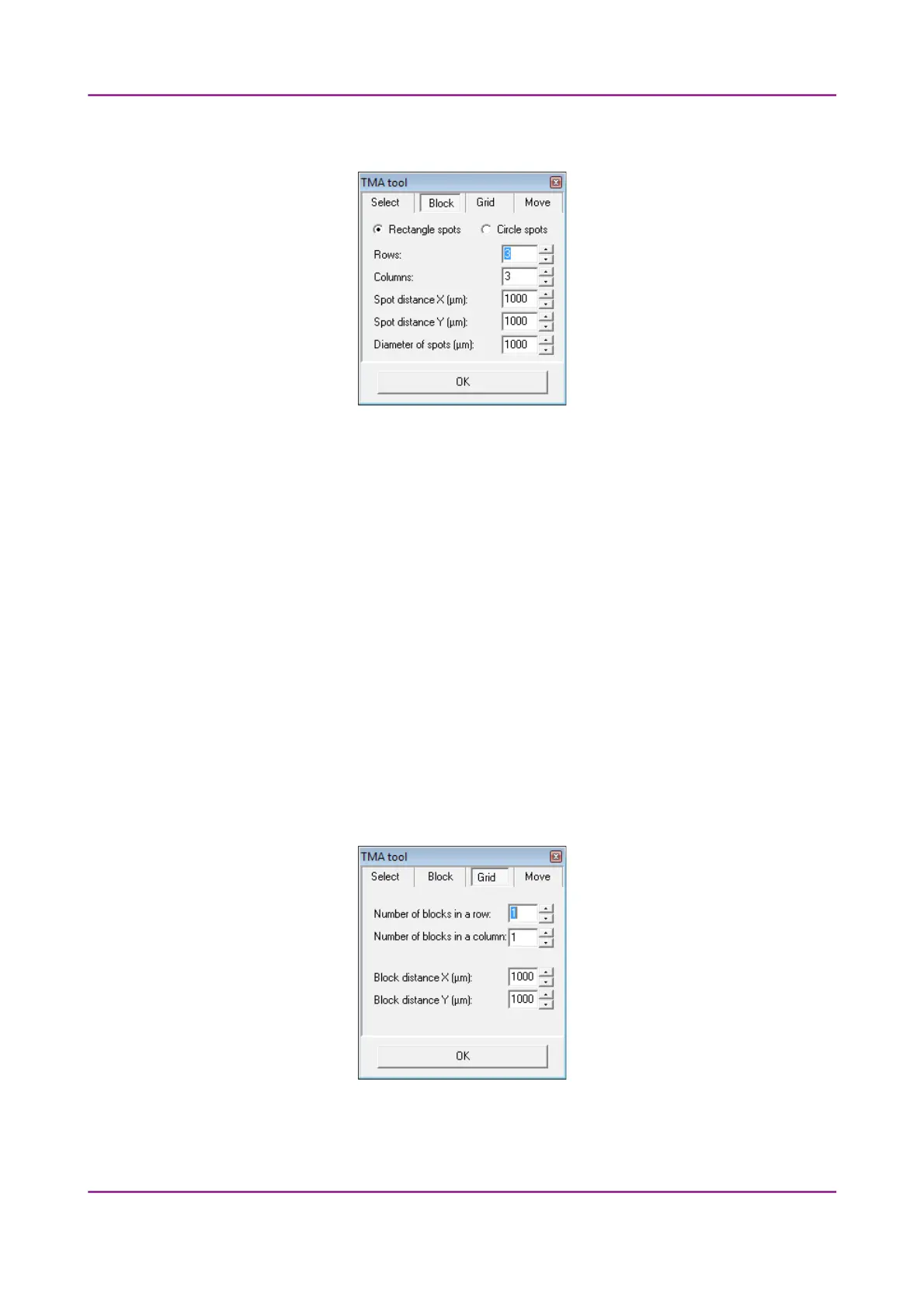
Block tab panel
Figure 39 – TMA tool: Block
Set the TMA block type in this tab panel.
1. Select the shape of the TMA spots (Rectangle spots or Circle spots).
2. Enter the number of rows and columns in the Rows and Columns fields or select the
appropriate values with the arrows.
3. Enter the distance between two spots on the X and the Y axis in μm (in the Spot
distance X (μm) and Spot distance Y (μm) fields or select the appropriate values
with the arrows.
4. Enter the average diameter of the spots in the Side length of … (μm) field or select
the appropriate value with the arrows.
Grid tab panel
The Grid tab panel displays the previously set grid settings
Figure 40 – TMA tool: Grid
March 13, 2012 – Rev. 1 3DHISTECH Ltd.
62(135)


 To Next Page