Page 30
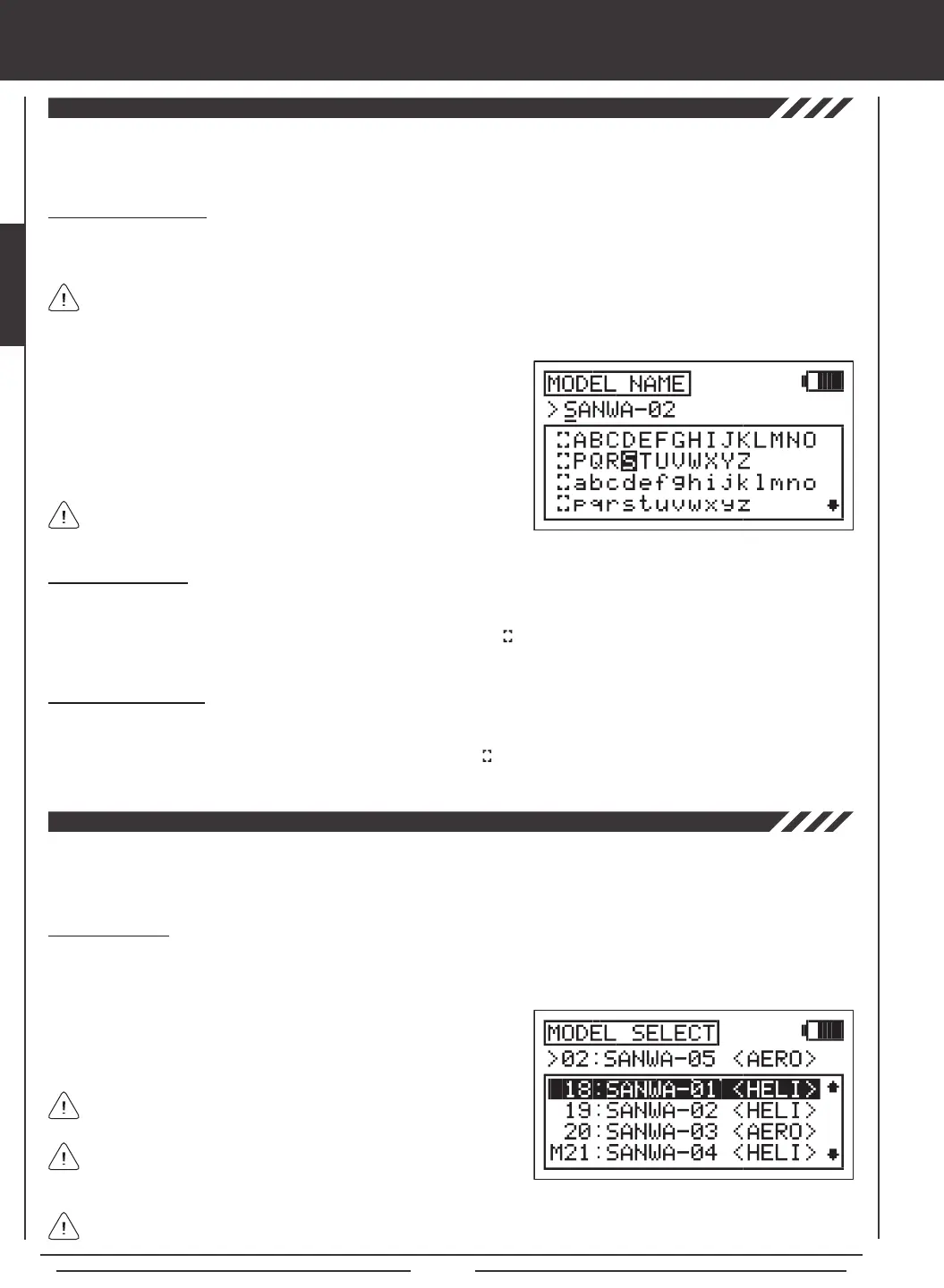
The Model Name function allows you to name each of your individual models. This makes it easy to keep track of multiple
models. When you select a model, all of the programming for that model is loaded. The Model Name can consist of up to 8
letters, numbers, or symbols. Choose from capital letters, lower case letters, numbers, and various symbols.
Entering a Model Name
1) Press the Navigation Pad
56
to highlight MODEL NAME, then press the ENTER key to display the MODEL NAME menu.
The cursor will default to the left side of the top row of letters.
Deleting a Character
1) Press the YES/+ or NO/- keys to move the underline under the character you want to erase.
2) Press the Navigation Pad
3456
to highlight the Erase Bracket , then press the ENTER key to erase the underlined
character.
Deleting a Model Name
1) Press the YES/+ and NO/- keys at the same time to move the underline under the rst character.
2) Press the Navigation Pad
3456
to highlight the Erase Bracket , then press the ENTER key repeatedly to erase the entire
Model Name.
SYSTEM MENU
The Model select function allows you to load the programming for the particular model you wish to y. The Model Select menu
displays the currently selected model, along with a list of available models that can be selected. The specic Model Type is
displayed for each of the models. The programming for all of your models is accessed through the Model Select menu.
A model must be selected before a Model Name can be entered or modied. In the default conguration, Model:01 is
selected. To enter a Model Name for another model, that model must rst be selected using the Model Select menu. For
more information, see the 03.MODEL SELECT section below.
Selecting a Model
1) Press the Navigation Pad
56
to highlight MODEL SELECT, then press the ENTER key to display the MODEL SELECT
menu. The cursor will default to the currently selected model in the Model Select List.
2) Press the Navigation Pad
56
to highlight the model you would like to
select, then press the ENTER key to select the highlighted model. That
model will be displayed above the Model Select List.
When you press the ENTER key to select a model, the programming
for that model will be loaded.
Models stored on the Memory Expansion Card (if installed), are
denoted with an 'M' (i.e. M21:SANWA-04).
In the default conguration, the Model Select List contains 10 AERO model types and 10 HELI model types. The Model Type
for any of the 20 models in the Model Select List can be changed using the Type menu. For more Information, see page 31.
2) Press the Navigation Pad
3456
to highlight a character, then press
the ENTER key to select the highlighted character. That character will be
displayed and the underline will move to the next space.
3) Repeat step 2 to enter the rest of the characters. Up to eight characters
can be entered. The name of your model will be displayed on the
Top menu (i.e. 01:XTra300S).
Press the Navigation Pad
56
repeatedly to scroll up and down the
list of characters.


 To Next Page