Page 89
aero Flight Mode Menu
The Trim function allows you to view the current Digital Trim Positions of the four ight control surfaces. In addition, you are able
to ne-tune the Digital Trim Positions, using the YES/+ and No/- keys. For example, in the default conguration, when you move
the elevator trim switch, the Trim percentage value changes in 6% increments. When you press the YES/+ and NO/- keys to
change the elevator Trim percentage value, the Trim percentage value changes in 1% increments. You can also choose to
program specic Trim percentage values separately for each of the ve Flight Modes or you can use the same Trim percentage
values across all ve Flight Modes.
The Trim percentage values are displayed as a percentage of total trim. They are not displayed as a percentage of
servo travel.
The SD-10G transmitter features Digital Trim Memory. Any amount of trim that you set during ight, using either the
trim switches or the YES/+ and NO/- keys from within the Trim menu, is automatically stored in memory for that specic
channel and model, and for that specic Flight Mode (if enabled). The Trim percentage values for each model will automatically
be loaded when the transmitter is turned ON and your model is selected.
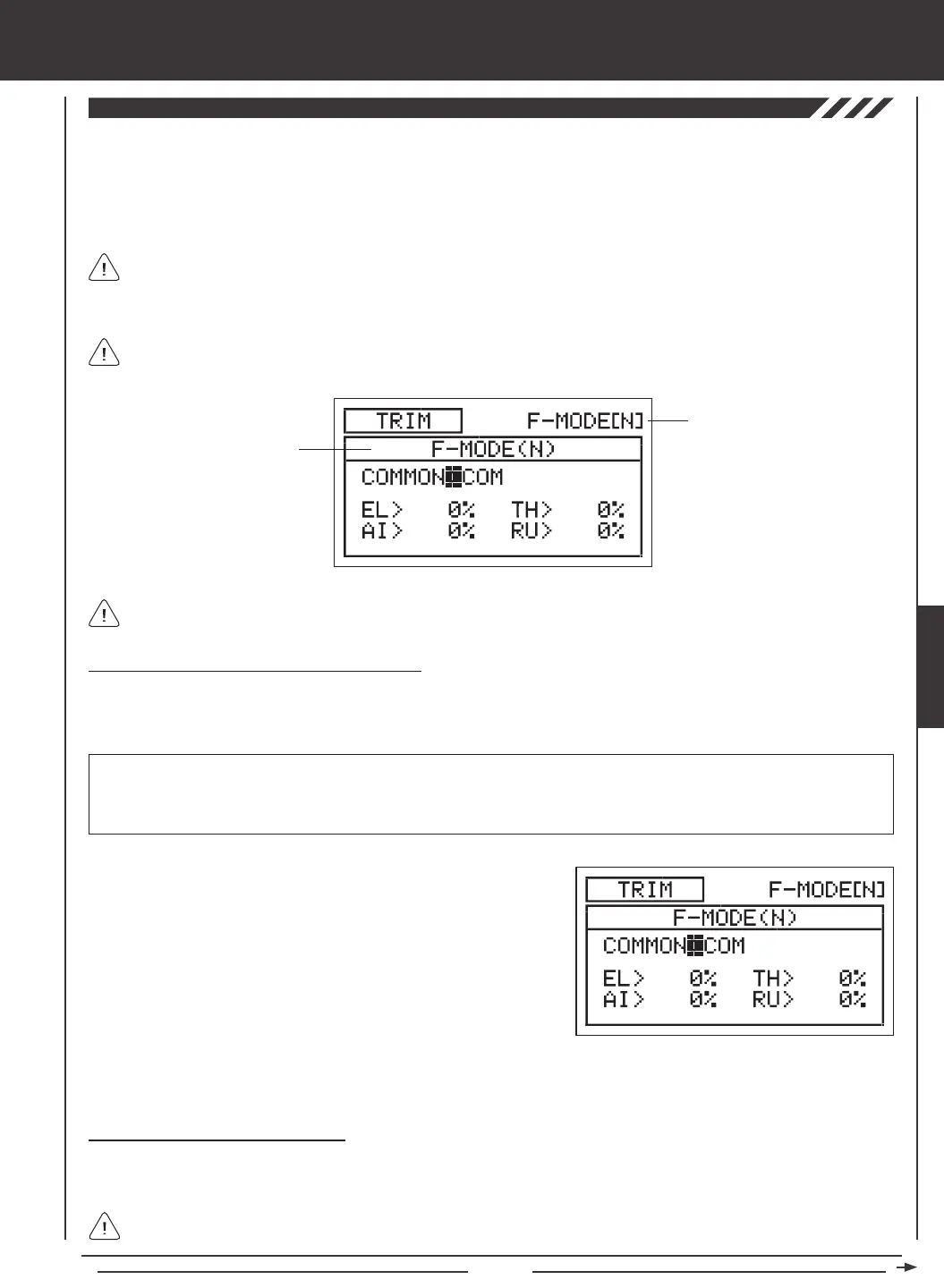
Transmitter F-MODE
Programming F-MODE
Transmitter F-MODE refers to the Flight Mode that the transmitter is currently operating in. Programming F-MODE refers
to the Flight Mode that you would like to change the programming for.
Choosing the Flight Mode - Common or Separate
When set to COM (Common), the TRIM settings will be the same regardless of which Flight Mode the transmitter is operating in.
You cannot program or store TRIM settings separately for each Flight Mode. When set to SEP (Separate), you can program and
store different TRIM settings separately for each Flight Mode.
3) Press the F-MODE key to choose the F-MODE number you would like to program the Trim function for. Choose from N, 1, 2,
3, or 4. The F-MODE (N) display will change, indicating which Flight Mode you are programming the Trim function for.
1) Press the Navigation Pad
56
to highlight TRIM, then press the
ENTER key to display the TRIM menu. The cursor will default to
COMMON>COM.
2) Press the YES/+ or NO/- keys to choose either COM or SEP. If set to
COM, skip to the Changing the Trim Percentage Values section. If
set to SEP, see step 3 below.
IMPORTANT When the Flight Mode is set to Separate, Trim percentage values are stored in the specic Flight Mode you're
using when you change the Trim percentage values, whether with the trim switches or with the YES/+ and NO/- keys within the
Trim menu. For example, you could have 10% elevator trim in Flight Mode N (Normal) and 5% elevator trim in Flight Mode 1.
Be cautious of this when switching between Flight Modes during ight.
Changing the Trim Percentage Values
The current Trim percentage values for each of the ight control surfaces is displayed. The Trim percentage values can be
changed, if desired, using either the trim switches or the YES/+ and NO/- keys (from within the Trim menu only).
An audible tone is heard when the trim switches reach the center position. This allows you to know when the trim
switches reach the center position without the need to look at the Trim Indicators on the Top menu.
AERO


 To Next Page