Page 48
SYSTEM MENU
The Stick Switch function allows you to convert one or more control stick axes into a switch (Stick Switch), then assign a function
to that Stick Switch, using the procedures in the SW ASSIGN menu section. For example, if you are ying a glider that features
spoilers, you can assign the Flap function to the throttle control stick. When the throttle control stick is pushed all the way forward,
the spoilers are retraced. When you pull the throttle control stick all the way down, the spoilers deploy. This is useful for making
spot landings where you need to deploy the spoilers quickly and accurately to reduce lift. Being able to place this function on the
throttle control stick is extremely convenient and user-friendly. Five programmable Stick Switch axes are available. Either side
of the Stick Switch can be programmed ON or OFF and the Point that the Stick Switch turns ON and OFF can be adjusted. An
audible tone can also be programmed to indicate when the Stick Switch turns ON and OFF.
Choosing a Stick Switch Axis
1) Press the Navigation Pad
56
to highlight STICK SWITCH, then press the ENTER key to display the STICK SWITCH menu.
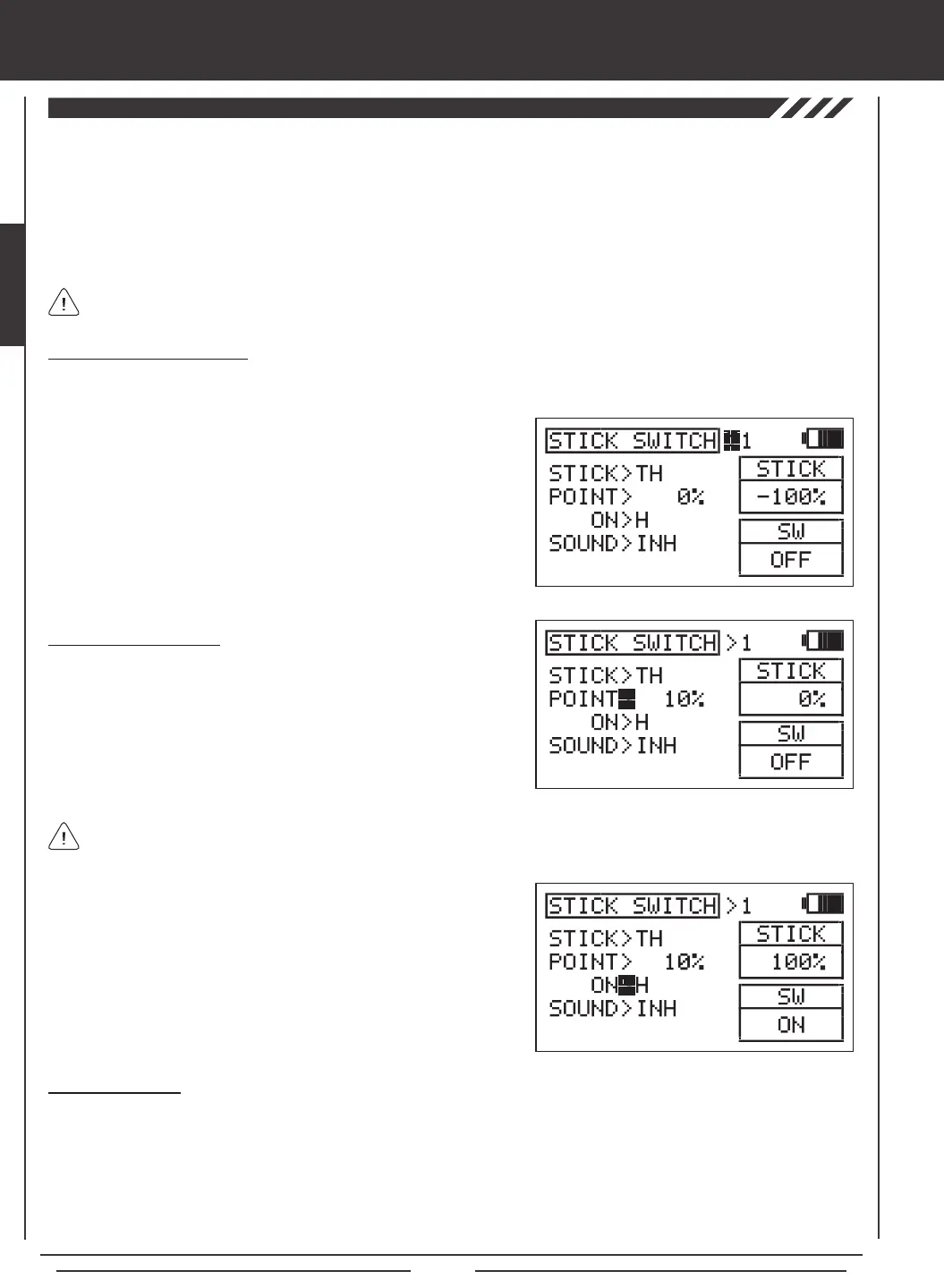
The cursor will default to STICK SWITCH>1.
After a Stick Switch is programmed, it must be assigned to a function as described in the SW ASSIGN menu section.
Stick Switches are denoted in the SW ASSIGN menu as S1 through S5. For more information, see page 45.
Setting the ON/OFF Point
1) Press the Navigation Pad
6
to highlight POINT>0%. This is the
point at which the Stick Switch will turn ON or OFF.
2) Move the control stick to the Point at which you want the Stick
Switch to turn ON or OFF, then press the YES/+ key. The ON/OFF
Point will be displayed as a percentage of control stick movement
For example, POINT>10% will be displayed.
2) Press the YES/+ or NO/- keys to choose which Stick Switch to program.
You can program up to 5 different stick switches. If this is the rst Stick
Switch you're programming, choose STICK SWITCH>1.
3) Press the Navigation Pad
6
to highlight STICK>EL.
4) Press the YES/+ or NO/- keys to choose which control stick axis
you would like to use as a Stick Switch. Available functions will vary
based on the Model Type currently selected.
The current position of the control stick is displayed in the STICK dialog box. If you want the ON/OFF Point to be at the
neutral position, press the YES/+ and NO/- keys at the same time to choose 0% regardless of control stick position.
3) Press the Navigation Pad
6
to highlight ON>H.
4) Press the YES/+ or NO/- keys to program the side that the Stick Switch
will turn ON. Choose from H (High) or L (Low). For example, if you
program the Throttle control stick ON/OFF Point at 10% and ON>H, the
switch function will Activate at 10% and greater movement. The switch
function will be OFF at 9% and less movement. The ON and OFF status
is displayed in the SW dialog box.
Stick Switch Sound
1) Press the Navigation Pad
6
to highlight SOUND>INH.
2) Press the YES/+ or NO/- keys to choose which sound option you desire to use. When set to INH, no audible tone will be heard.
ON<>OFF - An audible tone is heard when the Stick Switch turns ON and when the Stick Switch turns OFF.
ON>OFF - An audible tone is heard only when the Stick Switch turns OFF.
OFF>ON - An audible tone is heard only when the Stick Switch turns ON.


 To Next Page