Allworx Verge IP Phone Series User Guide
866.ALLWORX * +1 585 421 3850 Page 39
www.allworx.com
Version: D Revised: June 1, 2017
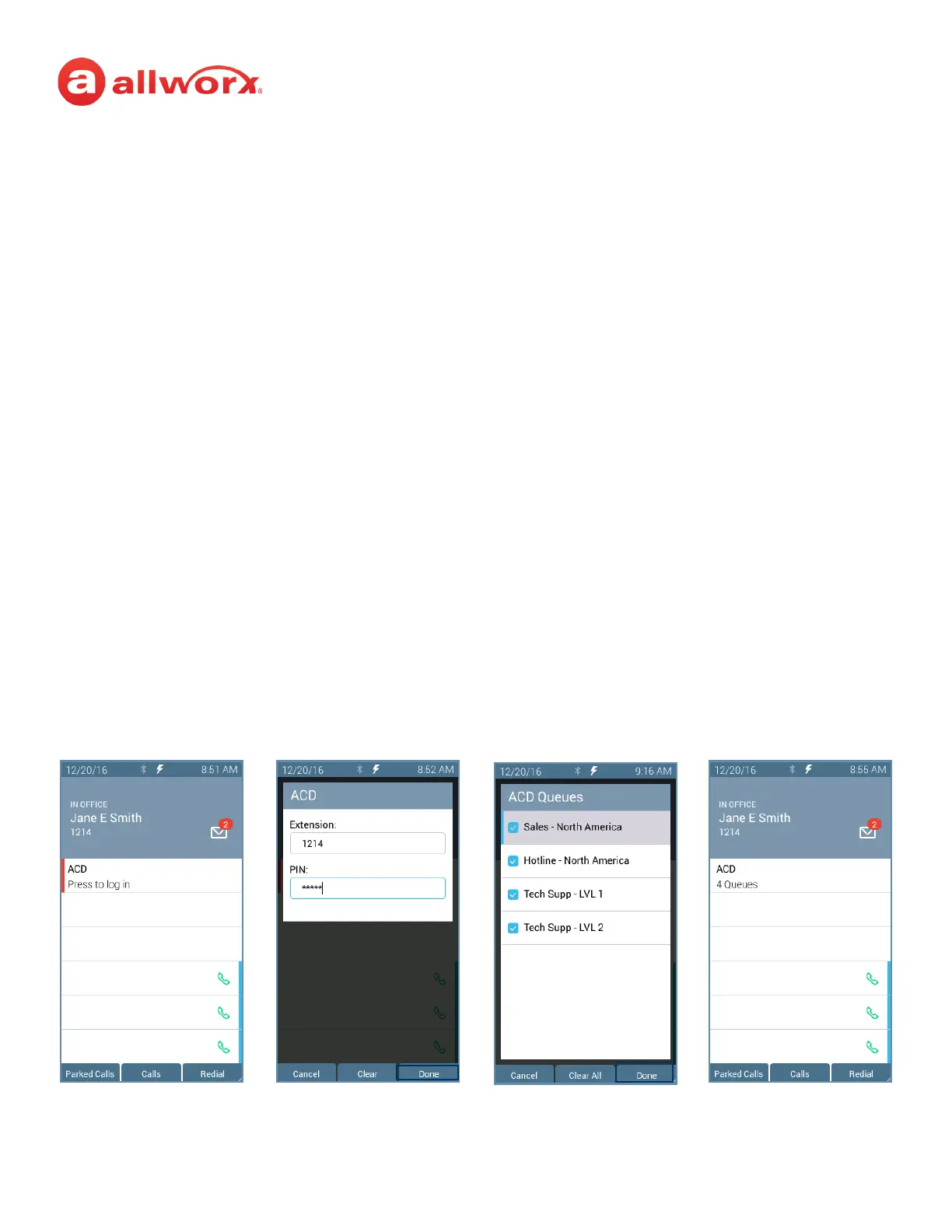
To log in to the ACD Appearance:
Agents can log into an ACD queue from any desk phone and the ACD queue routes the calls to that
phone. This includes phones that may not be the phone on the agent’s desk.
1. Press the solid red ACD Appearance programmable button. The login prompt screen displays.
The Extension: field displays the last entered extension, which may be the extension number
assigned to another desk phone. If necessary: use the up navigation button to get to the
Extension: field, and enter the new extension. Press the down navigation button.
2. Enter the Allworx PIN, and then press Done. If necessary, press the Clear soft key to erase all
entered numbers or press the left navigation button to erase a single entered number. If a PIN
Change Request displays, follow the on screen instructions. Press Done.
3. (Allworx Users assigned to more than one ACD queue) Do one of the following:
• Use the up/down navigation buttons and the Select button to select queue(s).
• Press Select All to select all available queues.
The agent is logged in to selected ACD queues and ready to receive calls from the queue.
4. Press the Done soft key. If this is the only agent logged into one or more ACD queues, the ACD
Appearance programmable button status bar is yellow.
Verge IP phone ACD log in sequence:
Use the navigation/select
buttons to select the ACD
Queues or press the Select
All soft key. Press the Done
soft key.
Press the ACD
programmable button.
Enter the Allworx PIN and
press the Done soft key.
ACD programmable
button changes to logged
in status.



 To Next Page