Section 3 Panel Arrangement and Operation Overview
3-4
Table 3-1 Function of Front Panel Components (Continued)
No
7
8
9
10
11
12
13
Label
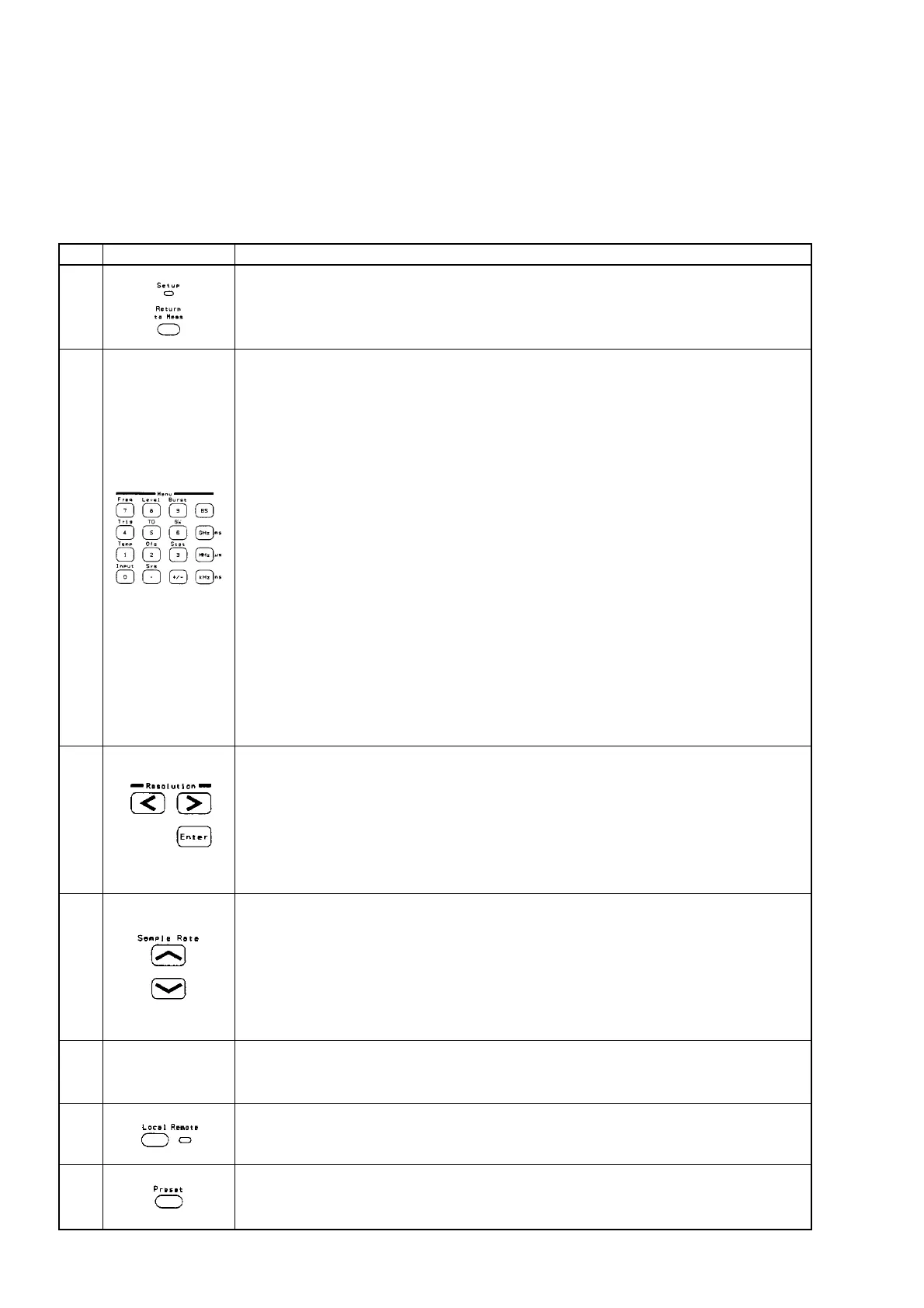
[Return to Meas] key and Setup LED
To return to the measurement screen from a parameter setup screen, press the [Return
to Meas] key.
The Setup LED lights when the parameter setup screen is selected.
Numeric and Direct keys
In the numeric input mode, [0] to [9], [.], [±], [GHz], [MHz], [kHz], and [BS] keys are
used to enter numeric values. These keys are collectively referred to as "numeric key".
In modes other than the numeric input mode, the above keys are used to display the
parameter setup screens corresponding to the items printed above the panel. These
keys are collectively referred to as "direct key".
[.]: Used as a [Sys] key for bringing up the System parameter setup screen.
[0]: Used as an [Input] key for bringing up the Input parameter setup screen.
[1]: Used as a [Temp] key for bringing up the Template parameter setup screen.
[2]: Used as an [Ofs] key for bringing up the Offset parameter setup screen.
[3]: Used as a [Stat] key for bringing up the Statistic parameter setup screen.
[4]: Used as a [Trig] key for bringing up the Trigger parameter setup screen.
[5]: Used as a [TD] key for bringing up the Trigger Delay parameter setup screen.
[6]: Used as a [GW] key for bringing up the Gate Width parameter setup screen.
[7]: Used as a [Freq] key for bringing up the Freq Acq parameter setup screen.
[8]: Used as a [Level] key for bringing up the Level Acq parameter setup screen.
[9]: Used as a [Burst] key for bringing up the Burst parameter setup screen.
Pressing any of the above direct keys will bring up the associated parameter setup
screen and turn on the Setup LED.
[<], [>], and [Enter] keys
When a measurement screen is displayed, pressing the [<] or [>] key allows you to set
the frequency measurement resolution.
When a parameter setup screen is displayed, pressing the [<] or [>] key allows you to
move the cursor.
The [Enter] key is used to toggle between two parameters, select one of three or more
parameters, or turn on/off the input mode of the numeric input menu.
[ ] and [ ] keys
When a measurement screen is displayed, pressing the [ ] or [ ] key allows you to set
the measurement pause time (sample rate).
When the Level Acq parameter setup screen is displayed, pressing the [ ] or [ ] key
allows you to set a manual amplitude discrimination value.
When a Trig Delay or Gate Width parameter setup screen is displayed, pressing the [ ]
or [ ] key allows you to increment or decrement the value of a numeric parameter.
248 * 60 dot LCD.
This display is used to display frequency measurement results and set various
parameters.
[Local] key and Remote LED
Pressing this key changes the remote control state to the local control state.
The Remote LED lights when the local state changes to the remote state.
[Preset] key
Pressing this key sets the default values. For details on parameters, see Appendix A,
"Initial Value/Preset Value List."
Description
<
<
<
<
<
<
<
<



 To Next Page