SECTION 3 GETTING STARTED PAGE 74
EXPORT CONTROLLED – SEE PAGE 3
Table 13. Scan UPC-10, EAN-13 and ISBN Barcodes in Windows 7
STEP ACTION
1.
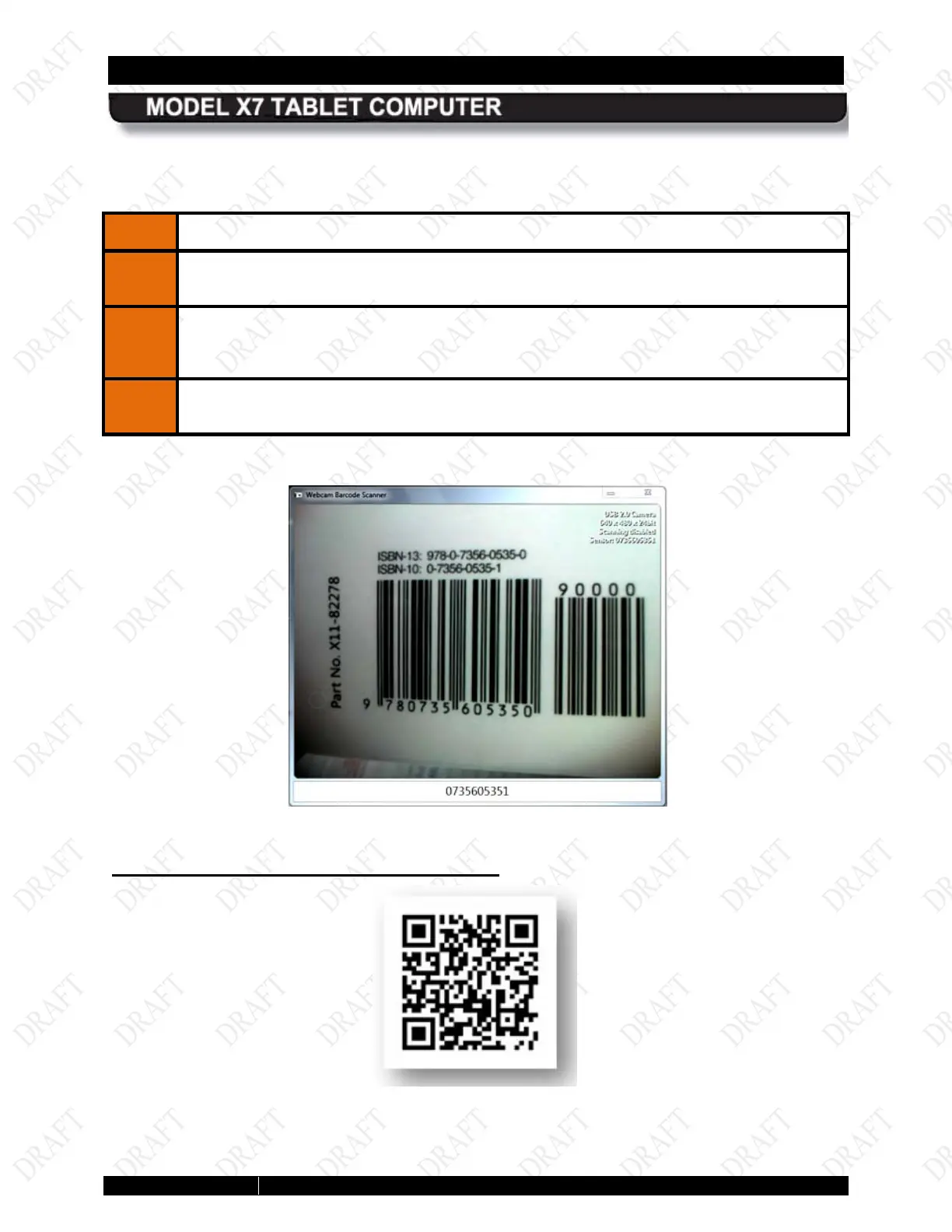
Double-click on the Webcam Barcode Scanner icon on the desktop to open the
application window, as shown in Figure 30.
2.
Hold the barcode to be scanned 2-3” from the camera and hold it steady. A tone will
announce successful barcode capture, and the barcode number will appear at the
bottom of the window. The captured barcode is stored in the Windows clipboard.
3.
To use a barcode in an application, open the application, place the cursor in a field
and paste.
Figure 30. Webcam Barcode Scanner® Barcode Scanner Application Window
2D Barcodes in Datamatrix or QR format
A sample 2D barcode is shown in
Figure 31. Follow the procedure in Error! Reference source not found. to scan a 2D barcode.


 To Next Page