SECTION 5 YOUR ARMOR X7 SOFTWARE PAGE 91
EXPORT CONTROLLED – SEE PAGE 3
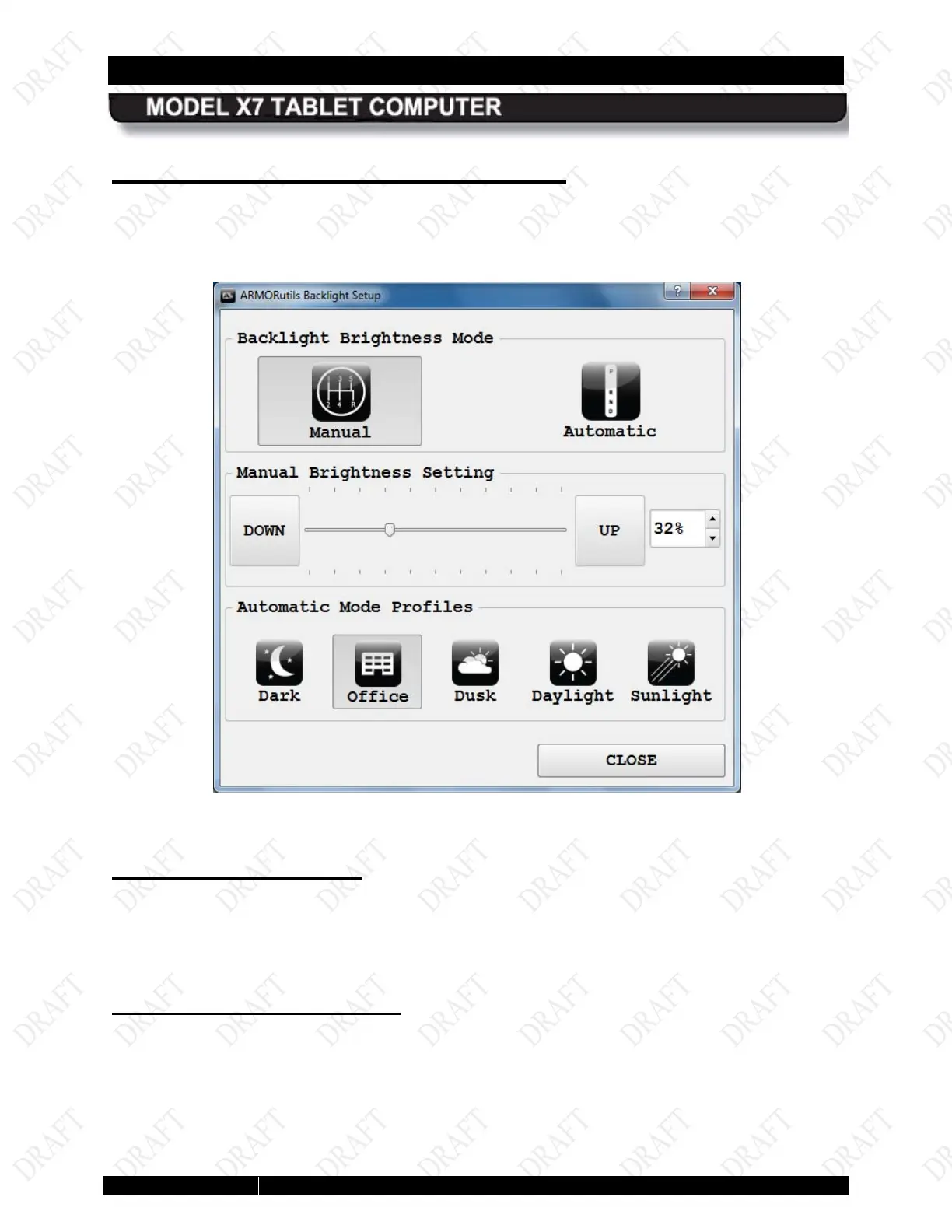
Backlight Setup Dialog Window
The Backlight Setup page (Figure 45) allows you to adjust the screen brightness manually or to
select from a series of preset profiles to automatically restrict the brightness range under
specific lighting conditions.
Figure 43. ARMORutils Backlight Setup Page
Manual Adjustment
The Manual button is initially activated by default. Drag the slider in the User-Selected
Brightness panel to manually adjust the screen brightness from 0% to 100%. You can also click
on the DOWN and UP buttons repeatedly to change the brightness in steps. The current
brightness level is displayed numerically in the window to the right.
Automatic Adjustment
Click on the Automatic button to activate the automatic brightness control mode. Automatic
brightness adjustment is controlled by the ambient light sensor (ALS) located on the front of the
X7 tablet. This sensor monitors the surrounding light level and automatically adjusts the screen
brightness according the adjustment profile selected.


 To Next Page