EasyManua.ls Logo

Aruba 2930M - User Manual

Aruba 2930M
100 pages
Print Icon
To Next Page IconTo Next Page
Loading...
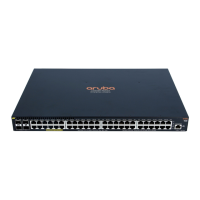
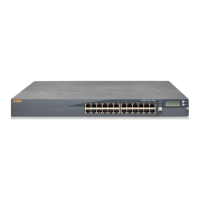
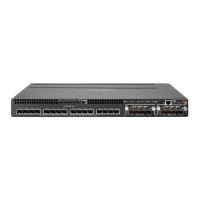
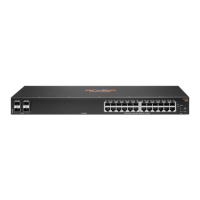
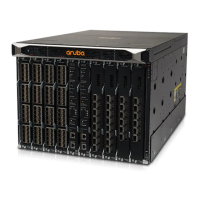
Aruba 2930M Switches
Installation and Getting Started Guide
Part Number: 5200-5214a
Published: November 2018
Edition: 2

Table of Contents

Other manuals for Aruba 2930M

Questions and Answers

  • J
    Jonathan WrightAug 16, 2025
    How to enable stacking on Aruba 2930M?
    • C
      crawfordchristopherAug 16, 2025
      If stacking is disabled on your Aruba Switch, follow these steps to enable it: 1. Connect a console cable to the switch and establish a console session. 2. From the CLI config context, enter the command `stacking enable`. 3. Recheck the switch LEDs: * Stacking Port LED should be solid green. * Port LEDs in user mode should all be green.
  • M
    msanchezAug 19, 2025
    What to do if inserting an unsupported transceiver into Aruba Switch?
    • M
      Miranda GreenAug 19, 2025
      Check the transceiver against the switch peripheral support list for your Aruba Switch.
  • M
    michaelmatthewsAug 22, 2025
    What to do if a stack link failure occurred in chain topology on Aruba 2930M?
    • D
      Danielle SchmidtAug 22, 2025
      To resolve a stack link failure in a chain topology that has created multiple stack fragments on your Aruba Switch, repair the cause of the stack link failure. Then, reconnect the switches in their original topology so that they can reform the original stack.
  • R
    Robert GarciaAug 25, 2025
    What to do if stack link failure caused inactive fragment on Aruba 2930M Switch?
    • C
      Cassandra RoyAug 25, 2025
      To resolve a stack link failure in a chain topology that has caused an inactive fragment on your Aruba Switch, you should repair the cause of the stack link failure, so that the switches can reform the original stack. This will re-enable the network ports on the switches in the previously inactive fragment.
  • A
    annamartinezAug 27, 2025
    What to do if stacking module on Aruba 2930M Switch has experienced a failure?
    • C
      Cathy DrakeAug 27, 2025
      If the stacking module on your Aruba Switch is failing (Stacking Module LED might be blinking orange slowly), try the following steps: 1. Reset the switch by pressing the Reset button or power cycling it. 2. If the fault indication reoccurs, the stacking module may need to be replaced.
  • S
    Selena BaileyAug 31, 2025
    What to do if stacking cable LED is blinking orange on Aruba Switch?
    • L
      lisa46Aug 31, 2025
      If the stacking cable connected to the stacking port on your Aruba Switch has a Link LED blinking orange, it could be due to several reasons: * The cable is not connected at the far end. * A stacking link failure has occurred. * The switch at the other end is powered off or has a disabled stacking feature. * The stacking module or switch at the other end has failed. * The stacking cable is faulty. Ensure the stacking cable is fully connected at both ends. If an equipment failure has occurred, check the LEDs on the device at the other end of the connection.
  • J
    Jamie JensenSep 2, 2025
    What to do if trying to merge two stacks with different Stack IDs on Aruba 2930M?
    • D
      David AlvarezSep 3, 2025
      If you've tried to merge two stacks with different Stack IDs on your Aruba Switch, which were not previously part of the same stack, you need to: 1. Select one of the stacks to keep. 2. For the switches in the other stack, erase their stacking configuration using the following CLI command: `Aruba Switch(config)# stacking factory- reset`.
  • A
    Anna HatfieldSep 6, 2025
    What to do if adding 11th switch to Aruba Switch stack?
    • R
      Ryan MilesSep 6, 2025
      If you have tried to add an 11th switch to an Aruba Switch stack, disconnect the 11th switch from the stack, as a maximum of 10 switches can be stacked together.
  • B
    Brian BellSep 9, 2025
    What to do if stacking module was installed while powered on Aruba Switch?
    • A
      Austin MooreSep 9, 2025
      If the Stacking Module was installed in your Aruba Switch while the switch was powered on, reset or power cycle the switch to reboot it. After rebooting, the module will be correctly recognized and supported by the switch, and will be operational. Remember that when installing or removing the stacking module, the switch must be powered off.
  • P
    patrick04Sep 12, 2025
    What to do if uplink port module does not match the previous module type on Aruba Switch?
    • S
      susan16Sep 12, 2025
      If a newly inserted uplink port module does not match the previous uplink port module type on your Aruba Switch, execute the command `flexible-module remove`.

Summary

Introducing the 2930 M Switches

Installing the Switch

Installation Precautions and Guidelines

Offers warnings and cautions for safe and proper switch installation.

Installation Procedures

Step-by-step guide for installing the 2930M switches, including optional modules.

Mounting the Switch

Details how to mount the switch in a two-post rack, tabletop, or four-post rack.

Connecting a Management Console

Explains how to connect a console for switch management using various methods.

Stacking Information and Topologies

Explains how to set up and configure switch stacking and different topologies.

Getting Started with Switch Configuration

Recommended Minimal Configuration

Outlines the basic steps for initial switch configuration, including IP addressing.

Minimal Configuration Through Console Port

Details the quickest method to configure the switch using a console port connection.

Setting Up a Console Connection

Explains how to establish a console connection to the switch for configuration.

Configuring the Management Console

Guides on setting up the PC terminal emulator for switch management.

Replacing Components

Replacing the Power Supply

Procedure for removing and installing power supplies, especially for redundant setups.

Replacing the Stacking Module

Step-by-step guide to remove and install a stacking module.

Replacing the Uplink Port Module

Instructions for hot-swapping or replacing uplink port modules.

Troubleshooting

Basic Troubleshooting Tips

Common causes of problems and initial checks for network issues.

Diagnosing with the LEDs

Interpreting switch LEDs for error indicators and status.

Hardware Diagnostic Tests

Methods for testing switch hardware, including resets and console checks.

Restoring Factory Default Configuration

Procedure to reset the switch to its original factory default settings.

Switch Specifications

Cabling and Technology Information

Twisted-Pair Cable;Connector Pin-Outs

Details on auto-MDIX, wiring rules, and pin assignments for twisted-pair cables.

Support and Other Resources

Accessing Hewlett Packard Enterprise Support

Information on how to contact HPE support and what information to collect.

Aruba 2930M Specifications

General IconGeneral
ModelAruba 2930M
LayerLayer 3
Memory2 GB
Ports24 or 48 10/100/1000BASE-T ports
Uplink Ports4 x SFP+ ports
Switching CapacityUp to 176 Gbps
Forwarding RateUp to 130.9 Mpps
StackingYes, up to 8 units
Power over EthernetIEEE 802.3at PoE+ (depending on model)
ManagementWeb GUI, CLI, SNMP
FeaturesOSPF, ACLs, IPv6
Power SupplyDual modular power supplies
Operating Temperature0°C to 45°C
Operating Humidity15% to 95% non-condensing

Related product manuals