39
PC Operations - Live Display
2-7 Live Display
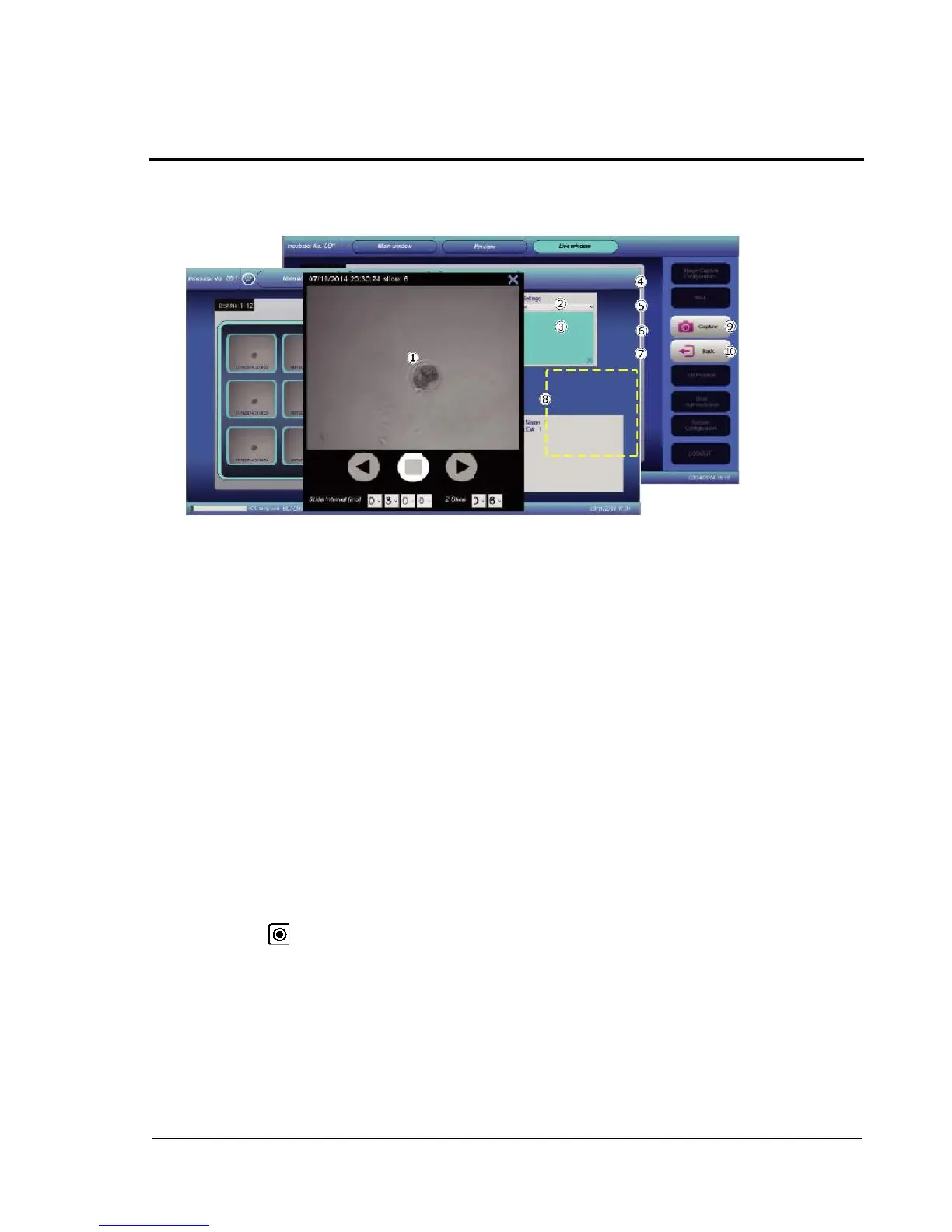
Double-tapping a well on the Preview screen displays the Live screen.
Touching a tab on the screen highlights the tab to indicate that it has been selected. As for the
cursor buttons, the arrow buttons become non-functional and are grayed out when they do not need
to be used, depending on selected items.
Live View: Shows video being captured by the camera.
Tapping an arbitrary position in the display area makes the position move to the center of the
display area. Use, for example, when the positions of fertilized egg are not located at the center
of the area.
X-Y axis shift tab: After touching and selecting the tab, the X-Y axis of the camera can be
shifted with the cursor buttons.
Z axis shift tab: After touching and selecting the tab, the Z axis (pint) can be adjusted with the
cursor buttons.
Exposure tab: After touching and selecting the tab, the exposure of the camera can be adjusted
with the cursor buttons.
Gain tab: After touching and selecting the tab, the sensitivity of the camera can be adjusted
with the cursor buttons.
Contrast tab: After touching and selecting the tab, the image contrast can be adjusted with the
cursor buttons.
Zoom tab: After touching and selecting the tab, the display can be enlarged in the range of 1 to
5 times with the cursor buttons.
Cursor button: The arrow buttons allow performing of various kinds of adjustment. Touching the
central button (ENTER button) confirms adjusted values.
Capture button: Captures currently shown images. After capture, the image has not yet been
saved.
Back button: Restores the Preview screen.


 To Next Page