CCR 1.0 User Guide Page 21
15-601130 Issue 1k (22 May 2009)IP Office
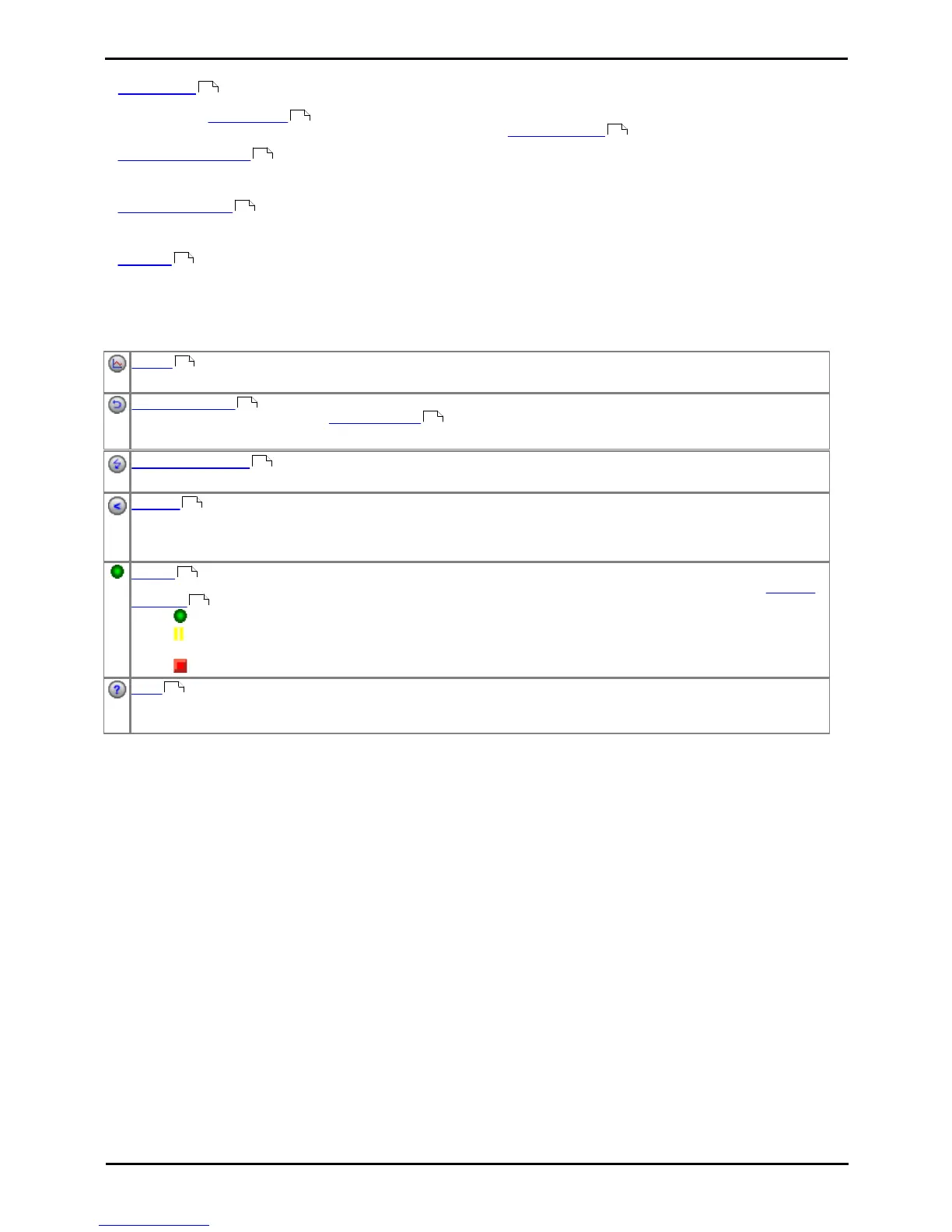
Supervisor:
Tabs
· View 1/2/3
Each supervisor has 3 information views, each showing different sets of queues and statistics. These views are initially
created by the administrator but can be adjusted by the supervisor. By default the views are called View 1, View
2 and View 3 but they can be renamed through the supervisor's account settings .
· Historical Reporting
This tab is used to create and save report templates for both manual and automatic reports. For manual reports the
report is run from this tab after having selected the required template.
· Report Scheduler
This tab is used to set and adjust the schedule for automatic reports. It also shows a listing of the most recent manual
and automatic reports.
· Account
This tab shows details for the supervisor's account. It also allows those details to be changed including the supervisor
password and email address.
Buttons
Graph
Display a separate graph of a statistic for a selected queue or agent.
Reset Statistics
This button is only shown on the Account Details tab for supervisors who have been given the right to Reset
Statistics by the administrator.
Change Password
While logged in to IP Office Customer Call Reporter, you can change your password.
Log Off
Close the IP Office Customer Call Reporter connection. It is important to close a connection using this control rather
than just closing the browser or tab within the browser. Failing to use this button will cause a 5 minute delay before
you can log in again on another PC.
Status
This button indicates the overall status of IP Office Customer Call Reporter. Clicking on the icon displays a System
Settings tab which shows the status of the individual IP Office Customer Call Reporter components.
· Green Circle - On: IP Office Customer Call Reporter is running.
· Yellow Bars - Slow Flash: Some parts of IP Office Customer Call Reporter are still in the process of
starting.
· Red Box - Flash: There may be a problem in IP Office Customer Call Reporter.
Help
Access this documentation in online format. Where possible the appropriate page for the current IP Office Customer
Call Reporter screen is displayed.
24
132
32
94
98
32
31
30
32
15
18
136
136
17






 To Next Page