CCR 1.0 User Guide Page 61
15-601130 Issue 1k (22 May 2009)IP Office
Statistics: Average Wait Time
3.19 Busy Not Available
· This statistic is only available for queues.
· It shows the total number of agents in the queue who have currently indicated they are Busy Not Available .
· Busy Not Available is a state selected by an agent when they need to stop receiving queue calls in order to do some
non-call related activity.
This agent state indicates that the agent is not available to receive calls while they perform a non-call related activity
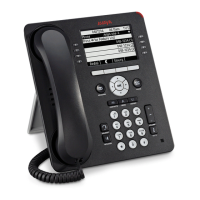
such as attending a meeting. This state can be selected by an agent using the DND or SAC button on their phone, see
Agent Phone Controls . This also requires the agent to select one of the reason codes displayed on their phone to
indicate the reason they are going into the Busy Not Available state.
If this state is enabled while a queue call is being presented, the call will go to the next available agent and cause the
No Answer statistic for the agent and queue to be incremented.
Additional Information
Statistic can include additional information, indicated by a red corner icon. Place your cursor over the icon to display
the addition information. This type of information is updated approximately every 5 seconds.
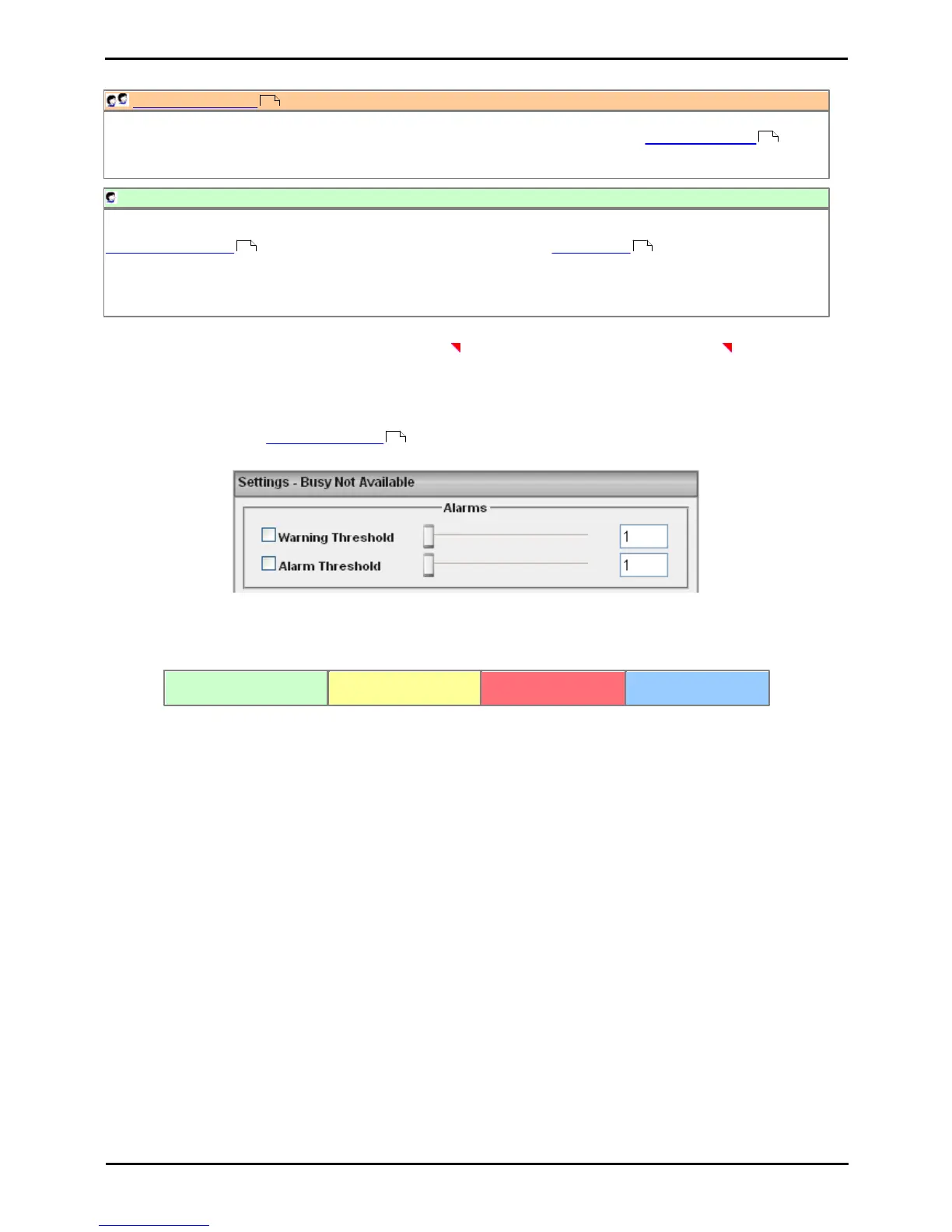
Statistic Settings
All supervisors can customize the settings of each statistic column included in a view. The changes are applied to the
existing data since the last view statistics reset . Click on the statistic name at the top of the column and select
Settings. Customize the statistics settings as required and then click Update.
· Alarms
These controls allow you to select whether a warning and or an alarm is given for the statistic and to set the
threshold levels beyond which those events occur.
· When enabled, the background color of the cells is used to indicate their current alarm state.
· Alarms and warning are updated approximately every 8 seconds.
· Alarms and warnings are automatically cleared when the cell value returns to the threshold level.
· Agents and supervisors can acknowledge alarms and warnings in their views by clicking on the colored
cell. This only affects their view. Acknowledging an alarm also removes it from the alarm list.
· The alarm and warning settings are applied to all cells in the statistic column. When applied to an agent
statistic, the same setting is are applied to the whole column, even when you change which queue's
agents are being viewed.
· Note that when enabling or disabling alarms and warnings, the new settings only get used at the next
change in the value of the relevant cells.
· Warning Threshold
Select to enable a warning threshold and to set that threshold.
· Alarm Threshold
Select to enable an alarm threshold and to set that threshold using the slider control or by entering the
number directly.
61
195
118 202
30







 To Next Page