CCR 1.0 User Guide Page 98
15-601130 Issue 1k (22 May 2009)IP Office
4.3 Scheduling Reports
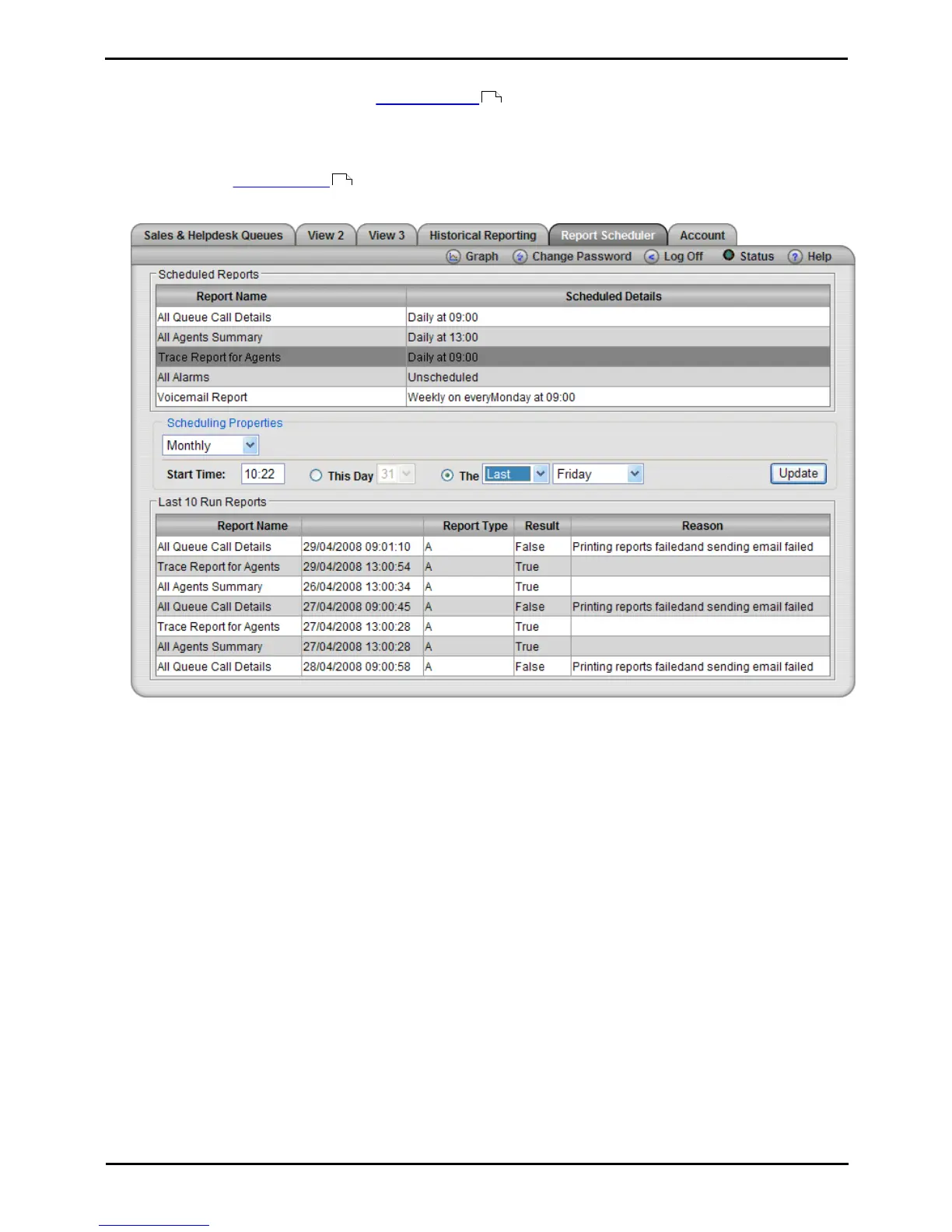
The Report Scheduler tab shows all reports you have created that have been saved with their Scheduled setting
set to Automatic. A list of the last 10 reports that have been run is shown at the bottom of the screen. This includes
both automatically scheduled reports and manually run reports.
1. Ensure you have created a report as required and set the Scheduled option as Automatic. The report
destination, format and time range that it covers are set when creating and editing the report.
2. Click the Report Scheduler tab.
3. To schedule a report or to change the schedule, click the report to be amended in the Scheduled Reports section.
4. Select the required option in the Scheduled Properties. Amend the report properties as required.
· Daily
If selected, you can then set a Start Time for when the report should be run each day. The default is 09:00.
· Weekly
If selected, you can then set a Start Time and Day of Week for when the report should be run each week. The
default is 9:00 Sunday.
· Monthly
If selected, you can then choose either a day such as the last Friday of the month or a specific date within a
month. If you select a date that exceeds the days in the month, the setting is considered to be the last calendar
day of the month. For example, if you select the report to always be run on the 31st day of a month, the report
will be run on the 30th day of a month when there are only 30 days in the month.
· Unscheduled
Stop running the report on an automatic schedule.
5. Click Update to save your changes.
94
94











 To Next Page