CCR 1.0 User Guide Page 97
15-601130 Issue 1k (22 May 2009)IP Office
Reports: Creating Reports
4.2 Running Manual Reports
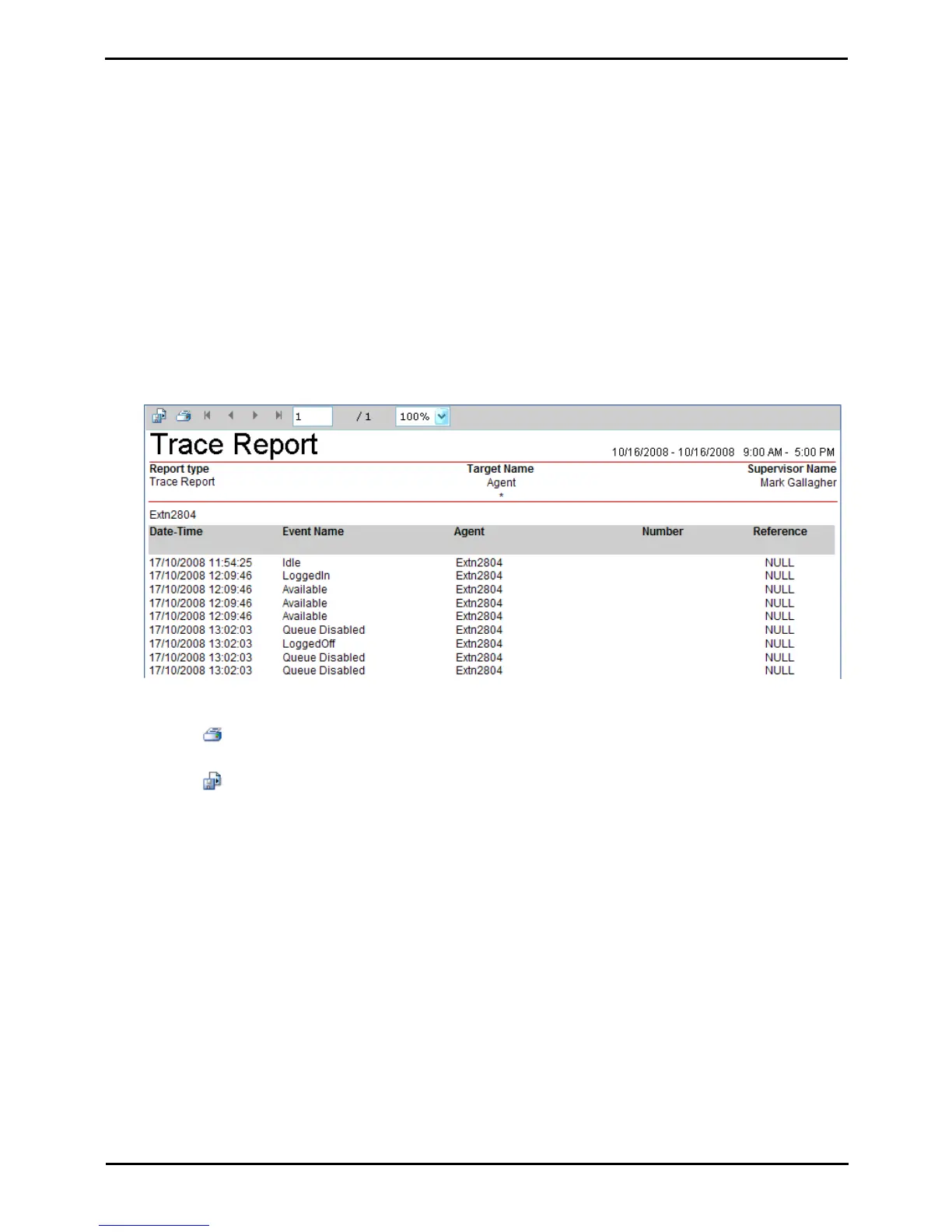
You can manually run a report at any time after the report has been created. The report is displayed in a browser window
for viewing. You can then select to print the report or save it to a number of file formats.
· Important: Manual Reports Use Popup Windows
Manually run reports require your browser to support popups. Depending on your browsers settings you may be
prompted on whether you want to allow the pop-up when you run the report. If the report does not appear you
will have to enable popups for the IP Office Customer Call Reporter server website through your browser's options.
Note that many security software suites also block popups unless you allow them.
To manually run a report
1.Select the Historical Reporting tab.
2.Click on Standard Reports to select a standard report template or click on Saved Reports to view a list of your
previously saved reports.
3.Drag and drop the required report on the main area of the window. All the report details are shown.
4.Adjust the report details if necessary.
5.In the Report Scheduling area select the scheduled type as Manual.
6.Click View. A new web browser window opens containing the report.
7.When you are viewing the report you have the following options available.
· Print
Click and select the printer that the report should be sent to.
· Export
Click to export the file. The file formats available are:






 To Next Page