CCR 1.0 User Guide Page 95
15-601130 Issue 1k (22 May 2009)IP Office
Reports: Creating Reports
selected.
· Include Internal
For reports based on the Call Details Report and Call Summary Report templates, select whether the
report should include internal calls. Other reports include internal calls automatically.
· Group Results By
By default records in a report are shown in alphabetic or time order (depending on the report type and target).
· For reports based on the Call Details Report , Call Summary Report and Voicemail Report
templates, the records output in the report can be grouped by a common factor such as account code. Each
group will include its own summary for the grouped records in addition to the summary for the whole
report. Records that do not match the grouping being used, for example calls with no account code when
the report is grouped by account code, will be grouped at the start of the report.
· Reports based on the Agent Summary Report template are automatically grouped by queue.
· Reports based on the Alarm Report and Trace Report templates cannot be grouped, they show
events in time order.
· Working Hours
Set the time frame for calls to be included in the report. By default the hours are set to 09:00 to 17:00.
· Include Saturdays/Include Sundays
Select whether calls occurring on these days should be included in the report.
· Filter
This option is only available for reports based on the Call Details Report template. It allows you to select
which calls are included in the report based on the end state of the call.
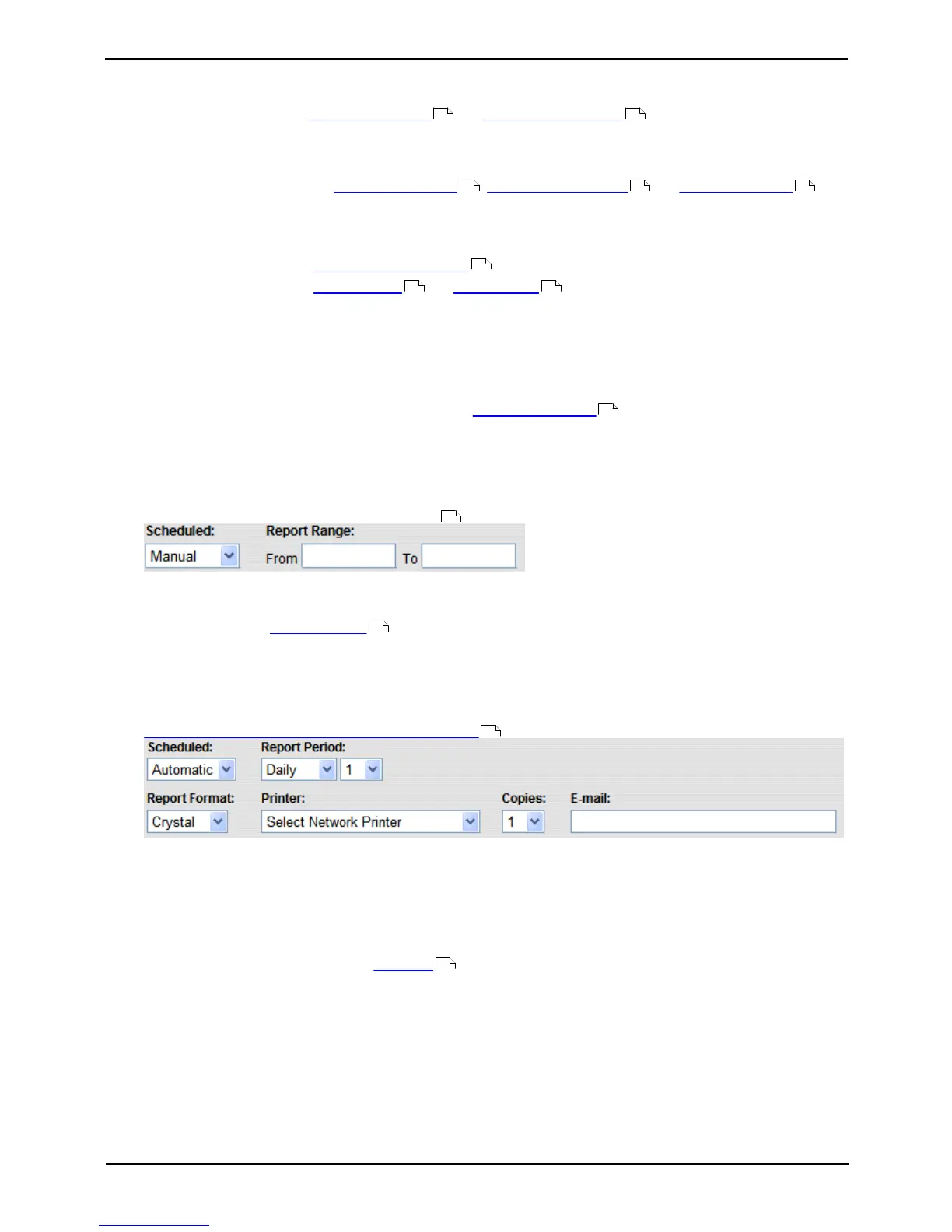
8. Set when the report should occur
By default Scheduled field is set to Manual which means that you can run the report whenever you require it.
· Manual
Use this setting for reports that are only run when you select it. The report configuration settings are displayed to
allow changes if required before the report runs. The report is displayed in the browser window but can then be
exported or printed. See Running Manual Reports .
· Use the Report Range to specify the period that should be covered by the report.
· If you don't want to save the report as a template for future use click View to run the report now. The report
is displayed in a browser window from which you can print it or save it in a number of file formats.
· Even for reports that you are planning to schedule as Automatic, running the report manually first allows you
to confirm that it contains the data and targets required.
· Automatic
Use this setting for reports that will run automatic at repeated regular intervals. When select the report settings
change from those used for Manual (above) to those listed below. Note that these settings are separate from the
scheduling of when and how frequently the report is run .
· Report Period: Range = 1 to 52.
These fields set the range of data to include in the report. Select Daily, Weekly or Monthly. The number of
days or weeks is counted back from the date that the report is actually run. For example Daily 1 will report
on the previous day, Weekly 2 will report on the previous 2 weeks. Months are from the last full month, for
example if a report set to Month 1 is run in February, the report will use the data for January.
· Report Format
Select the format that the report is to be produced in from either Adobe PDF, Word, Excel, Rich Text or
Crystal. Note that if the report is scheduled and sent in Excel format, formatting is not applied.
· Printer
Select the printer that the report should be sent to if you want it to be printed automatically. Only network
printers available to the IP Office Customer Call Reporter server PC appear in this list.
· Copies
Select the number of copies of the report that should be produced. You can select between 1 and 10, the
default number being 1.
· Email Address
Enter an email address if you want the report to be sent to an email account.
9. When the report settings are as required click Save. The report will be saved under Saved Reports. There is no
103 106
103 106 109
101
102 108
103
97
97
98
98






 To Next Page